
Sync Status
What Pending, Active, Disabled, and Failed mean for a Calendox sync, why syncs get paused automatically, and how to fix a stuck sync.
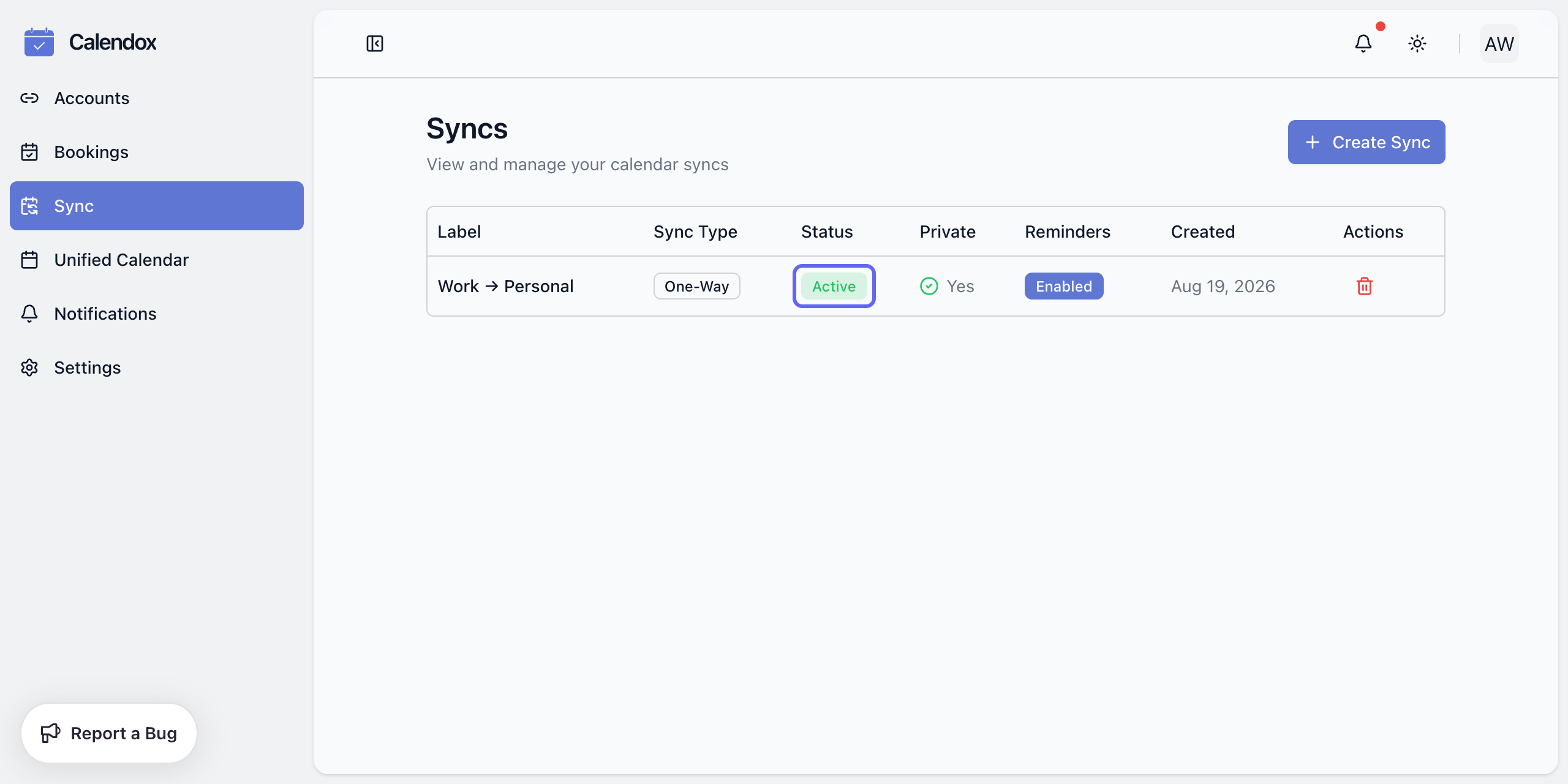
Every sync shows one of four statuses in Dashboard → Sync: Pending (setting up or catching up), Active (running in real time), Disabled (paused, with a banner explaining why), or Failed (hit a permanent error). This page explains each status and how to get a sync back to Active.
What does each status mean?
| Status | Meaning |
|---|---|
| Pending | The initial event copy is in progress — either the sync was just created, or it was just restored after a pause and is catching up. |
| Active | The initial copy finished. The sync is processing changes in real time as Google and Microsoft report them. |
| Disabled | The sync is paused — a banner on the row explains the reason (see below). Synced copies stay in the target calendars untouched. |
| Failed | The sync hit a permanent error during setup and can't recover automatically. |
While a sync is being deleted, its row shows Deleting — Calendox is removing the synced copies it created from the target calendars before removing the sync itself.
Why is my sync stuck in Pending?
An initial copy normally finishes within a few minutes; large calendars and multi-way syncs with many participants legitimately take longer. If a sync stays Pending well beyond that:
- Check that the calendars' accounts are still connected under Dashboard → Accounts.
- If a provider's access was revoked or expired, repeat the Connect Google / Connect Microsoft flow for that account to re-authorize it — see Connect Google Calendar or Connect Microsoft Calendar.
- If the sync is still stuck after reconnecting, delete it and create it again.
Why was my sync disabled?
Syncs are paused automatically for billing and licensing reasons — there is no manual pause. The banner on the sync row tells you which applies:
| Reason | What it means | How to recover |
|---|---|---|
| Subscription expired | Your 14-day trial ended, your subscription was cancelled or lapsed without renewing — including while you switch from card billing to Microsoft Marketplace — or Microsoft cancelled your Marketplace subscription. | Subscribe to a plan — syncs are restored automatically once it's active. On a Business team, a member's syncs resume once an admin assigns them a license from the new subscription — see Team management. |
| Payment failed | A card renewal payment failed. You get a 3-day grace period during which syncs keep running; only after that are they paused. A Microsoft Marketplace subscription keeps syncing while Microsoft has it suspended. | The grace period ended and the subscription expired, so subscribe again in Dashboard → Settings → Billing — syncs are restored automatically once the new subscription is active. On a Business team, a member's syncs resume once an admin assigns them a license from the new subscription — see Team management. |
| License limit exceeded (Enterprise) | Your subscription has fewer seats than you have imported secondary-tenant calendars, so the account's syncs are paused. New syncs can't be created until the seats cover them. | An admin adds seats or removes imported secondary-tenant calendars — syncs restore automatically once the seats cover every remaining one. |
| License revoked (Business) | No license from your team's subscription is assigned to you — an admin removed yours, the seat pool was reduced, the team subscribed before one was assigned to you, or the subscription your license came from was cancelled (cancelling a subscription removes its licenses). | An admin must assign you a license from an active team subscription — syncs resume as soon as they do. After a cancellation, that's a license from the team's new subscription. The one exception: if the team's subscription was cancelled or failed while your own 14-day trial was still running, syncs resume on their own — except on the last day of your trial (UTC), which already counts as ended (see Team management). |
While paused, nothing is deleted: events already synced stay in the target calendars, and once the sync is restored it returns through Pending while it catches up, then back to Active. See Sync protections for the full pause-and-resume behavior and Plans and billing for the billing side.
What do I do with a Failed sync?
A Failed sync can't be resumed — delete it and create a new one. Before recreating, check that:
- Both calendars are still imported and their accounts still connected under Dashboard → Accounts.
- You haven't hit your plan's sync limit — every sync occupies a slot regardless of status, so delete Disabled or Failed syncs you no longer need. See Plans and billing.
Deleting a Failed sync also cleans up any copies it did manage to create. If the deletion itself reports a partial failure, simply delete again — the cleanup safely retries only what's left.
Troubleshooting
- A calendar can't be removed from Dashboard → Accounts. A calendar that's part of a sync can't be removed directly — delete the sync first, then remove the calendar.
- The sync is Active but a change hasn't appeared. Changes normally land within seconds. Give it a moment, then check the source event was actually saved and that the field in question is one the sync copies (Sync Properties chosen at creation).
- Syncs paused right after a plan change. A downgrade only takes effect if your usage fits the lower tier, but an expiry or failed payment pauses everything — check Settings → Billing for an action-required banner.
Next steps
- Sync protections — what happens on subscription lapse, in detail
- Create your first sync — recreating a deleted sync
- Plans and billing — grace periods, downgrades, and renewals
Multi-Way Sync
How multi-way calendar sync keeps two or more Google and Outlook calendars mutually identical in Calendox, with built-in loop prevention.
Sync Protections
The always-on safeguards behind every Calendox sync — duplicate-import blocking, one sync per calendar, loop prevention, and pause-and-resume.