Zoom
How to connect Zoom to Calendox, add Zoom meeting links to calendar events and booking pages, use your Personal Meeting ID, and disconnect safely.
The Zoom integration lets Calendox create Zoom meetings for you: add Zoom to a calendar event or a booking page, and a unique meeting is created with the join link attached automatically. Zoom is the most flexible of the three meeting apps — it works with events on both Google and Microsoft calendars, and with any booking page destination.
Prerequisites
- A Zoom account (free or paid).
- At least one connected Google or Microsoft calendar — Zoom links are always attached to calendar events, so Calendox requires a calendar connection before linking Zoom. See Connect Google Calendar or Connect Microsoft Calendar.
How do I connect Zoom?
1. Open Settings → App
In the dashboard, go to Settings, open the App tab, and find the Meeting Apps section.
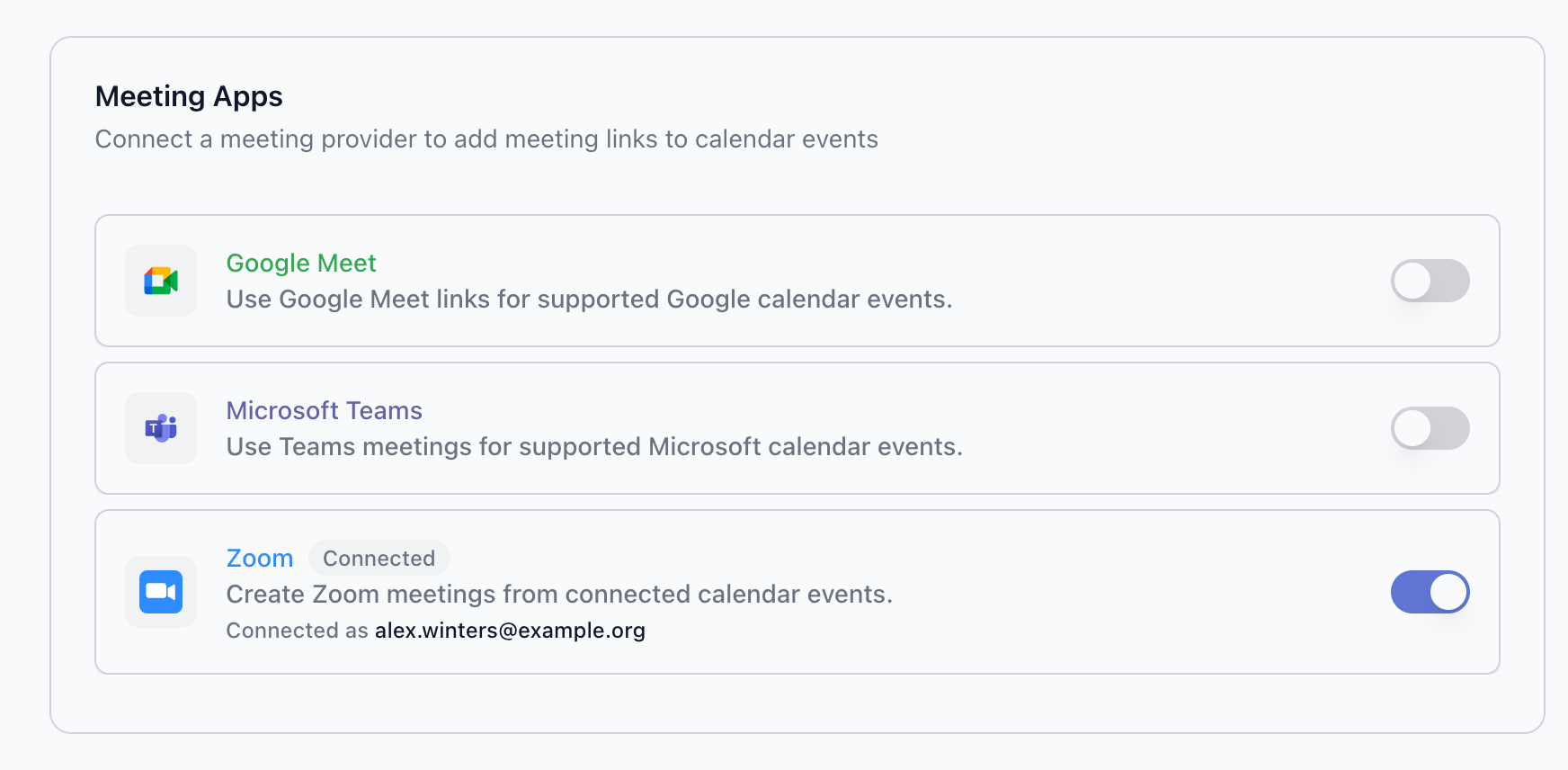
2. Toggle Zoom on
You're redirected to Zoom's sign-in page. Sign in with the Zoom account that will host your meetings.
3. Review and allow permissions
Zoom shows a consent screen with the permissions Calendox requests:
| Permission | Why Calendox needs it |
|---|---|
meeting:write:meeting | Create Zoom meetings when you add a Zoom link to a calendar event |
meeting:read:meeting | Read meeting details to display the join URL in the event |
meeting:delete:meeting | Remove the Zoom meeting if you delete the calendar event it was attached to |
user:read:user | Read your Zoom user ID to associate meetings with your account |
Calendox does not access Zoom recordings, chat messages, webinars, or any other Zoom data — see OAuth Permissions for the full permission reference. Click Allow.
4. Confirm the connection
You're returned to Settings → App. The Zoom row shows Connected with the Zoom account that will host your meetings ("Connected as …"), and Calendox confirms the connection with an email and an in-app notification.
Add a Zoom link to a calendar event
- In the Unified Calendar, click Add Event (or open an existing event).
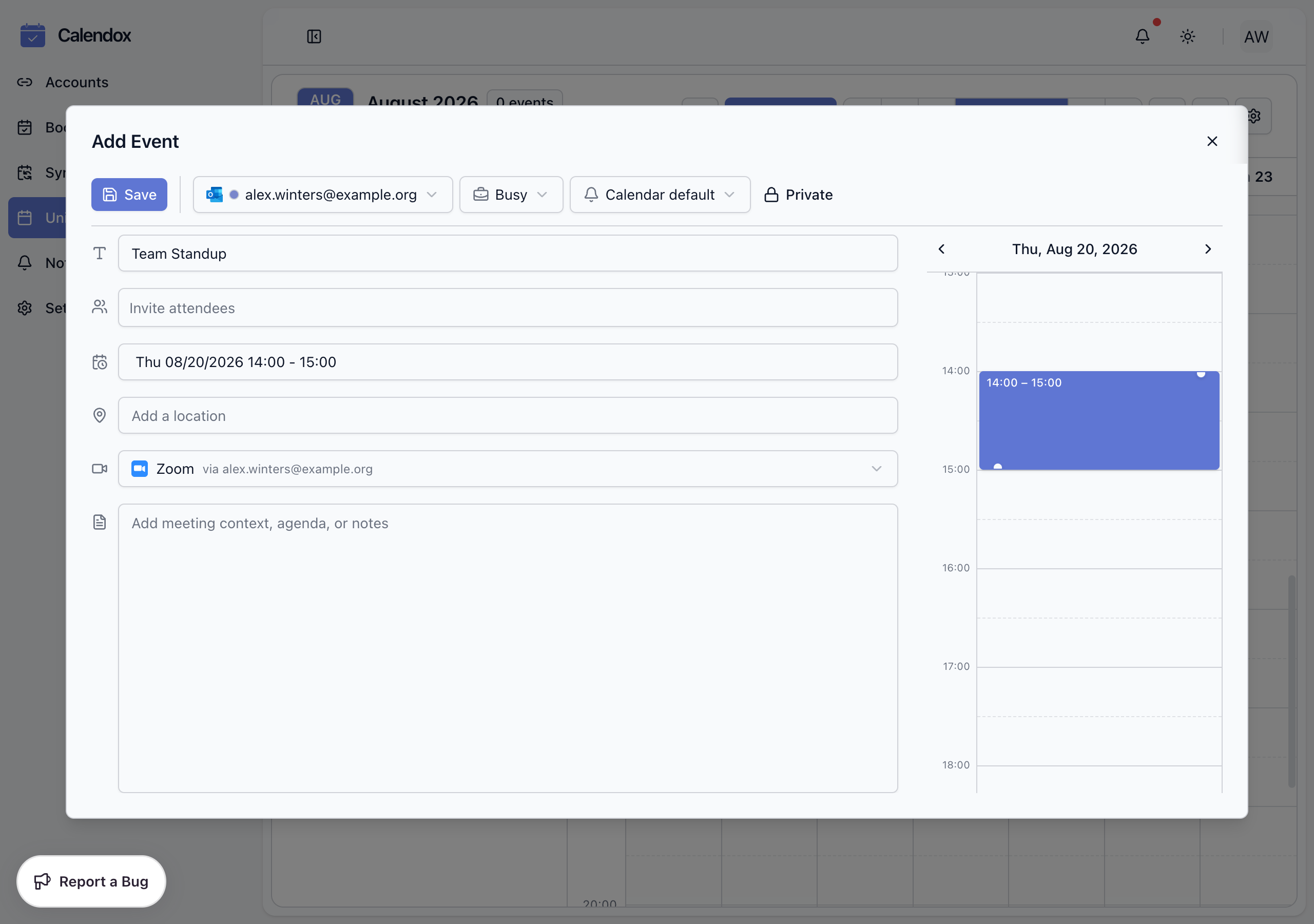
- In the Meeting field, select Zoom. Providers that need a connection you haven't made are disabled as Not connected; available ones show which account will host the meeting.
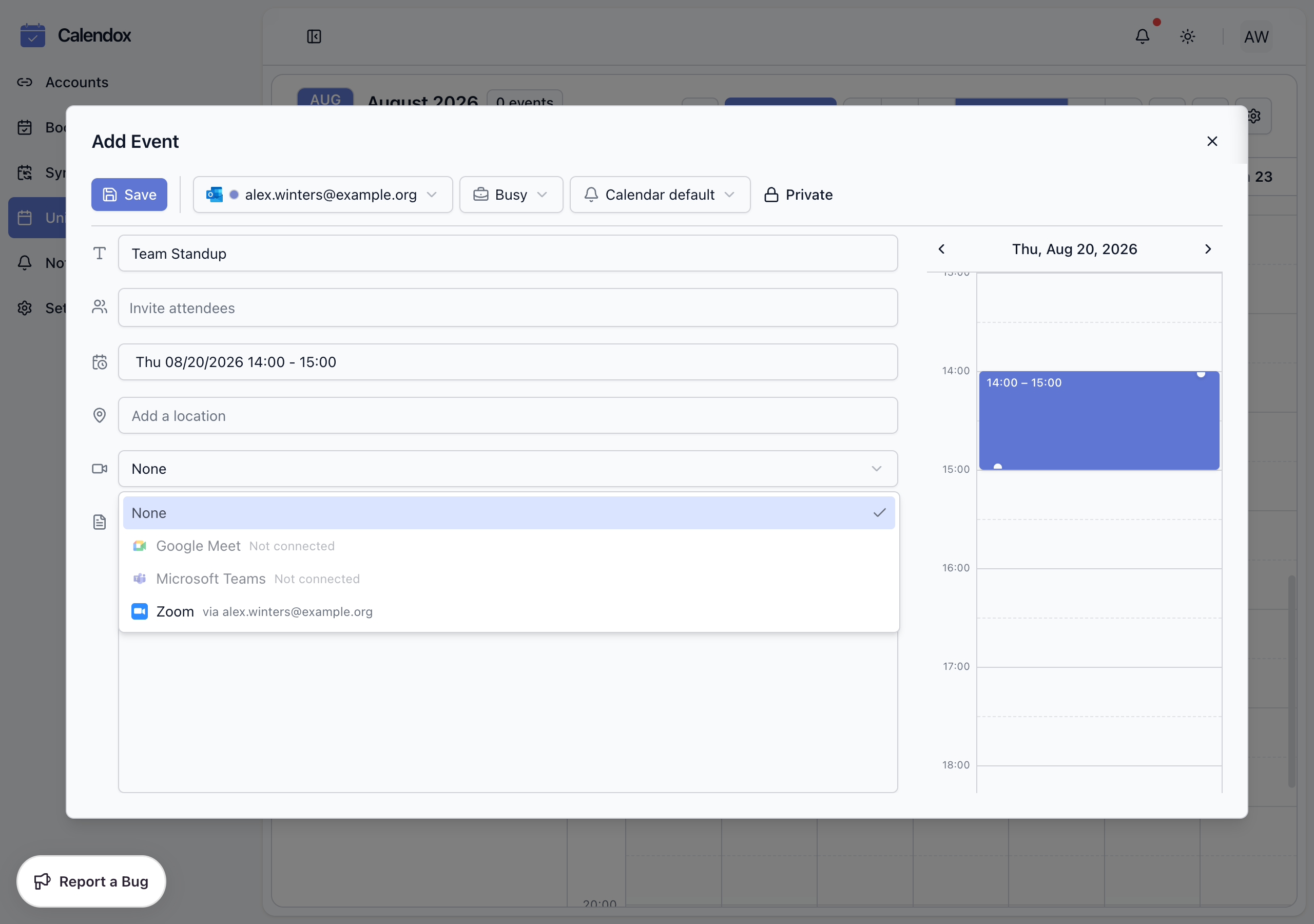
- Save the event. Calendox creates the Zoom meeting and writes the join link back to the event in Google Calendar or Outlook, so attendees can join straight from their calendar app.
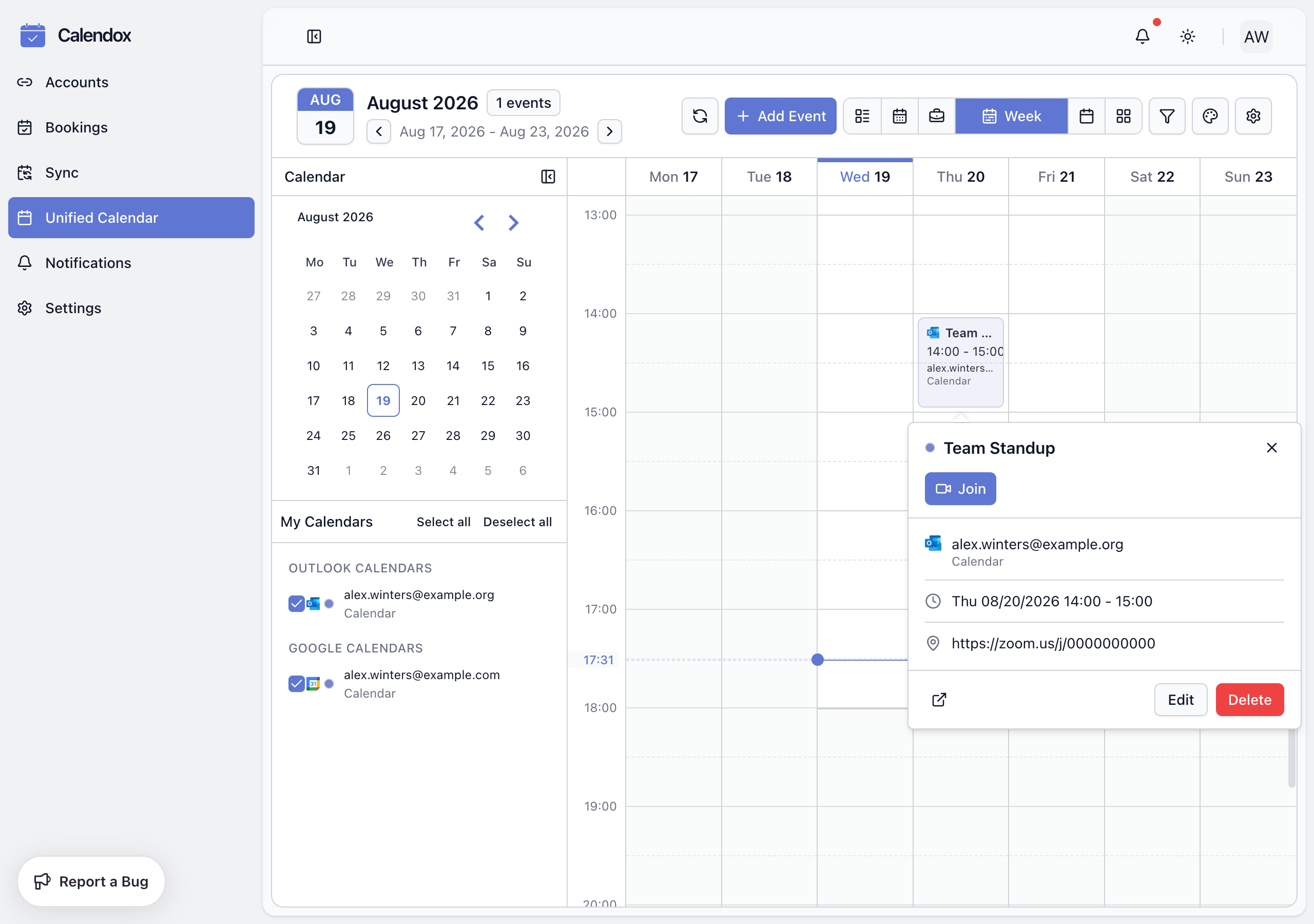
The Zoom meeting mirrors the event: the title becomes the meeting topic, and the start time, duration, and timezone are carried over — a recurring event gets a matching recurring Zoom meeting. Editing the event updates the Zoom meeting, and deleting the event deletes it, so your Zoom account never fills up with orphaned meetings.
Can I use Zoom on booking pages?
Yes — with any destination calendar. In the booking page editor, set Event → Meeting link to Zoom:
- Each booking gets its own unique Zoom meeting by default.
- Turn on Use Personal Meeting ID to host every booking in your Zoom PMI room instead — keep in mind that all bookings then share the same join link.
- The booker receives the join link on the confirmation screen and in confirmation and reminder emails. On approval-required pages, the meeting is created when you approve the request.
- If a booker reschedules, the Zoom meeting is moved and the join link stays the same. If a booking is cancelled, the Zoom meeting is deleted.
See Meeting links and location for all booking-page meeting options.
How do I disconnect Zoom?
- Go to Settings → App → Meeting Apps.
- Toggle Zoom off.
Calendox immediately revokes its own access token with Zoom. Events and bookings keep the links already created — Calendox just can no longer create, update, or delete Zoom meetings.
You can also uninstall from the Zoom side: visit marketplace.zoom.us/user/installed and uninstall Calendox. Zoom notifies Calendox, the connection is removed automatically, and you're informed by email and an in-app notification.
Troubleshooting
"Zoom did not grant Calendox access to this account." You cancelled Zoom's consent screen, so nothing was connected. Toggle Zoom on again and click Allow.
"Authorization failed" after clicking Allow Your Zoom account may belong to an organization that restricts third-party apps. Ask your Zoom administrator to approve Calendox in your organization's Zoom Marketplace settings.
Connecting fails and asks for a calendar Zoom links are attached to calendar events, so at least one Google or Microsoft calendar must be connected before you link Zoom.
Zoom links suddenly stopped generating If Zoom reports Calendox's access as revoked or expired — for example after the app was removed on the Zoom side or by an admin — Calendox disconnects the integration automatically and notifies you by email and in-app. Reconnect from Settings → App → Meeting Apps.
Zoom shows "Not connected" in the event form The connection was removed or never completed. Toggle Zoom on again under Settings → App → Meeting Apps.
Meetings end earlier than expected Your Zoom plan's own limits (such as maximum meeting length on free accounts) still apply — Calendox creates the meeting but doesn't change what your Zoom account allows.
Related
- What are Meeting Apps?
- Meeting links and location — Zoom and PMI on booking pages
- OAuth Permissions — every scope Calendox requests
What are Meeting Apps?
What Calendox meeting app integrations are — add Google Meet, Microsoft Teams, or Zoom links to calendar events and booking pages automatically.
Google Meet
How Google Meet links work in Calendox — automatic Meet links on Google calendar events and booking pages, plus Meet links for Outlook events.