
What are Meeting Apps?
What Calendox meeting app integrations are — add Google Meet, Microsoft Teams, or Zoom links to calendar events and booking pages automatically.
Meeting apps are Calendox's video-conferencing integrations: Google Meet, Microsoft Teams, and Zoom. Once a meeting app is in place, Calendox creates the meeting and attaches the join link automatically — whenever you add it to a calendar event, or whenever someone books you through a booking page. No copy-pasting links.
Where can meeting links be added?
| Surface | Where you set it | Available on |
|---|---|---|
| Calendar events | Unified Calendar → Add Event → Meeting field | All paid plans and the trial |
| Booking pages | Booking page editor → Event → Meeting link | All paid plans and the trial |
Meeting app integrations have no separate plan tier or add-on price — they are included wherever these surfaces are available. See Plans and billing for what each plan includes.
Which meeting app works where?
Google Meet and Microsoft Teams are native to their own calendars — for events on those calendars, they work immediately with no extra connection. Connecting a meeting app unlocks the rest:
| Meeting app | Works without connecting | Connecting it unlocks |
|---|---|---|
| Google Meet | Events on Google calendars — personal Gmail included | Meet links on events on Microsoft calendars |
| Microsoft Teams | Events on Microsoft work or school calendars | Teams links on Google calendars and personal Microsoft calendars |
| Zoom | — | Zoom links everywhere: any calendar event and any booking page |
Booking pages use the native pairings only for Meet and Teams: Google Meet requires a Google destination calendar, Microsoft Teams requires a Microsoft work/school destination, and Zoom works with any destination. See Meeting links and location.
How do I connect a meeting app?
All three integrations live in one place: Dashboard → Settings → App, in the Meeting Apps section.
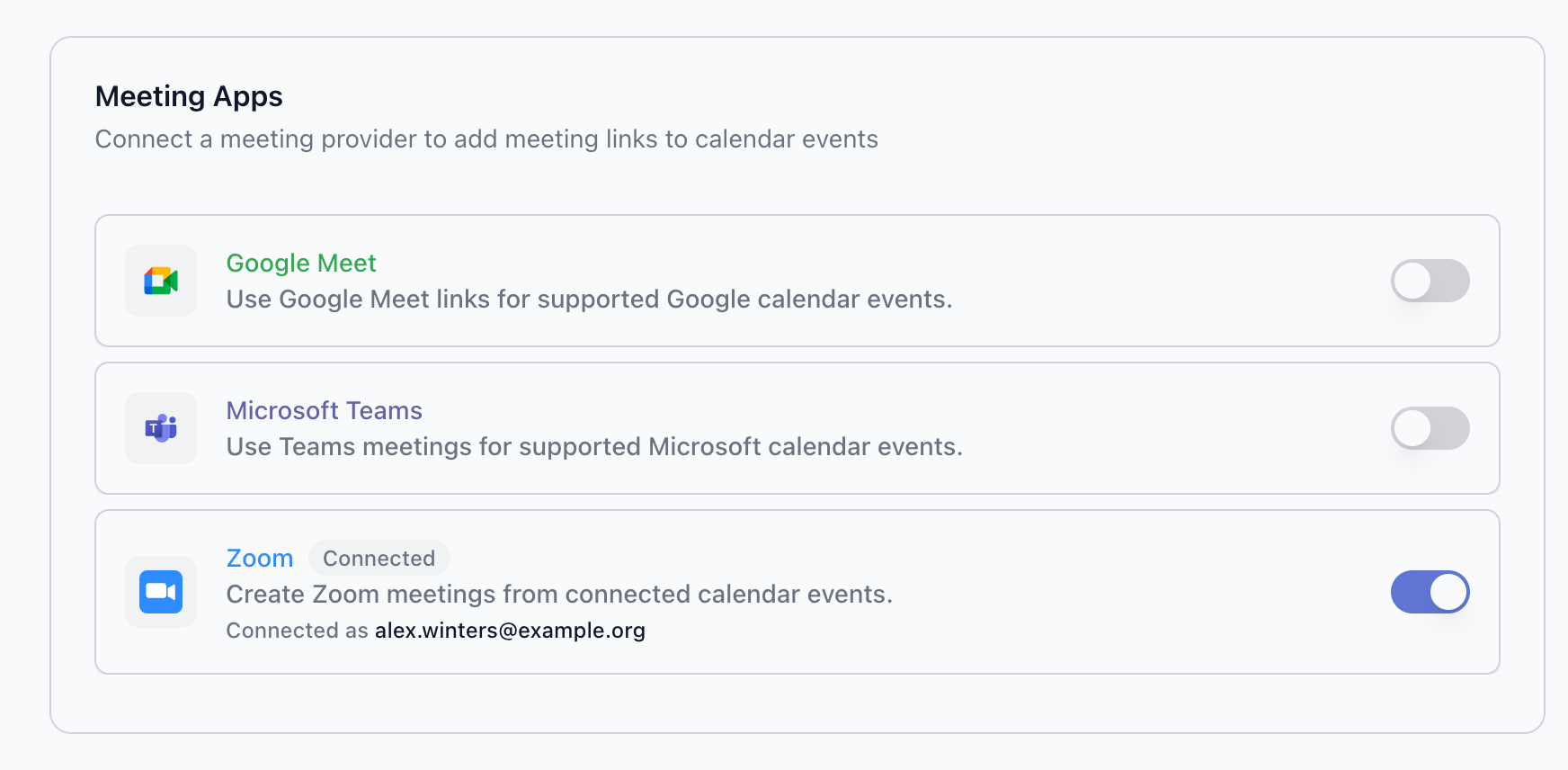
- Toggle on the app you want to connect.
- You're taken to the provider's own sign-in and consent screen (Google, Microsoft, or Zoom).
- Review the requested permissions and allow them.
- You're returned to Settings → App — the row now shows Connected and which account will host your meetings ("Connected as …").
Each integration has its own guide with the exact flow, account caveats, and troubleshooting: Zoom, Google Meet, and Microsoft Teams.
Where does the join link appear?
On calendar events, native Meet and Teams meetings show the provider's own Join button in Google Calendar or Outlook. Zoom links and cross-provider links are saved on the event itself, so attendees can join straight from their calendar app.
On bookings, the join link is included on the booking confirmation screen, in confirmation and reminder emails, and on the calendar invitation. On approval-required pages, the meeting is created when you approve the request.
What permissions do meeting apps use?
Each meeting app asks for its own permissions when you connect it — the complete scope list, with the reason for each one, is on the OAuth Permissions page. You can disconnect any meeting app from the same Meeting Apps section at any time, and additionally revoke Calendox's access from the provider's own account settings.
Related
- Zoom · Google Meet · Microsoft Teams
- Meeting links and location — meeting links on booking pages
- OAuth Permissions — every scope Calendox requests
Manage Bookings
Manage received bookings from the Calendox dashboard, let bookers reschedule or cancel with their manage link, and send automatic reminders.
Zoom
How to connect Zoom to Calendox, add Zoom meeting links to calendar events and booking pages, use your Personal Meeting ID, and disconnect safely.