Manage Bookings
Manage received bookings from the Calendox dashboard, let bookers reschedule or cancel with their manage link, and send automatic reminders.
Bookings are managed from two sides: you handle pages and received bookings in the dashboard, while every booker gets a private manage link to reschedule or cancel without contacting you. Reminder emails and notifications keep both sides informed automatically.
The owner dashboard
Dashboard → Bookings has two tabs:
- Pages — your booking page cards. Each card copies the link, shows the QR code, and has a menu with Edit, Duplicate, Deactivate/Activate, and Delete. Deactivating takes the page offline but keeps everything; deleting stops all of its links immediately and removes its booking history.
- Bookings — the bookings people have made with you, filtered by Upcoming, Pending approval, and Past. A badge on the tab shows how many requests await your approval.
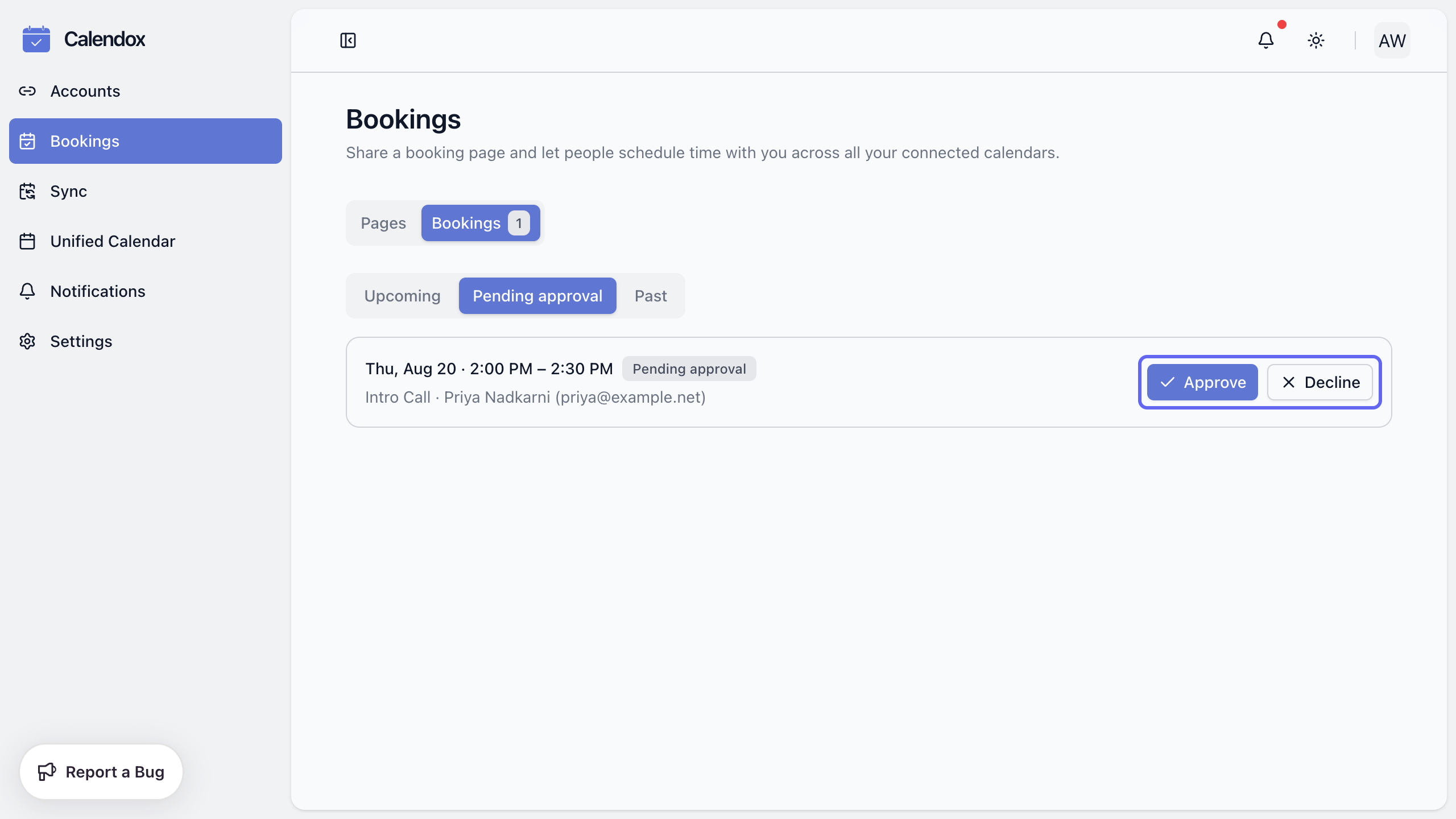
From the Bookings tab you can:
- Approve or Decline pending requests (see Questions and approvals).
- Cancel an upcoming confirmed booking — the booker is notified by email.
- Open the booking's meeting link directly.
How do bookers reschedule or cancel?
Every confirmation email carries a private manage link for that booking. The link is unguessable and specific to one booking — no account or sign-in needed. From it, the booker can:
- Pick a new time — an in-place reschedule. The booker picks from your live availability, and the existing calendar event is updated, not recreated: the meeting link stays the same, and the calendar invitation updates automatically for everyone.
- Cancel booking — with an optional reason. The event is removed from your calendar and you're notified by email.
Rescheduling is available only for confirmed bookings — a request that is still waiting for your approval can be cancelled from the manage link, but not moved.
Reminders
Under Lifecycle → Email reminders (minutes before), add up to 3 reminder times per page — anywhere from 5 minutes to 2 weeks before the meeting. Bookers get a reminder email at each time you set, including the meeting link. When a booking is rescheduled, reminders are automatically re-scheduled around the new start time.
What notifications will I get?
You receive an email and an in-app notification for new bookings, approval requests, reschedules, and booker cancellations; expired approval requests appear as in-app notifications. The booker is emailed at every step of their booking — confirmation (with the manage link), approval or decline, reschedule, cancellation, expiry, and reminders.
All emails show times in the recipient's own timezone with a UTC reference, so a booker in another timezone always sees their local time.
Next steps
- Questions and approvals — the approval queue in detail
- Availability and scheduling — the rules behind the slots bookers can move to
- Share links, QR codes, and embeds
Share Links, QR Codes, and Embeds
Share a Calendox booking page with its link, QR code, or a website embed — plus private, expiring, and single-use links and URL prefill.
What are Meeting Apps?
What Calendox meeting app integrations are — add Google Meet, Microsoft Teams, or Zoom links to calendar events and booking pages automatically.