Share Links, QR Codes, and Embeds
Share a Calendox booking page with its link, QR code, or a website embed — plus private, expiring, and single-use links and URL prefill.
Every booking page has a standard share link, a downloadable QR code, and can be embedded on your website. You can also create private links with their own expiry or usage limits, and rotate the standard link to invalidate the old URL instantly. Each page supports up to 50 links in total.
Booking URLs look like calendox.com/book/<key>, where the key is an opaque generated identifier. There are no custom or guessable URLs by design — a link only works for the people you actually share it with.
The standard link
Copy the standard link from the copy icon on the page card, or from the Links section when editing the page. This is the URL to put in your email signature, social profiles, or messages.
How do I rotate a link?
If a link leaked or you want to cut off everyone who has it, open the page's Links section and click Rotate link. A new URL is generated and the current one stops working immediately — anywhere you shared the old link (email signatures, printed QR codes) needs updating.
Private links
Private links are separate URLs for the same page with their own controls, created under Links → New Private Link:
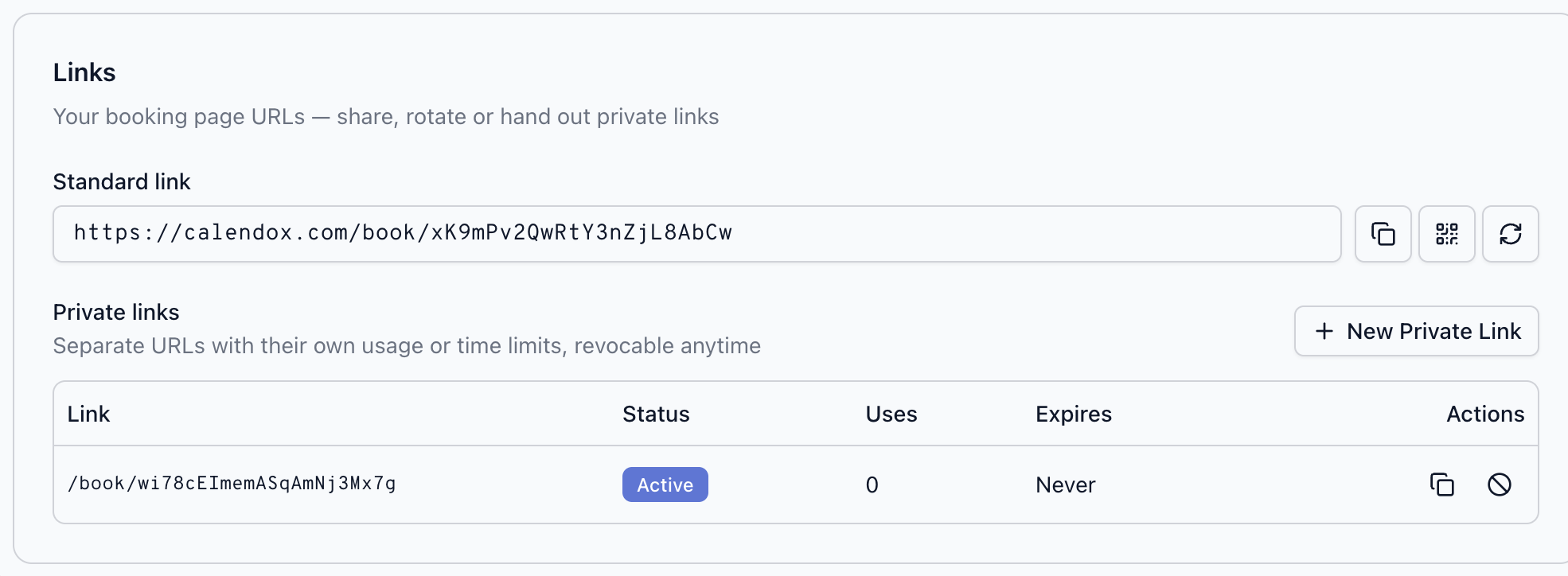
- Max uses — limit how many bookings the link accepts; set it to 1 for a single-use link.
- Expires — the link stops working after a date you pick.
- Revoke — kill any private link instantly without touching your standard link.
The links table shows each link's status (Active, Expired, Used up, or Revoked) along with its use count and expiry. A page can have up to 50 links in total.
Private links are useful for paid consultations shared with one client, limited-capacity offers, or time-boxed campaigns — when they're used up or expired, the page stays live for everyone else on the standard link.
QR codes
Every page has a QR code that opens its booking link when scanned — click the QR icon on the page card or in the Links section, then Download PNG. Useful for business cards, slides, posters, and conference badges. If you rotate the link, regenerate the QR code.
How do I embed a booking page on my website?
Public booking pages can be embedded in an iframe. Add a snippet like this, replacing the URL with your booking link:
<iframe
  src="https://calendox.com/book/your-link-key"
  width="100%"
  height="700"
  style="border: 0"
></iframe>
The page is mobile-friendly and adapts to the iframe's width.
Can I prefill the booking form from the URL?
Yes — append query parameters to any booking link to prefill the form:
name— the booker's nameemail— the booker's emailtz— the timezone to show slots in (an IANA name likeEurope/Berlin)
Example: https://calendox.com/book/your-link-key?name=Ada%20Lovelace&email=ada%40example.com. Handy when linking from a CRM or a signed-in area of your own product where you already know who the visitor is.
Next steps
Questions and Approvals
Collect booker details with custom questions, and approve bookings before they're confirmed — the requested slot is held while you decide.
Manage Bookings
Manage received bookings from the Calendox dashboard, let bookers reschedule or cancel with their manage link, and send automatic reminders.