
Questions and Approvals
Collect booker details with custom questions, and approve bookings before they're confirmed — the requested slot is held while you decide.
Booking pages can ask bookers custom questions before they book, and can require your approval before a booking is confirmed. While a request waits for your decision, the slot is held so nobody else can take it — a safeguard most scheduling tools don't offer.
Custom questions
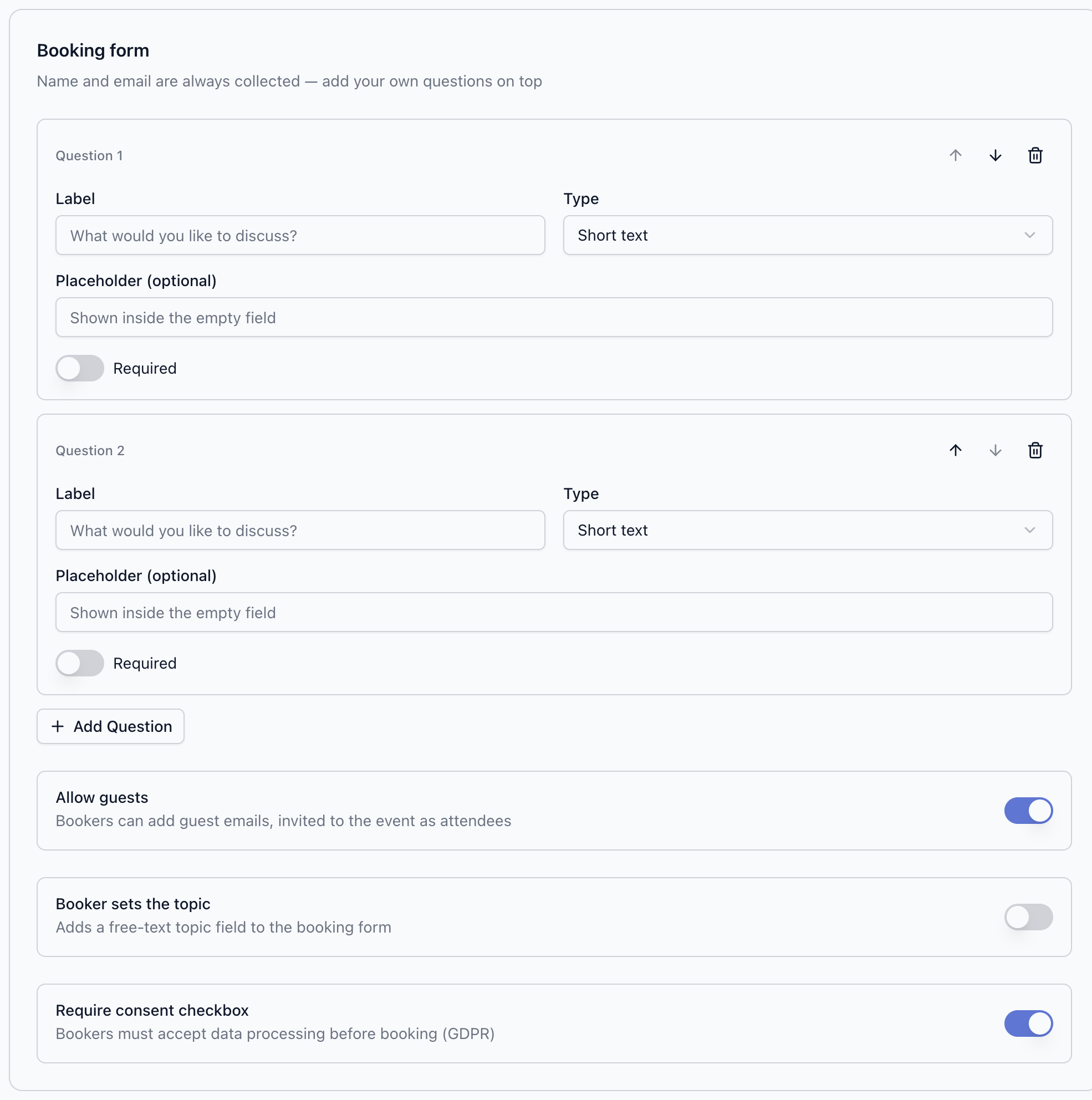
Every booking form always collects the booker's name and email. On top of that, add your own questions under Booking form in the page editor — up to 10 per page.
What question types are available?
| Type | Booker sees |
|---|---|
| Short text | A single-line text field |
| Long text | A multi-line text area |
| Phone number | A phone input |
| Dropdown | A single-choice select from your options |
| Multi-select | Multiple choices from your options |
| Radio buttons | A single choice shown as radio buttons |
For each question you can set a Label, an optional Placeholder, and a Required toggle. Choice types (Dropdown, Multi-select, Radio buttons) take a list of options. Reorder questions with the up/down arrows — the booker sees them in that order.
The Booking form section also has three related switches:
- Allow guests — bookers can add guest emails, invited to the event as attendees.
- Booker sets the topic — adds a free-text topic field to the booking form.
- Require consent checkbox — bookers must accept data processing before booking (GDPR).
How does the approval flow work?
Turn on Require approval under Lifecycle to review every booking before it's confirmed:
- A booker picks a slot and submits their details as usual — the screen shows Request sent instead of a confirmation.
- The requested slot is held: it disappears from the public page so nobody else can book it while you decide.
- The request appears in your dashboard under Bookings → Pending approval, with a badge on the Bookings tab.
- You Approve or Decline. Approving creates the calendar event and meeting link and confirms the booking; declining releases the slot.
Hold slot for (minutes) controls how long the hold lasts — from 30 minutes to 24 hours (default 4 hours). If you don't decide in time, the request expires automatically and the slot is released.
What emails does each side get?
| Event | Booker receives | You receive |
|---|---|---|
| Request submitted | "Booking request received" | "Booking approval requested" email + in-app notification |
| You approve | "Booking confirmed" with the calendar invitation, meeting link, and manage link | "New booking" email + in-app notification |
| You decline | A declined notice suggesting they pick another time | — |
| Request expires | An expiry notice | An in-app notification |
For instant (non-approval) pages, the booker gets "Booking confirmed" and you get "New booking" right away. All emails show times in the recipient's timezone with a UTC reference.
Next steps
- Manage bookings — where pending requests live and what bookers can do themselves
- Availability and scheduling — the rules that decide which slots can be requested
Meeting Links and Location
Add Google Meet, Microsoft Teams, or Zoom links to booked events, or use a phone number, address, or custom location on your booking page.
Share Links, QR Codes, and Embeds
Share a Calendox booking page with its link, QR code, or a website embed — plus private, expiring, and single-use links and URL prefill.