What is Bookings?
What Calendox booking pages are — public scheduling pages with availability checked live across all your connected Google and Outlook calendars.
A booking page is a public scheduling page where anyone can book time with you. Calendox computes your availability live across all of your connected calendars — Google Calendar and Microsoft Outlook together — and creates each confirmed booking as a real event on a destination calendar you choose, with the booker invited as an attendee.
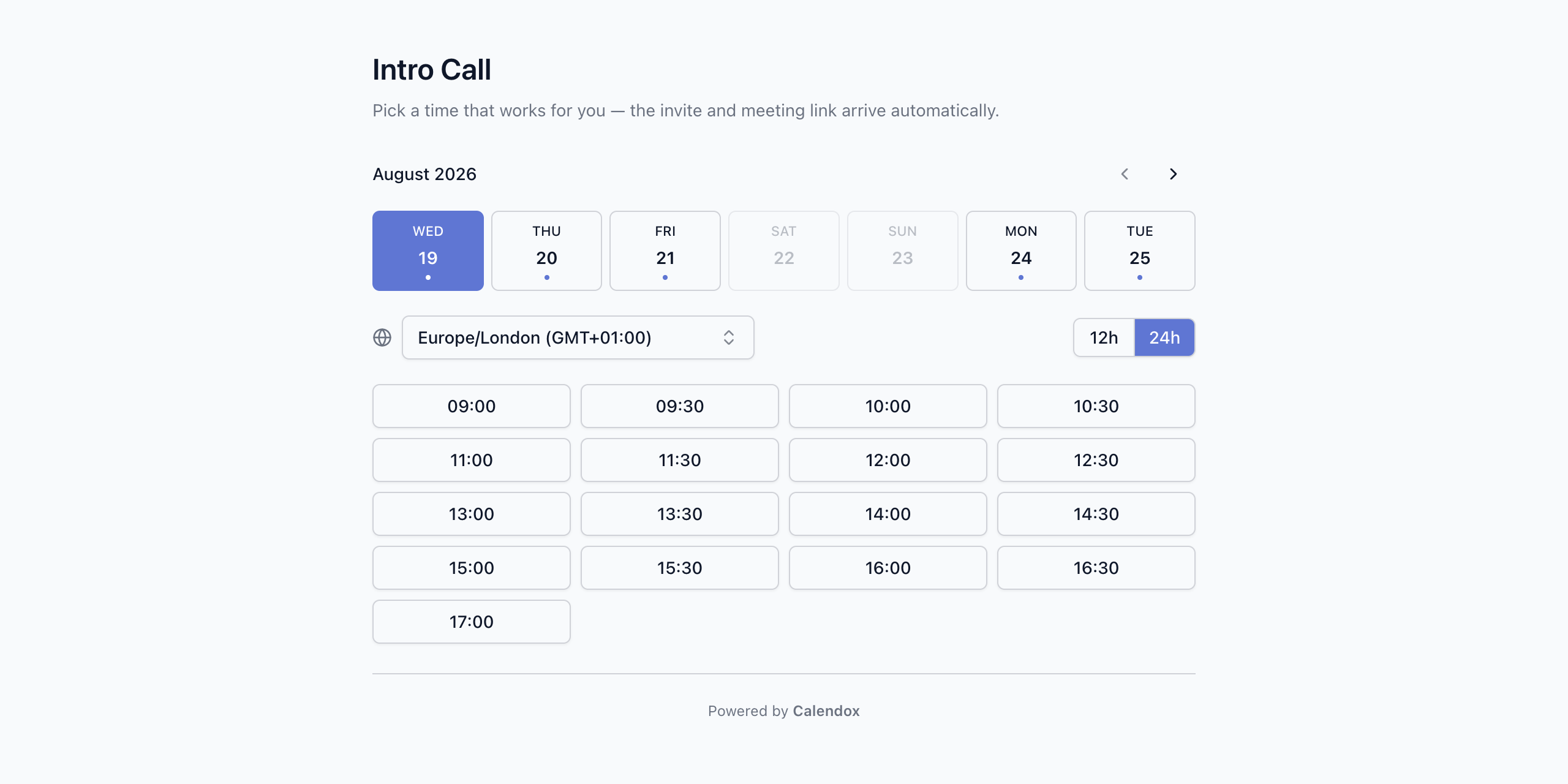
Because Calendox is a calendar sync platform, your booking availability is only as accurate as the calendars behind it. Every calendar you've connected can block slots, across both providers, so a booking link you share never offers a time you're actually busy.
How do booking pages work?
- You create a booking page and set your weekly hours, meeting durations, and scheduling rules.
- You share your booking link (
calendox.com/book/...), QR code, or website embed. - A booker picks an open slot, fills in their details, and books.
- Calendox creates the event on your destination calendar, adds the meeting link (Google Meet, Microsoft Teams, or Zoom), and emails both sides — the booker gets a private link to reschedule or cancel.
Bookers only ever see open time slots — never event titles, attendees, or any other calendar contents. Availability is computed on Calendox servers, and public pages are protected against automated abuse.
Which plans include Bookings?
| Plan | Booking pages |
|---|---|
| Trial (14 days) | Unlimited |
| Basic | 2 |
| Standard | Unlimited |
| Premium | Unlimited + Calendox branding removed from public pages |
On unlimited tiers, fair-use limits apply to prevent abuse. Bookings requires at least one connected, writable calendar to use as the destination — connecting calendars requires an active trial or subscription. Enterprise accounts do not have Bookings.
Team (collective) booking pages that combine several people's availability are not currently supported — each booking page belongs to one account.
See Plans and billing for the full plan comparison, or pricing to subscribe. For a feature overview, see the Bookings feature page.
Guides
- Create a booking page — set up and share your first page.
- Availability and scheduling — how slots are calculated, and every rule that shapes them.
- Meeting links and location — Google Meet, Microsoft Teams, Zoom, or a phone/address/custom location.
- Questions and approvals — custom intake questions and the approve-before-confirm flow.
- Share links, QR codes, and embeds — link rotation, private links, QR codes, and embedding.
- Manage bookings — the owner dashboard, booker self-service, reminders, and notifications.
Sync Protections
The always-on safeguards behind every Calendox sync — duplicate-import blocking, one sync per calendar, loop prevention, and pause-and-resume.
Create a Booking Page
Step-by-step guide to creating your first Calendox booking page — durations, timezone, destination calendar, meeting link, and sharing the link.