
Meeting Links and Location
Add Google Meet, Microsoft Teams, or Zoom links to booked events, or use a phone number, address, or custom location on your booking page.
Every booking page can attach a meeting link — Google Meet, Microsoft Teams, or Zoom — to each booked event, or use a phone number, physical address, or custom detail as the location instead. Set this under Event → Meeting link and Location type in the page editor.
Which meeting providers can I use?
Meeting link availability depends on the destination calendar you picked under Calendars:
| Meeting link | Works with |
|---|---|
| Google Meet | Google destination calendars — including personal Gmail accounts |
| Microsoft Teams | Microsoft destination calendars on work or school accounts only |
| Zoom | Any destination calendar (requires the Zoom integration) |
The editor grays out options your destination can't support, with a hint explaining why (for example Google destinations only or Work/school accounts only).
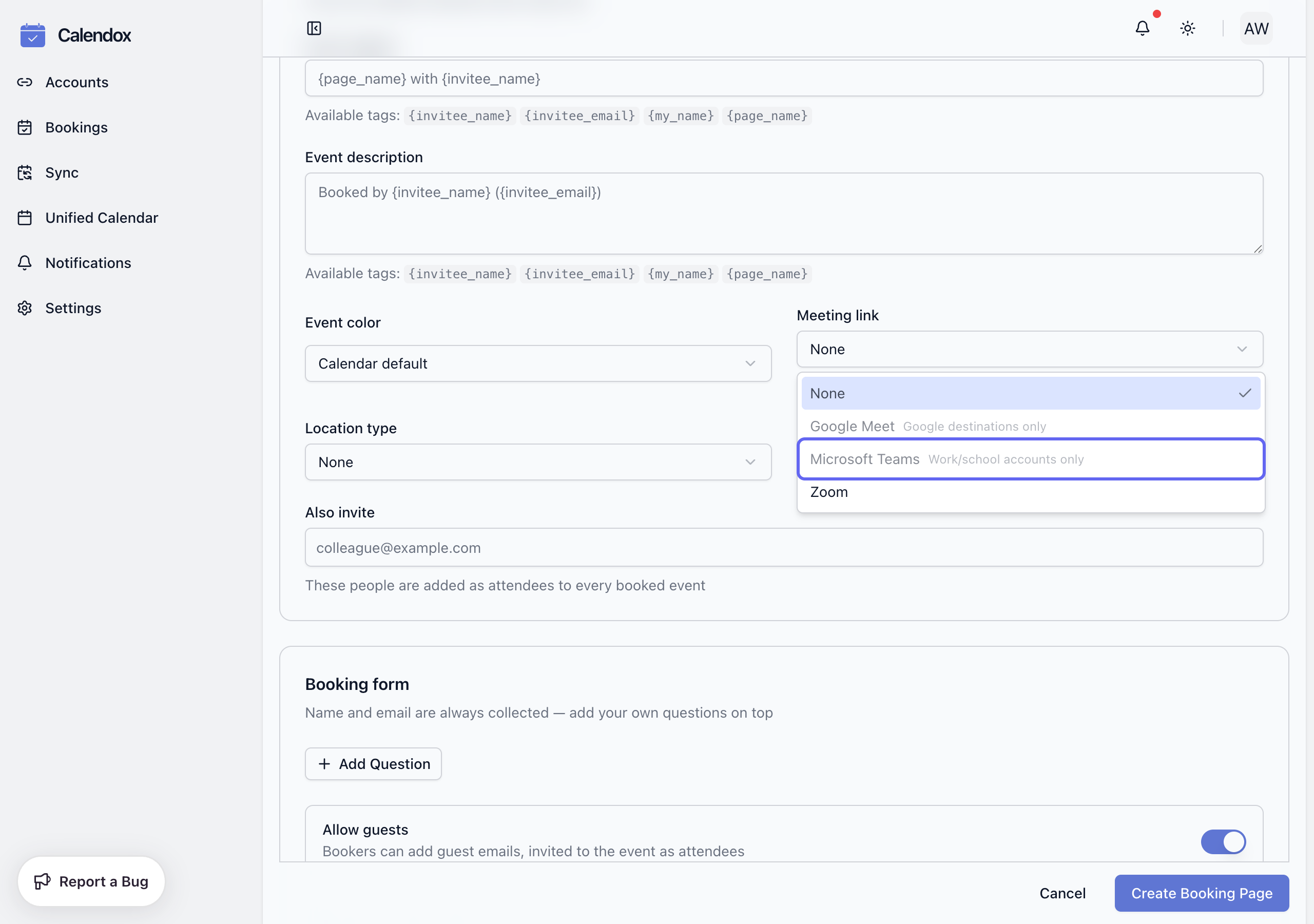
Google Meet
Available whenever your destination calendar is a Google calendar — personal Gmail accounts included. The Meet link is generated with the event and appears on the booking confirmation, in the calendar invitation, and in reminder emails.
Microsoft Teams
Available when your destination calendar belongs to a Microsoft work or school account. Personal Microsoft accounts (outlook.com, hotmail.com, live.com) cannot create Teams meeting links — this is a Microsoft platform limitation, not a Calendox one. If your destination is a personal Microsoft calendar, use Zoom instead, or switch the destination to a Google calendar and use Google Meet.
Zoom
Works with any destination calendar once you've connected Zoom to Calendox. By default each booking gets its own unique Zoom meeting; turn on Use Personal Meeting ID to reuse your Zoom PMI for every booking instead.
Phone, address, and custom locations
If you don't want a video link, set Location type to:
- Phone call — a phone number the booker should call.
- In-person address — street, city, and room details.
- Custom — anything else, including a URL to another meeting tool.
Address and custom locations are shown on the public booking page so visitors know where the meeting happens before they commit. Phone numbers are revealed to the booker only after they book — they never appear on the public page itself. After booking, the full location details appear on the confirmation screen, in the confirmation email, and on the booker's manage page.
When does the booker see the meeting link?
- Instant bookings — the meeting link appears on the confirmation screen and in the confirmation email immediately.
- Approval-required bookings — the link is created and revealed only once you approve the request. See Questions and approvals.
If a booker reschedules, the existing meeting link is kept — the meeting is moved, not recreated.
Next steps
Availability and Scheduling
How Calendox calculates booking availability — free/busy across all connected calendars, weekly hours, date overrides, buffers, notice, and caps.
Questions and Approvals
Collect booker details with custom questions, and approve bookings before they're confirmed — the requested slot is held while you decide.