
Microsoft Teams
How Microsoft Teams meeting links work in Calendox — Teams links on work or school calendar events and booking pages, and the personal-account limits.
Calendox creates Microsoft Teams meetings natively for events on Microsoft work or school calendars — select Teams on the event and the join link is added automatically, with no separate connection. Personal Microsoft accounts (outlook.com, hotmail.com, live.com) cannot create Teams meetings — this is a Microsoft platform restriction, not a Calendox one. Connecting Teams as a meeting app with a work/school account extends Teams links to your other calendars.
Which accounts can create Teams meetings?
| Calendar the event is on | Teams links? |
|---|---|
| Microsoft work or school calendar | Yes — native, works immediately |
| Personal Microsoft calendar (outlook.com, hotmail.com, live.com) | Only via a Teams meeting app connection (work/school account) |
| Google calendar | Only via a Teams meeting app connection (work/school account) |
The Teams meeting app connection itself must also be a work or school account — connecting with a personal account fails with "Personal Microsoft accounts are not supported for Teams Meeting integration."
Add a Teams link to a calendar event
- In the Unified Calendar, click Add Event (or open an existing event).
- In the Meeting field, select Microsoft Teams. Unavailable options are disabled as Not connected; available ones show which account will host the meeting.
- Save the event.
For events on work/school Microsoft calendars, the event becomes a real Teams meeting — attendees get Outlook's own Join button and can join from the Teams app or a browser.
For events on Google calendars or personal Microsoft calendars (requires the connection), Calendox creates a standalone Teams meeting hosted by your connected work/school account and saves the join link on the event.
How do I connect Microsoft Teams?
Only needed for Teams links outside work/school Microsoft calendars:
- Go to Settings → App and find the Meeting Apps section.
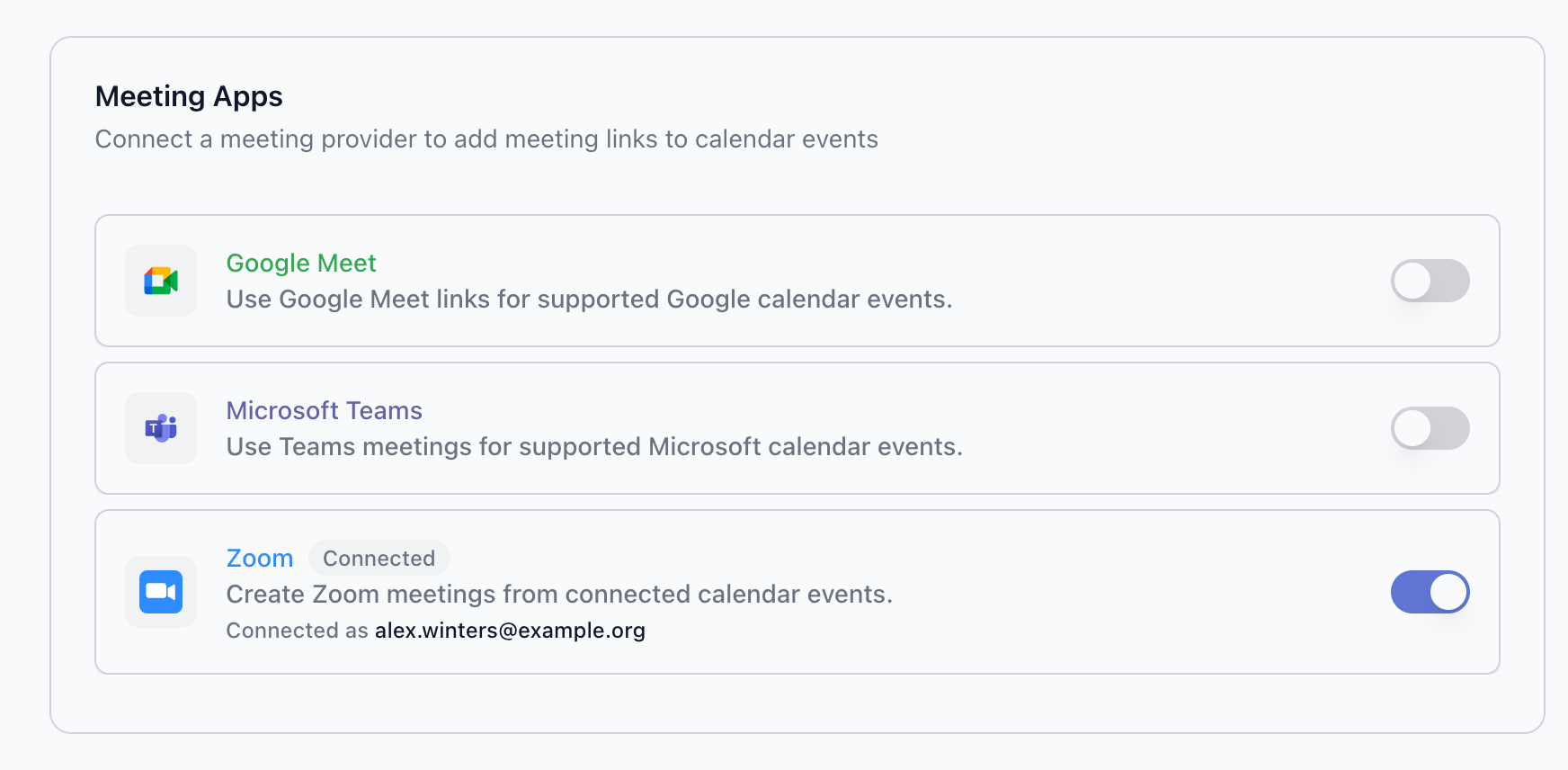
- Toggle Microsoft Teams on. You're redirected to Microsoft's sign-in and consent screen.
- Sign in with a work or school Microsoft account and accept the requested permissions — the Microsoft sign-in scopes plus
OnlineMeetings.ReadWritefor creating Teams meetings. See OAuth Permissions for the full list. - You're returned to Settings → App — the Microsoft Teams row shows Connected with the hosting account ("Connected as …").
Teams on booking pages
On booking pages, Microsoft Teams is available only when the page's destination calendar belongs to a Microsoft work or school account — the editor shows Work/school accounts only otherwise. If your destination is a personal Microsoft calendar, use Zoom, or switch the destination to a Google calendar and use Google Meet.
The Teams join link appears on the booking confirmation, in the calendar invitation, and in reminder emails. If a booker reschedules, the meeting is moved in place and the join link stays the same.
How do I disconnect Microsoft Teams?
Toggle Microsoft Teams off under Settings → App → Meeting Apps — you'll receive a confirmation email. Existing events keep their Teams links, and native Teams on work/school calendar events keeps working, because it uses your calendar connection rather than the meeting app connection.
To revoke Calendox's access at the Microsoft level, visit myaccount.microsoft.com/permissions and remove Calendox.
Troubleshooting
"Personal Microsoft accounts are not supported" when connecting The Teams meeting app must be a work or school Microsoft account. Sign in with your organization's Microsoft 365 account instead.
Teams is disabled ("Not connected") in the event form The event's calendar can't host Teams natively (it's a Google calendar or a personal Microsoft account) and no Teams meeting app is connected. Connect Teams with a work/school account under Settings → App → Meeting Apps.
Teams is grayed out ("Work/school accounts only") in the booking page editor The page's destination calendar is a personal Microsoft account. Booking pages create Teams meetings natively on the destination calendar, so a work/school destination is required — or use Zoom.
Microsoft shows "Approval required" instead of a consent screen Your organization requires administrator approval before new apps can be granted access. Ask your Microsoft 365 administrator to approve Calendox. After you request approval (or cancel) and return, Calendox shows "Microsoft did not grant Calendox access to this account." — nothing was connected; once your administrator has approved Calendox, toggle Microsoft Teams on again.
Related
- What are Meeting Apps?
- Google Meet — the equivalent for Google calendars
- Meeting links and location
Google Meet
How Google Meet links work in Calendox — automatic Meet links on Google calendar events and booking pages, plus Meet links for Outlook events.
Personal, Business, and Enterprise Accounts
The differences between Calendox Personal, Business, and Enterprise accounts — features, billing models, and how to choose the right type.