
What is the Unified Calendar?
What the Calendox Unified Calendar is — all your connected Google and Outlook calendars in one color-coded view, with six views and per-calendar filters.
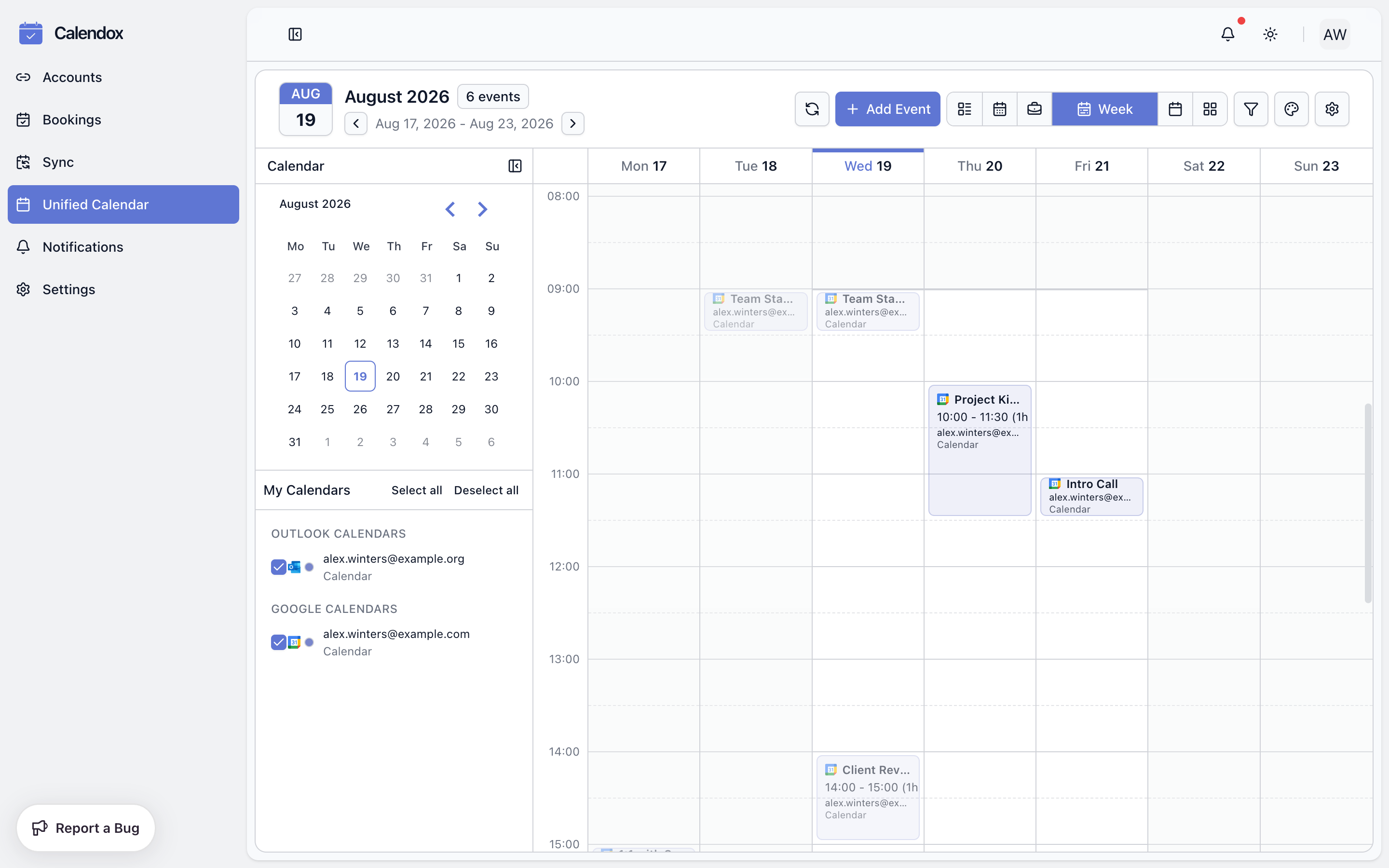
The Unified Calendar (Dashboard → Unified Calendar) shows events from every calendar you've connected — Google Calendar and Microsoft Outlook together — in one color-coded view. It's a real working calendar, not just a viewer: events you create or edit here are written straight back to the underlying Google or Microsoft calendar.
Because Calendox is a sync platform, the Unified Calendar also shows your synced copies alongside originals, so you see your schedule exactly as your calendars do.
Which plans include the Unified Calendar?
| Plan | Unified Calendar |
|---|---|
| Trial (14 days) | Included |
| Basic | Included |
| Standard | Included |
| Premium | Included |
Every plan includes the Unified Calendar. Enterprise accounts don't have the Unified Calendar — Enterprise tenants are managed from the tenant dashboard instead. See Plans and billing for the full comparison.
What views are available?
Switch views from the toolbar tabs — or with a single keystroke:
| View | Shows |
|---|---|
| Agenda | A scrolling list of upcoming events, grouped by date or by calendar |
| Day | One day on a time grid |
| Work week | Your working days (from Work Hours) on a time grid — Monday–Friday by default |
| Week | The full week on a time grid |
| Month | A month grid with event badges per day |
| Year | Twelve mini months for long-range navigation |
The calendar reopens in whichever view you used last — the choice is saved on your account. In Agenda view, use Agenda view group by in the calendar settings to group events by Date or by Calendar.
How are events color-coded?
Every event carries its calendar's color, so you can tell your calendars apart at a glance:
- Each connected calendar has a color, shown as a dot next to it everywhere calendars are listed and on its events in every view.
- The palette button in the toolbar opens Calendar Colors, where you can pick a new color for any calendar or click Sync color from provider to re-fetch the color you use in Google or Outlook.
- Prefer quieter events? Turn on Use dot badge in the calendar settings to render events as neutral chips with a colored dot instead of fully colored blocks.
Events also show a small provider icon (Google or Outlook), a repeat icon when they belong to a recurring series, and their calendar's label when the event block is large enough.
How do I filter what's shown?
Two surfaces control visibility:
- My Calendars rail — the left panel lists your calendars grouped by provider, each with a checkbox to show or hide its events, a color dot, a sync-status dot, and a Default star on your default calendar. A mini month picker above the list jumps to any date.
- Filter panel — the funnel button in the toolbar combines a Search box that matches event titles, descriptions, locations, and meeting links with the same per-calendar checkboxes. A badge on the button counts active filters, and Clear Filter resets everything.
Filters only change what you see — hiding a calendar never touches its events.
Guides
- Creating and editing events — quick compose, the full editor, attendees, meeting links, and recurring series.
- Keyboard shortcuts and settings — Outlook-style shortcuts, work hours, time format, and your default calendar.
For a feature overview, see the Unified Calendar feature page. To get calendars into the view, start with Connect Google Calendar or Connect Microsoft Calendar.
Create Your First Sync
Step-by-step guide to creating a one-way or multi-way calendar sync in Calendox — sync types, calendar selection, sync properties, troubleshooting.
Creating and Editing Events
How to create and edit events in the Calendox Unified Calendar — quick compose, attendees, reminders, one-click meeting links, and recurring series.