
Enterprise Accounts
How Calendox Enterprise works — Microsoft 365 tenant-wide admin consent, master and secondary tenants, license seats, CSV import, and billing.
Enterprise is a separate account type from Personal and Business — not just a bigger plan. Enterprise accounts connect calendars at the organization (tenant) level instead of one user at a time: each tenant's Microsoft 365 admin grants consent once, and the Calendox admin imports and maps calendars centrally from a dedicated tenant dashboard. See Personal, Business, and Enterprise accounts for how the account types compare.
What the admin account needs
The Microsoft 365 account you sign up and grant consent with must be a tenant administrator and must have an email address of its own — that is, a licensed mailbox.
Calendox sends sync alerts and billing notices by email, so every Calendox account needs a reachable address. Microsoft returns no email address at all for accounts without a mailbox, which is common for admin-only accounts that hold a Global Administrator role but carry no licence. Signing up with one of those stops at an error explaining that the account has no email address — assign it a licence, or sign up with an administrator who already has a mailbox. The same error appears when the administrator's email address is on a domain your organisation has not verified in Microsoft 365 — sign up with an administrator whose address is on a verified domain.
This applies only to the account that signs in to Calendox. The users whose calendars you import do not sign in and are unaffected.
How does tenant-wide connection work?
Tenant-wide connection is available for Microsoft 365 / Entra organizations. A tenant administrator grants tenant-wide admin consent once for the whole organization, instead of every employee authorizing Calendox individually — employees never sign in to Calendox at all. See OAuth permissions for the exact scopes requested. The note beneath the Microsoft 365 Tenant card on the Accounts page summarises what admin consent grants, what Calendox keeps and how it is protected, and links to the same permissions list.
After approving, the administrator is asked by Microsoft to sign in once more with an account from the tenant they just approved — Calendox uses that sign-in to confirm the connection belongs to that tenant. If they cancel that step, or sign in with a personal Microsoft account or an account from a different tenant, Calendox shows "Confirm the connection by signing in with a Microsoft account that belongs to the tenant you are connecting." and nothing is connected — start the tenant connection again.
If the admin doesn't approve every requested permission, the connection fails with: "Required permissions were not granted. Please allow all requested permissions to connect your Microsoft 365 tenant." Each Microsoft 365 tenant can only be connected to one Calendox enterprise account at a time — attempting to connect an already-connected tenant fails with a message saying the tenant is already connected.
Tenant-wide connection is Microsoft 365 only — there is no Google Workspace equivalent, and Enterprise accounts connect tenants rather than individual calendars, so the per-user connect flow isn't part of the Enterprise dashboard. If people in your organization need individual Google calendars synced, they can do that on Personal or Business accounts — see Connect Google Calendar.
Master tenant vs. secondary tenants
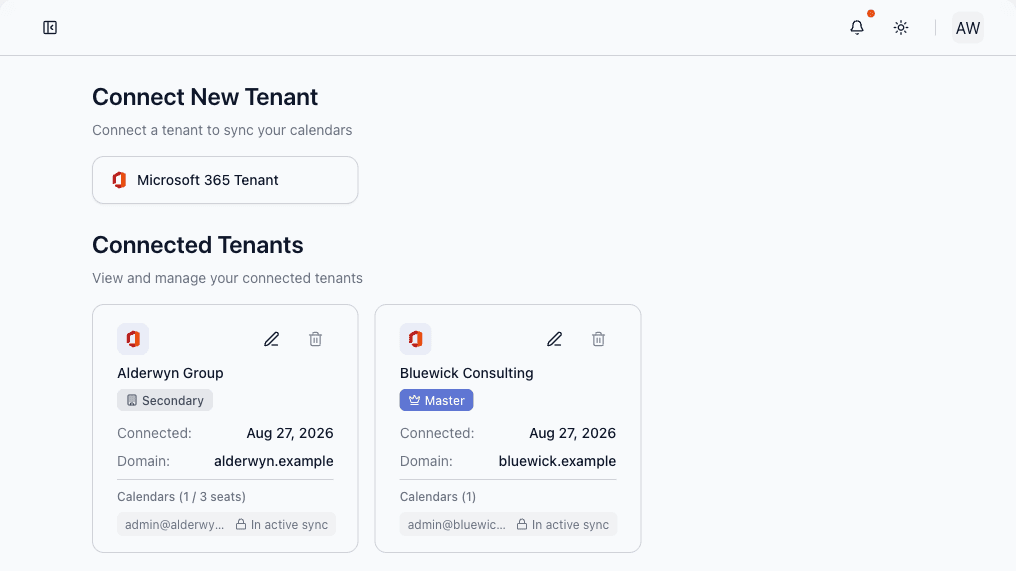
The first tenant you connect becomes your Master Tenant — calendars from this tenant are free and don't count against your license seats. Any additional outside tenant you connect (for example, a partner organization's domain, or a separate Microsoft tenant for contractors) is a Secondary Tenant, where each calendar connected consumes one license seat.
Every sync pairs a master-tenant calendar with a secondary-tenant calendar, so Enterprise needs at least two connected tenants to create a sync. An organization with a single Microsoft 365 tenant whose people need their own calendars kept in sync should choose a Business account instead.
Each connected tenant appears on Dashboard → Accounts as a card showing your organization's name as set in Microsoft Entra (or "Microsoft 365 Tenant" until Calendox has read it; a rename in Entra appears within about an hour), a Master or Secondary badge, the connection date, the tenant domain, and the calendars connected from it.
How does automatic user mapping work?
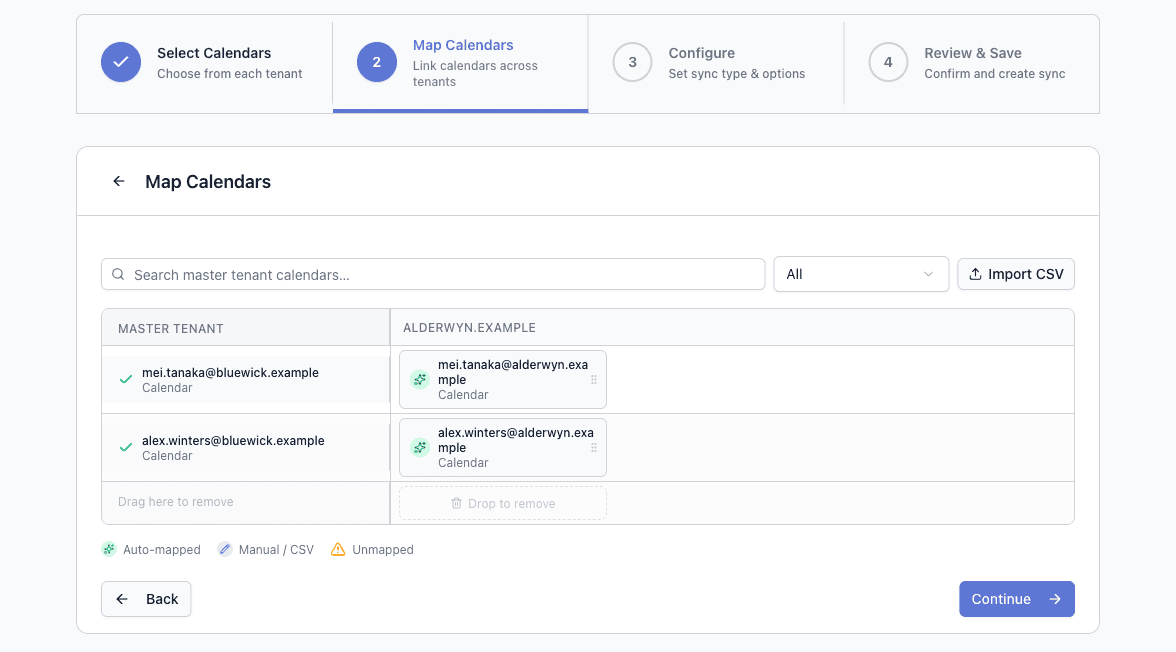
Instead of pairing every master tenant user with their secondary tenant counterpart by hand, Calendox can map them automatically. A pair is matched when both of these agree (case-insensitive):
- The email username — the part before the
@(e.g.jane@yourcompany.com↔jane@partnerdomain.com), and - The calendar name.
Each secondary calendar can only be matched once, and any user without a confident match is simply left unmapped for you to pair manually — auto-mapping never guesses.
Bulk user import
Instead of adding calendars one at a time, you can bulk-import users via CSV from the Manage Tenant dialog (Dashboard → Accounts). Each row's calendar is matched to the right tenant the same way manual additions are.
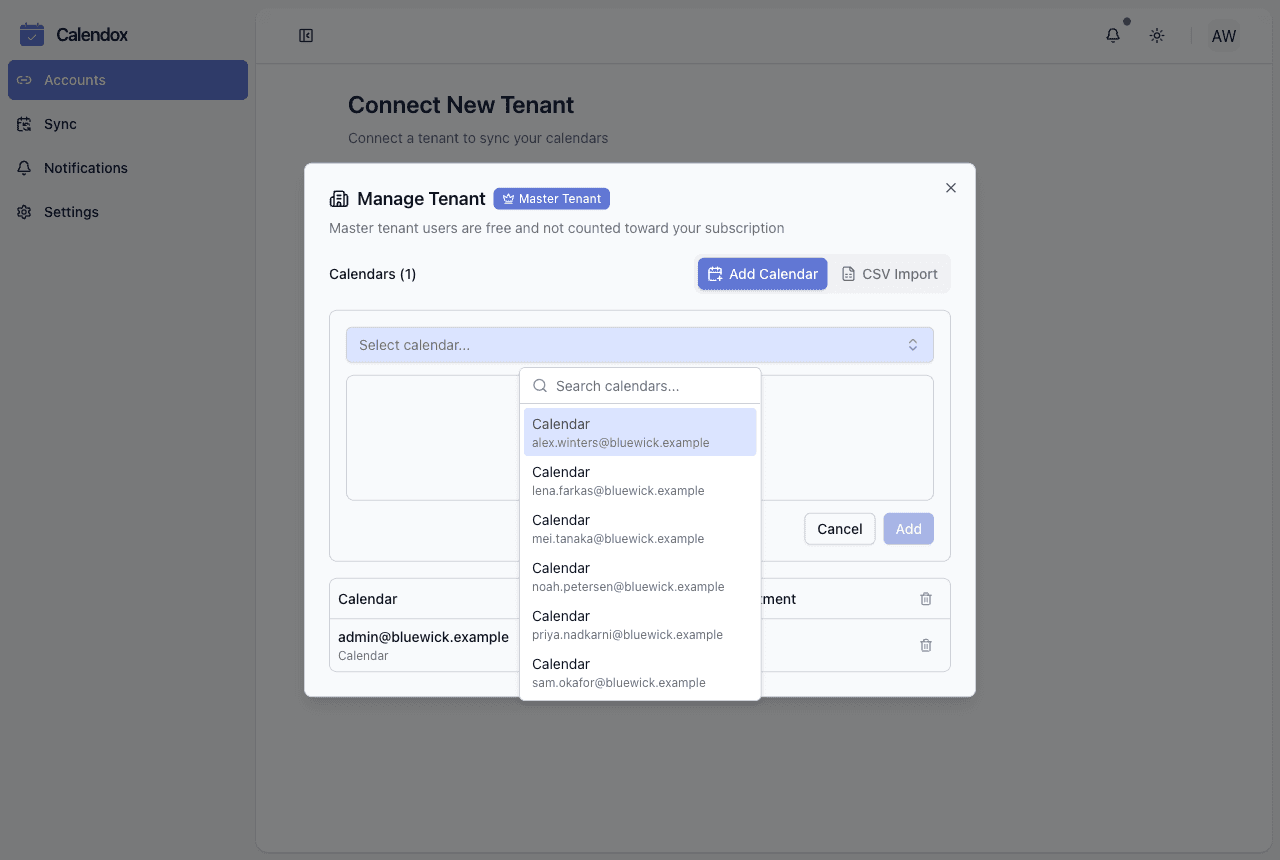
A calendar that's already part of your tenant's current member list is automatically hidden from both the manual add combobox and the CSV row dropdowns, so the same calendar can't be added to your tenant twice.
How do license seats work?
- Master Tenant members: free, unlimited, don't consume seats.
- Secondary Tenant members: each imported calendar consumes one seat from your Enterprise license count, whether or not it is in a sync yet.
- If the seat count is below the number of imported secondary-tenant calendars, the account's syncs are automatically paused (not deleted) and new syncs can't be created. Adding seats, or removing imported secondary-tenant calendars, so that the seats cover every remaining one restores them automatically.
See Sync status for how these states appear in the sync list.
Creating syncs
Enterprise tenants create syncs through a dedicated tenant sync wizard rather than the standard per-calendar flow described in Create your first sync — it's built around mapping many master/secondary tenant pairs at once instead of picking two calendars individually.
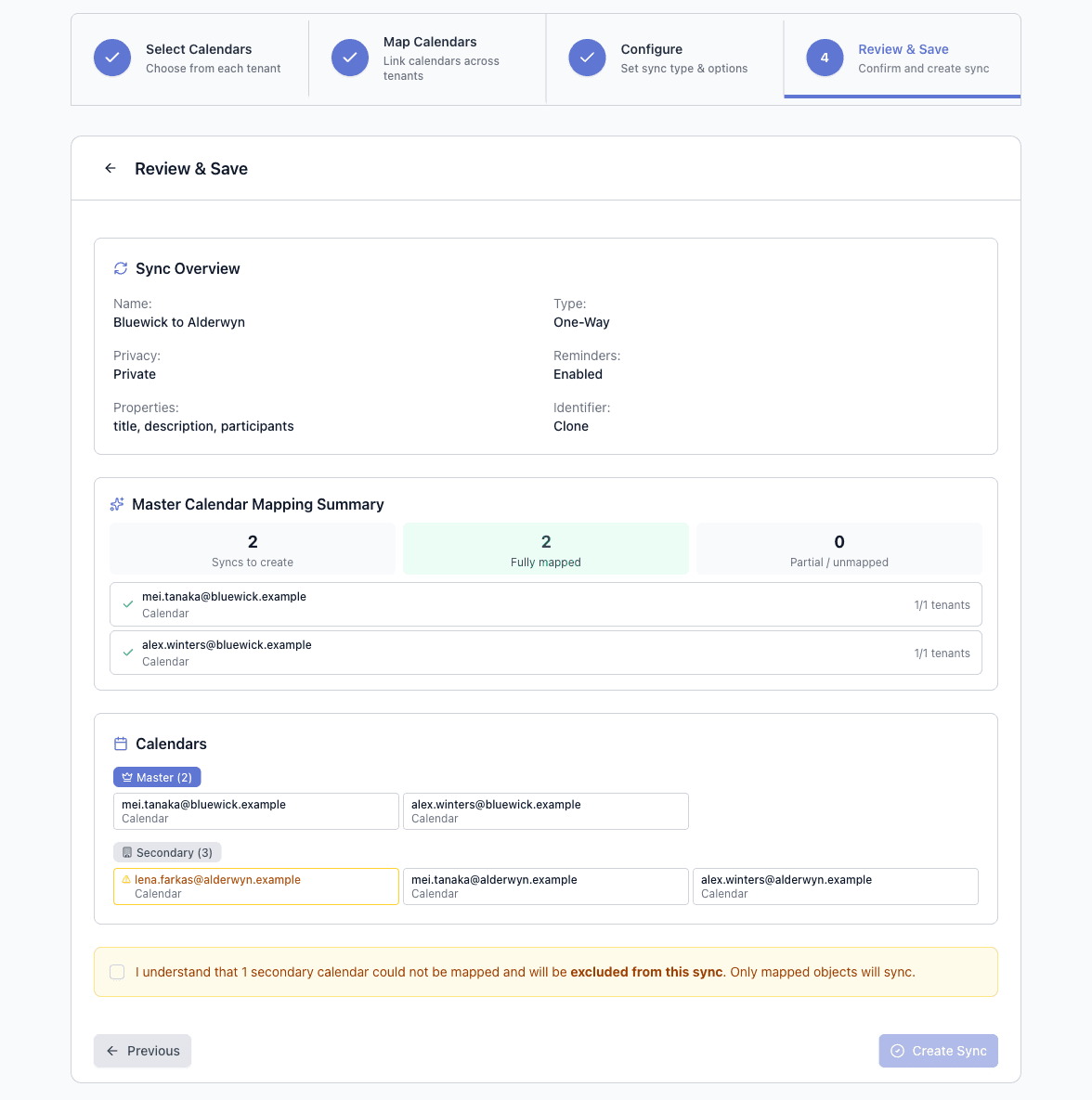
The wizard runs in four steps — select calendars from each tenant, map them, configure the sync, then review. The final step summarises how many syncs will be created and flags any secondary calendar that could not be mapped, which is excluded from the sync until you pair it.
What don't Enterprise accounts include?
Two features from Personal and Business accounts are not part of Enterprise:
- Bookings — Enterprise accounts do not have booking pages. Bookings is a Personal and Business feature.
- Unified Calendar — Enterprise accounts are managed from the tenant dashboard instead of a personal calendar view.
How is Enterprise billed?
Enterprise can be purchased two ways, and how you cancel depends on which one you used:
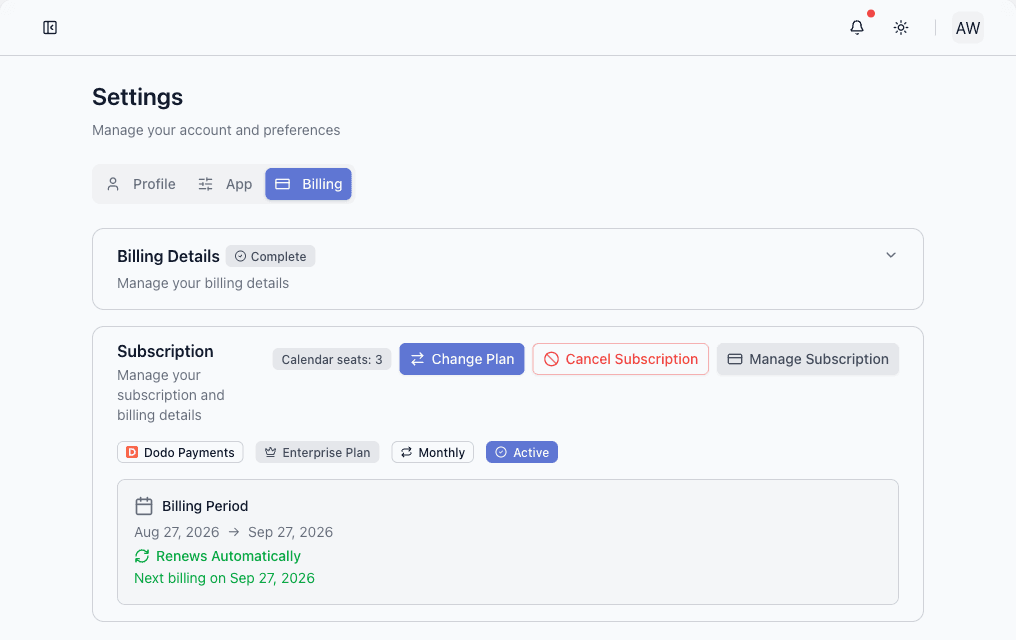
- Directly through Calendox — manage and cancel from Dashboard → Settings → Billing, the same as Basic/Standard/Premium.
- Through the Microsoft Marketplace — billed and managed through the Microsoft 365 Admin Center. You can cancel it there or from Dashboard → Settings → Billing; a cancellation made from Calendox ends it immediately. If Microsoft suspends the subscription because it could not collect payment, your syncs keep running and Calendox shows a banner linking directly to the Microsoft 365 Admin Center to resolve it; syncs pause only if the subscription is cancelled. See Microsoft Marketplace for the purchase walkthrough and why procurement teams often prefer this route.
Enterprise starts with the same 14-day free trial — no credit card required. During the trial you can grant tenant-wide consent, connect your Microsoft 365 tenants and sync up to 5 imported secondary-tenant calendars in total across all connected secondary tenants (master-tenant calendars are always free and never count). Subscribing lifts that limit to the number of seats you buy; if the trial ends without a subscription your syncs are paused until you subscribe. Seats are priced per imported secondary-tenant calendar — see pricing for current rates, and Plans and billing for refund and general subscription details.
If something looks wrong
- "Admin consent was not granted." — the administrator cancelled or declined the Microsoft consent screen. Re-run the tenant connection from Dashboard → Accounts and approve every requested permission.
- "Confirm the connection by signing in with a Microsoft account that belongs to the tenant you are connecting." — the sign-in step after admin consent was cancelled, or completed with a personal Microsoft account or an account from a different tenant. Run the tenant connection again and sign in with an account from that tenant.
- "Calendox is not available in this Microsoft 365 tenant yet." — the administrator's approval is still propagating on Microsoft's side, or Calendox was removed from the tenant. Wait a minute and try again; if Calendox was removed, an administrator must approve it again.
- "This tenant is already connected to Calendox." — that Microsoft 365 tenant is already attached to a Calendox enterprise account, yours or another. A tenant can be connected once: manage the existing connection from Dashboard → Accounts, or have the other account disconnect it first.
- A batch of syncs suddenly shows Disabled — usually a seat shortfall. Compare your imported secondary-tenant calendars against your seat count in Settings → Billing; adding seats, or removing imported calendars, until the seats cover the rest restores the paused syncs automatically.
Next steps
- OAuth permissions — what the tenant admin consent grants
- Sync status — paused syncs and how they recover
- Personal, Business, and Enterprise accounts — is Enterprise the right type for you?
- Enterprise sync features — feature overview
Team Management
Invite members, assign admin or member roles, and manage per-seat licenses in a Calendox Business account — plus what a paused sync means.
Notifications
How Calendox in-app and email notifications work — sync, billing, team, and booking notification categories, and which preferences you control.