
Microsoft Marketplace
Buy Calendox through the Microsoft Marketplace and pay on your existing Microsoft bill under the Microsoft Standard Contract, with no new vendor onboarding.
Calendox can be purchased in two ways: directly by card, or through the Microsoft Marketplace (AppSource). This page covers the Marketplace route.
Why purchase through the Microsoft Marketplace?
For many organizations the Marketplace is the fastest way to get Calendox approved and running:
- No new vendor onboarding. The purchase runs under the Microsoft Standard Contract, with Microsoft as the transacting party. If your company can't easily pay external vendors by card, or has a lengthy vendor/contract verification process, none of that is triggered — you're buying through a supplier relationship you already have.
- Billed to your existing Microsoft billing account. Charges appear alongside your other Microsoft services on the billing account you select at checkout — no new payment method, no separate invoice.
- Calendox becomes a SaaS subscription in your Microsoft tenant. After purchase it shows up with your organization's other SaaS subscriptions, and billing (plan changes, seat changes, cancellation) is managed centrally from the Microsoft 365 admin center like any other Microsoft-billed product. You can also cancel it from Calendox.
- Same product, same prices. All plans — Personal and Business (Basic, Standard, Premium) and Enterprise — are available on the Marketplace at the same per-user prices as direct checkout. See pricing.
How to subscribe
- Open the Calendox listing on Microsoft Marketplace and sign in with your work Microsoft account.
- Click Buy now and pick your plan —
personal-*plans are for individual use (always 1 user),business-*plans let you choose the number of seats, andenterpriseis priced per imported calendar. Choose monthly or annual billing.
- At checkout, select the billing account or Azure subscription the charges should go to, review the terms (Microsoft Standard Contract), and confirm the purchase. Microsoft handles the payment — Calendox never sees your payment details.
- After the purchase, click Configure account now. Microsoft redirects you to
calendox.com/marketplaceto link the subscription. - Sign in with your Microsoft account when prompted (a Calendox account is created automatically if you don't have one). Activation is automatic — when you see the confirmation, you're taken straight to the dashboard.
- From there, set up normally: connect calendars, create syncs, and invite team members (Business) or run the tenant import wizard (Enterprise).
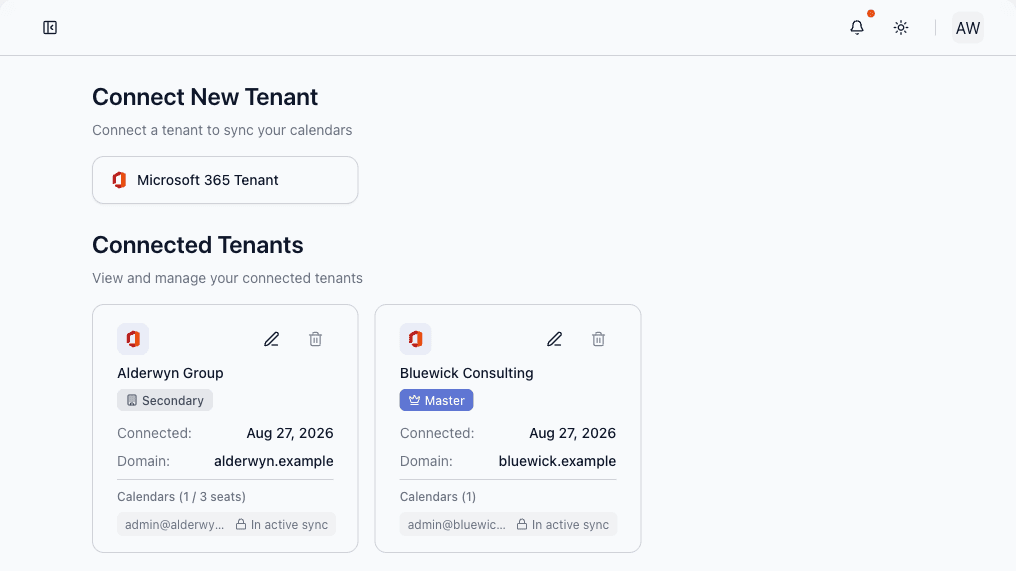
For an Enterprise subscription, setup means connecting your Microsoft 365 tenants and mapping calendars from the Accounts page — the same dashboard whether you bought through the Marketplace or directly:
If the activation page reports a missing token, reopen the subscription from your Microsoft SaaS subscriptions list and click Configure account again — the link from Microsoft carries a token Calendox needs to complete activation.
Managing a Marketplace subscription
- Plan changes and seat changes are done in the Microsoft 365 admin center (Billing → Your products), not inside Calendox — the same place you manage other Microsoft-billed subscriptions.
- Cancellation can be done there or from Dashboard → Settings → Billing in Calendox (on a Business account, by an admin). A cancellation made from Calendox ends the subscription immediately, and so does deleting the Personal or Enterprise account, or the team, that holds it.
- If Microsoft suspends the subscription because it could not collect payment, your syncs keep running while you resolve it in the Microsoft 365 admin center, and Calendox shows a banner linking directly there. If Microsoft cancels the subscription, syncs pause until you subscribe again — on a Business team, until the member holds a license from the new subscription.
- One subscription per plan: on a Personal or Enterprise account, an active card subscription must end before a Marketplace subscription can activate on the same account. On a Business account, only an active card subscription for the same plan tier must end first.
- Marketplace plans include a free trial run by Microsoft, and Microsoft shows its terms at checkout. When the trial ends, the subscription converts to paid unless you cancel it or turn off auto-renew before then.
- The Marketplace trial does not add to the 14-day calendox.com free trial. Activating a Marketplace subscription, including one on a Microsoft trial, ends any remaining calendox.com trial on that account, and cancelling it later does not bring that trial back. To try Calendox first, sign up directly at calendox.com for the 14-day free trial (no credit card), then subscribe on the Marketplace when you are ready.
- Refunds for Marketplace purchases, and the timing of a cancellation made in the Microsoft 365 admin center, follow Microsoft's commercial marketplace terms shown at checkout.
Next steps
- Plans and billing — plan limits, upgrades, and the card checkout route
- Enterprise accounts — tenant-wide consent and per-calendar seats
- Connect your first calendar
Plans and Billing
Compare Calendox plans and their limits — the free trial, booking pages, upgrades, deferred downgrades, refunds, and what happens when a payment fails.
Team Management
Invite members, assign admin or member roles, and manage per-seat licenses in a Calendox Business account — plus what a paused sync means.