Connect Google Calendar
How to connect your Google account to Calendox and import calendars — authorization, choosing calendars, reconnecting, and fixing import errors.
Connecting Google Calendar takes about a minute: authorize your Google account from Dashboard → Accounts, then choose which calendars to import. Imported calendars become available everywhere in Calendox — as source or target calendars in syncs, in the Unified Calendar, and for booking page availability.
Prerequisites
- A Calendox account with an active trial or subscription — connecting calendars requires one. See Plans and billing.
- A Google account with Google Calendar.
Steps
1. Open the Accounts page
Sign in to Calendox and go to Dashboard → Accounts. A short note beneath the provider cards summarises what Calendox can access, what it keeps and how it’s protected, and links to How Calendox Protects Your Data.
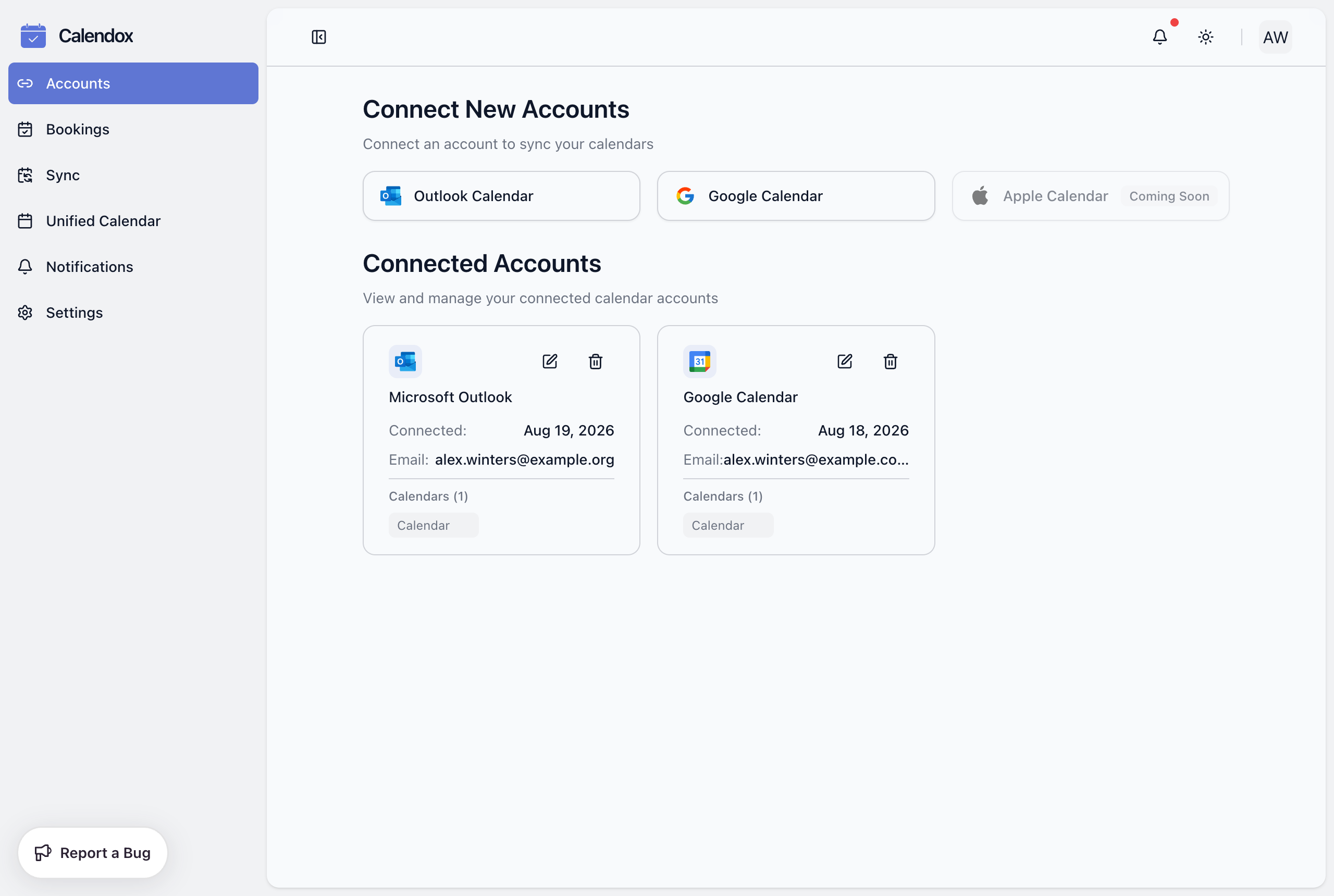
2. Click the "Google Calendar" card
You're redirected to Google's own sign-in and consent screen — Calendox never sees your Google password.
3. Authorize Calendox
Google first shows its account chooser (Choose an account). Pick the account whose calendars you want to connect — it can be a different account from the one you use to sign in to Calendox, and Use another account adds one that isn't listed. Google then lists the permissions Calendox is requesting and lets you tick each one individually. Allow all of them — Calendox needs read and write access to your calendars to sync events, and the connection fails if any permission is left unticked. See OAuth permissions for every scope requested and why.
4. Select calendars to import
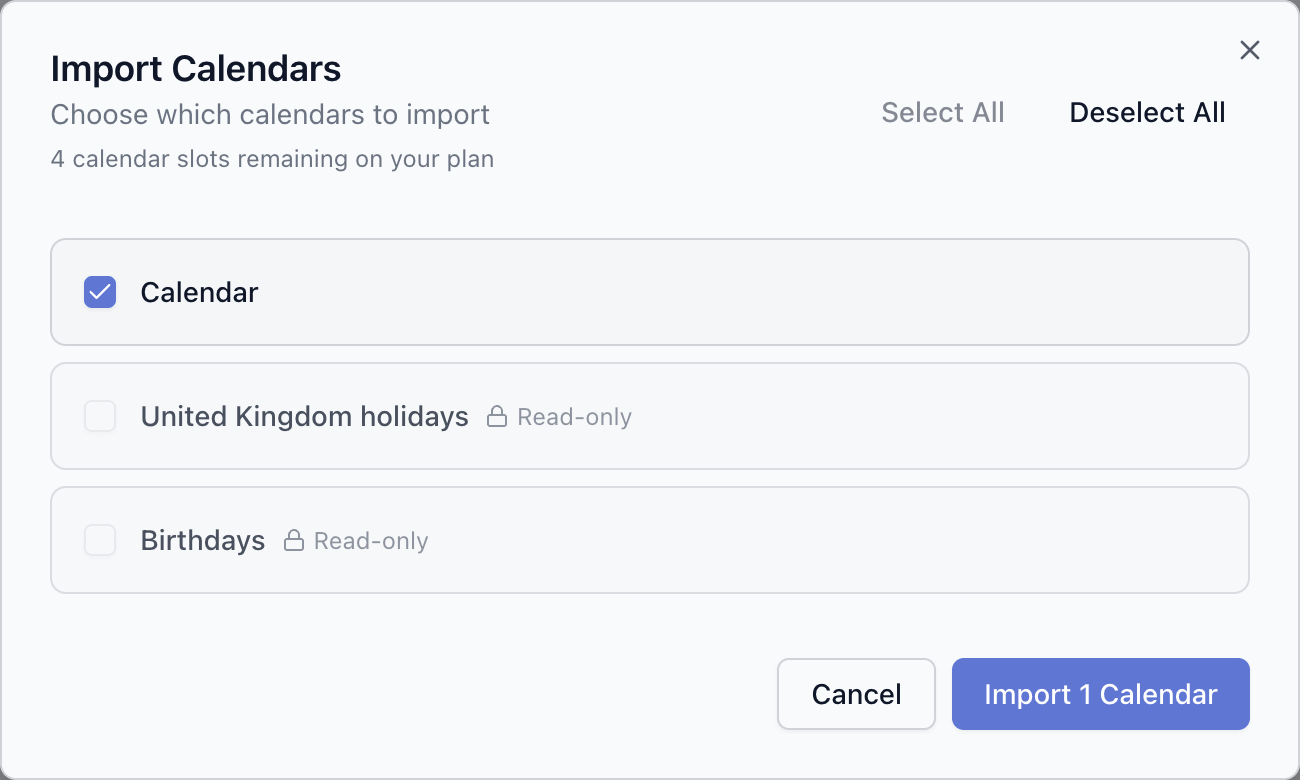
Back in Calendox, the import dialog opens automatically with the calendars in your Google account. The dialog header shows how many calendar slots remain on your plan. Select the calendars you want to use and click Import.
5. Confirm
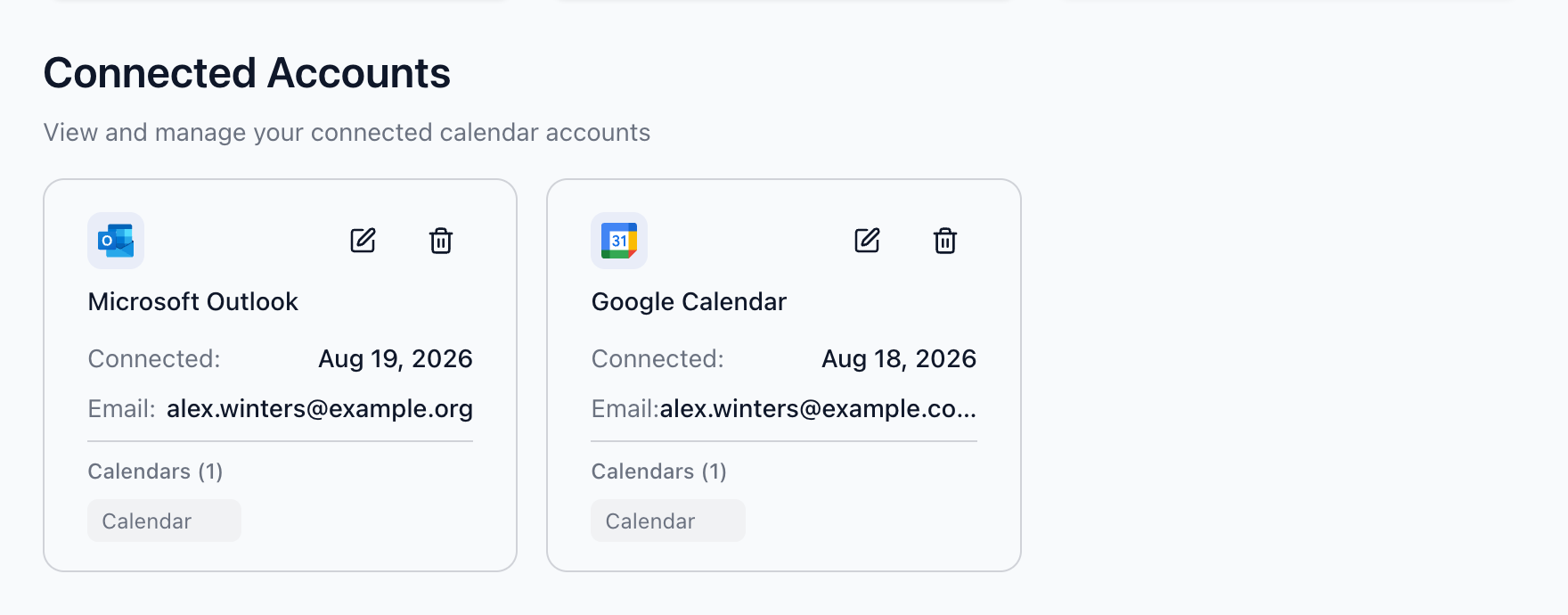
Your imported calendars appear under the Google account on the Accounts page, ready to use in syncs, the Unified Calendar, and booking pages.
Which calendars can I import?
Calendox lists every calendar in your Google account, but only calendars it can write to are importable. Rows that can't be selected are labeled:
| Label | Meaning |
|---|---|
| Read-only | You can't edit this calendar on Google (for example a calendar someone shared with view-only access, or a subscribed calendar like public holidays). Calendox can't sync events into it, so it can't be imported. |
| Already imported | This calendar is already imported into Calendox — under another of your connected accounts, or by a different Calendox account. A calendar can be imported only once across all of Calendox; remove it from the other account first. |
| In active sync | Shown when managing an account's calendars: this calendar is part of an active sync and can't be deselected. Remove it from the sync first. |
Each imported calendar counts as one calendar connection against your plan's limit. Connecting the Google account itself doesn't consume a slot — only the calendars you import do.
What if Calendox loses access to my Google account?
Calendox refreshes its Google access automatically in the background, so normally you never need to do anything. If access is revoked — you removed Calendox from your Google account's third-party access list, or a Workspace administrator blocked it — Calendox can no longer read or write those calendars, and syncs using them start failing. To fix it, go to Dashboard → Accounts and repeat the Connect Google flow and pick the same account in Google's account chooser; re-authorizing restores access without touching your syncs. Calendox confirms with a short "was already connected" message — nothing is added twice. If this keeps happening after you reconnect, your organization's sign-in policies may be blocking Calendox — ask your administrator.
How do I remove a Google account?
Go to Dashboard → Accounts, find the account, and remove it. An account whose calendars are part of an active sync can't be removed directly — delete the sync first, then remove the account. Removing the account deletes Calendox's stored access token; to also revoke Calendox on Google's side, see Revoking access.
Troubleshooting
- "Google did not grant Calendox access to this account." You cancelled Google's consent screen, or your organization restricts which third-party apps can access your Google account. Reconnect and allow the requested permissions, or ask your administrator to allow Calendox first.
- "Required permissions were not granted." Google's consent screen lets you untick individual permissions, and the connection fails without all of them. Reconnect and allow everything requested.
- "Your Google sign-in expired or was already used." You used the Back button or reloaded the page after signing in at Google, or the sign-in took too long, so it can't be completed. Repeat the Connect Google flow from the start.
- "Google could not complete the sign-in right now." A temporary issue on Google's side — nothing was connected. Wait a few minutes and repeat the Connect Google flow.
- "Calendox could not start the Google sign-in." The problem is on Calendox's side, not with your account. Try again later, and contact support@calendox.com if it persists.
- "Google does not allow sign-in from this browser view." Google refuses to sign in from an embedded browser view, such as a link opened inside another app. Open Calendox in your regular browser and repeat the Connect Google flow.
- You were asked to sign in to Calendox again. Your Calendox session ended while you were on Google's page. Sign in again and repeat the Connect Google flow.
- "This account is already connected to Calendox by another user." Each Google account can be connected to only one Calendox account at a time. Use a different Google account, or disconnect it from the other Calendox account first.
- "This address is already connected to Calendox through another calendar provider." The same email address is already connected to your Calendox account as a Microsoft account. An address can be connected once; remove that connection first if you want it here instead.
- "Calendox could not read a verified email address for this Google account." Google didn't report a verified email address for the account you picked. Pick an account with a verified email address and try again.
- "Some selected calendars are already imported by another Calendox account." A calendar can exist in Calendox only once. Deselect the conflicting calendars, or remove them from the account that currently has them.
- "This account has already been used with a free trial." During the trial, you can't connect a provider account whose email has already consumed a Calendox trial. Subscribe to a plan to connect it.
- A calendar is grayed out in the import dialog. Check its label against the table above — read-only and already-imported calendars can't be selected.
- "0 calendar slots remaining on your plan." You've reached your plan's connection limit. Remove a calendar you no longer need or upgrade — see Plans and billing.
Next steps
- Connect Microsoft Calendar — add your Outlook calendars alongside Google
- Create your first sync
- OAuth permissions — every scope Calendox requests and how to revoke access
What is Calendox?
Calendox keeps Google and Outlook calendars in sync in real time, shows them in one unified view, and lets people book time with you via booking pages.
Connect Microsoft Calendar
How to connect your Microsoft account to Calendox and import Outlook calendars — authorization, admin consent, supported calendars, and errors.