
One Booking Link for Google and Outlook
By CalendoxPublished Updated 7 min read
In short
A booking link that checks only one calendar provider can still hand out a slot you're busy on elsewhere, because Microsoft Bookings reads Outlook calendars and Google Calendar's appointment schedules read Google calendars, never the other provider's. A booking page that checks every connected calendar, on either provider, closes that gap.
- Microsoft Bookings ties a staff member's availability to that person's own Outlook calendar. It has no setting that reads a Google calendar.
- Google Calendar's appointment schedules can check several Google calendars at once, but only Google calendars, and only on an eligible Workspace or Google One plan.
- Someone who keeps a work calendar on one provider and a personal calendar on the other can still be offered a slot they're busy at, because neither tool sees the other calendar.
- A booking page that reads every connected calendar, whichever provider it's on, is the way to close that gap without asking people to manually block time on the calendar the tool can't see.
Why does a two-provider booker still get double-booked?
Because the two most common built-in booking tools each check only one calendar provider. If a person's work meetings live in Outlook and their personal calendar is on Google, a booking link built on either tool alone is reading just one half of their day.
This comes up constantly for anyone who:
- works at a company on Microsoft 365 but keeps a personal Google Calendar;
- consults or contracts and ends up with a Google account from one client and a Microsoft 365 account from another;
- switched providers at some point and still keeps the old calendar around for a few recurring commitments.
In every one of those cases, a booking page that only reads one provider can offer a time slot that looks open on that one calendar and is actually taken on the other.
What does Microsoft Bookings check, and what does it miss?
Microsoft Bookings checks the Outlook calendar of the staff member assigned to a service, and only that one calendar. According to a moderator-accepted answer on Microsoft Q&A, a staff member's Bookings profile has a per-person setting, commonly described as tying Office calendar events to availability; when it's off, Bookings doesn't take that person's Outlook calendar into account at all. The same answer describes Bookings reading only the one Outlook calendar it's tied to — not a shared or secondary calendar, and not a calendar on another provider.
That means:
- A Microsoft Bookings page reflects Outlook. It has no setting for reading a Google calendar.
- If a staff member keeps personal commitments on a separate Google account, Bookings won't see them, so a slot on that time can still be offered.
- Bookings is part of specific Microsoft 365 and Office 365 subscriptions — Microsoft's Bookings overview lists Microsoft 365 Business Standard, Business Premium, Teams Essentials, Teams Premium and several Enterprise and Frontline plans — so it's built for people already working inside that one Microsoft 365 tenant.
None of this is a flaw in Bookings. It's doing exactly what a Microsoft 365 scheduling tool is built to do: read the Microsoft 365 calendar it's attached to. It was never meant to look outside Microsoft 365.
What does Google Calendar's appointment schedule check, and what does it miss?
Google Calendar's appointment schedules can check more than one calendar, but only Google calendars. Google's Calendar Help describes the feature as checking a person's primary calendar plus any calendar they own, manage or are subscribed to, to help prevent double bookings — the booker's own choice of which calendars to check is made when the schedule is created or edited.
The catch is eligibility. Checking anything beyond the schedule owner's own primary calendar is a premium capability: Google's announcement of the feature says it requires an eligible Google Workspace or Google One plan, and that it isn't available on a personal Google Account or on some Workspace editions. Google's comparison page for appointment-schedule premium features lists multi-calendar availability checks alongside other paid capabilities.
So even on a qualifying plan, the feature stops at the edge of Google Calendar:
- A Google appointment schedule can check several Google calendars — a work calendar and a personal one, say, if both are Google.
- It has no equivalent for an Outlook calendar. If one of those calendars is on Microsoft 365 instead of Google, the schedule can't read it.
- On a personal Google Account, or an ineligible Workspace plan, even checking a second Google calendar isn't available at all.
How does a booking page check both Google and Outlook calendars?
A booking page built on top of a calendar sync platform can read every calendar a person has connected, regardless of which provider it's on, because the sync platform already connects to both. On Calendox, a booking page computes availability live across every calendar its owner has connected — Google Calendar, Microsoft Outlook and on-premises Exchange Server together — and every one of those calendars can block a time slot.
For each candidate time, the booking page checks free/busy status across every connected calendar. If any of them shows busy time there, including any buffer set around the slot, the slot is removed from what bookers see. Only free/busy status is read for this — event titles, descriptions and attendees are never read into the booking page or shown to the person booking.
That's the practical difference from a single-provider tool: a slot offered on the booking page has already been checked against the Google calendar and the Outlook calendar, not just whichever one the tool happens to be attached to.
How do you set a booking page to check every connected calendar?
Setting this up takes two parts: connecting the calendars, then choosing which ones the booking page checks.
- Connect every calendar that should be able to block time. This includes the Google and Microsoft calendars (and an on-premises Exchange Server calendar, if there is one) that hold any commitment worth protecting — a work calendar and a personal calendar both count.
- Create the booking page. Set its meeting durations, weekly hours and the destination calendar — the one calendar where confirmed bookings are actually created as events.
- Set conflict checking to cover every connected calendar. Under the page's Calendars settings, conflict checking defaults to checking every connected calendar with no per-calendar cap, so a new page already checks both providers out of the box. A narrower "check specific calendars only" option exists if a particular calendar — a shared team calendar, say — shouldn't count toward availability.
- Pick a meeting link if the booking needs one. Which meeting-link options are offered depends on the destination calendar's own provider: Google Meet needs a Google destination calendar, Microsoft Teams needs a Microsoft work or school destination calendar (a personal Microsoft account can't create a Teams link, which is a Microsoft limitation rather than the booking page's), and Zoom works with any destination calendar once it's connected.
- Share the link. Once published, the booking link, QR code or embed reflects every calendar checked in step 3, not just the destination calendar from step 2.
Existing bookings already made through the page also count as busy time, so the page can't double-book itself even before any external calendar is checked.
What do people ask most about booking pages that cover two calendar providers?
Does Microsoft Bookings check my Google Calendar?
No. Microsoft Bookings ties a staff member's availability to that person's own Outlook calendar. It has no setting for reading a calendar on another provider, including Google.
Does Google Calendar's appointment schedule check my Outlook calendar?
No. Google's multi-calendar availability check only covers other Google calendars the schedule owner selects — their own primary calendar plus any calendar they own, manage or are subscribed to. It doesn't read calendars on another provider, and checking any calendar beyond the owner's primary one also requires an eligible Google Workspace or Google One plan.
Can I require every connected calendar to block booking slots?
Yes, on a booking page built to read multiple providers. The default conflict-checking setting already covers every connected calendar; a narrower setting lets specific calendars be excluded instead, if some shouldn't count.
Does a booking page expose my calendar events to bookers?
A well-built one shouldn't. Only free/busy status needs to be read to compute available slots — event titles, descriptions, locations and attendees don't need to be shown, or even read, to answer "is this time free."
Can a booking made across two calendars still get a video link?
Yes, but the meeting-link options depend on the destination calendar the booking is actually created on, not on every calendar that was checked for availability. A Google destination can get a Google Meet link; a Microsoft work or school destination can get a Teams link; Zoom works regardless of the destination's provider, once it's connected.
Does checking more calendars slow down a booking page?
Checking free/busy status across a handful of calendars is a lightweight lookup compared to reading full event details, so adding a second or third calendar to the check doesn't materially change how fast a booking page loads for a visitor.
Sources
- Google Calendar Help: Check availability across multiple calendars
- Google Workspace Updates: Check availability across multiple calendars with appointment schedules in Google Calendar
- Google Calendar Help: Compare premium features for appointment schedules
- Google Calendar Help: Learn about appointment schedules in Google Calendar
- Microsoft Learn: Microsoft Bookings overview
- Microsoft Learn: Microsoft Bookings service description
- Microsoft Q&A: accepted answer on Microsoft Bookings staff availability and the Outlook calendar
Related reading
Calendox vs Keeper.sh: Calendar Sync, Features and Price
Calendox and Keeper.sh compared: calendars supported, multi-way sync, what copies carry, unified calendar, booking pages, team admin, tenant sync and price.
Calendox vs Reclaim.ai: Calendar Sync Compared
Calendox and Reclaim.ai compared on Google and Outlook calendar sync, multi-way sync, booking pages, unified calendars, tenant sync and price per user.
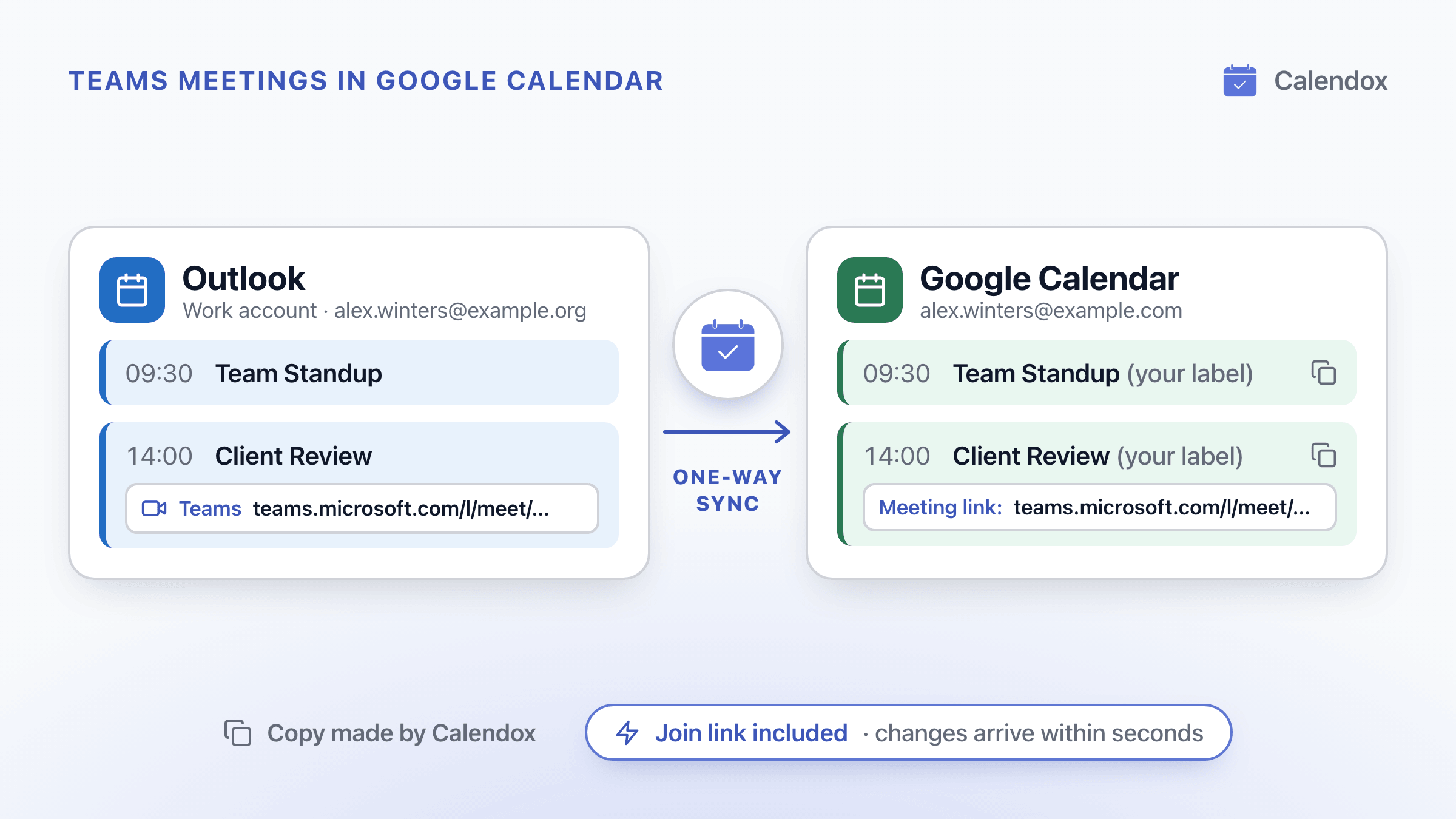
Sync Teams Meetings to Google Calendar
Microsoft's Google Workspace–Teams calendar sync is no longer supported. How to get Teams meetings and their join links into Google Calendar now.