
Syncing a Shared Outlook Calendar to Google
By CalendoxPublished Updated 7 min read
In short
A shared Outlook calendar can't be imported into Calendox under your own account, whatever permission level you were given; a Google calendar shared with edit access can be. This covers why, and how to sync a shared calendar anyway — by connecting the account that owns it, or with each provider's own read-only sharing options.
- Outlook calendars owned by another mailbox can't be imported into Calendox under your own account, whatever permission level you were given on them.
- A Google calendar shared with you with edit access imports into Calendox like any other calendar; a view-only share doesn't.
- To sync a shared Outlook calendar, connect the account that owns it directly, or use Outlook's read-only published link instead.
- Outlook's and Google's own sharing permission levels decide what you can do inside their apps — not whether Calendox can import the calendar.
Can you sync a calendar someone else shared with you?
It depends on which provider owns the calendar, not on what permission level they gave you. A Google calendar shared with edit access syncs like any calendar you own. A shared Outlook calendar — even one you can edit or manage as a delegate — doesn't, because Calendox can only import calendars from the mailbox you connect, and a shared Outlook calendar still belongs to someone else's mailbox.
That split catches people off guard, because Outlook and Google both let you grant edit access to a calendar you don't own, and it's natural to assume "I can edit it" also means "any tool I connect can sync it." For Outlook, it doesn't.
Which shared calendars can Calendox import?
| Situation | Google Calendar | Outlook / Microsoft 365 |
|---|---|---|
| Calendar you own | Importable | Importable |
| Shared with you, edit access | Importable | Not supported |
| Shared with you, view-only | Not importable (read-only) | Not importable (read-only) |
Calendox lists every calendar in a connected account, but it only imports calendars it can write to reliably.
On the Microsoft side, a calendar owned by another mailbox — a colleague's shared calendar, a shared mailbox, a group calendar, or the outlook.com "Your family" calendar — is marked Not supported in the import dialog, whatever permission level you hold on it. These are projections of someone else's mailbox, not a calendar object Calendox can write to or get change notifications for, so the fix is the same one Calendox gives for a family or group calendar: connect the account that actually owns the calendar.
On the Google side, there's no equivalent block. A calendar someone else owns but has given you permission to make changes to — including a shared Google Workspace calendar — imports the same way your own calendars do. Only a calendar shared with you as view-only, or a subscribed calendar like a public holiday feed, is excluded, and it's labeled Read-only rather than refused outright.
Either way, each calendar you do import counts as one calendar connection against your plan's limit, and a calendar can be imported only once across all of Calendox — connecting the account itself never uses a slot.
What do Outlook's own sharing permission levels do?
Outlook's sharing dialog offers five levels, in two groups:
- Can view when I'm busy — free/busy blocks only, no details.
- Can view titles and locations — the time, subject and location of events.
- Can view all details — full event information, except for anything marked private.
- Can edit — the person can create, change and delete items on the calendar.
- Delegate — everything Can edit does, plus scheduling and responding to meetings on the owner's behalf.
The first three are view-only. Microsoft says that for people outside your organization, sharing is limited to those view-only levels — Can edit and Delegate access can't be granted across organizations. Even inside one organization, none of the five levels changes who owns the calendar. Granting someone Can edit or Delegate access to your Outlook calendar doesn't give that person a calendar of their own; it gives them a wider window into yours.
What do Google's own sharing permission levels do?
Google's sharing settings for a calendar offer four levels:
- See only free/busy — availability blocks, no details.
- See all event details — full event information, including private events.
- Make changes to events — the person can add, edit, and restore or permanently delete events, private ones included.
- Make changes and manage sharing — the same as above, plus the ability to change who else can access the calendar (effectively owner-level access).
When someone's individual permission and the calendar's general access settings disagree, Google applies whichever is broader. A calendar shared with "Make changes to events" access (or higher) behaves, from Calendox's point of view, like a calendar you own: it's importable, and events sync both ways once it's in a sync.
How do you sync a shared Outlook calendar into Google Calendar?
Since a shared Outlook calendar can't be imported under your own account, there are two routes, depending on whether you can sign in as the calendar's owner.
If you (or the owner) can sign in to the owning Microsoft account
- Go to Dashboard → Accounts and connect the Microsoft account the calendar actually belongs to — not the account the calendar was shared with. This might be a second Microsoft account you also hold the sign-in for, or it might mean the colleague who owns the calendar connects it themselves.
- Import that calendar. It's now a calendar Calendox owns the connection to, not a shared projection, so it's a normal, writable calendar.
- Create a sync from it into your Google calendar, as you would between any two calendars. A one-way sync keeps the Google side updated automatically from then on; a multi-way sync keeps both calendars mutually in step.
This is the only route that keeps the two calendars in step as meetings are added, moved or cancelled.
If you can't sign in as the owner
Outlook's own publishing feature is the fallback, with real limits. The calendar's owner publishes it from Outlook on the web as an HTML or ICS link; Microsoft describes both as read-only and viewable by anyone who has the link, and says an organization's settings can restrict or disable this entirely. You then add that link in Google Calendar as a calendar from a URL — which only works from a computer web browser, not the Google Calendar mobile apps, and only if the owner's organization allows the calendar to be published as public in the first place. Microsoft says how often the Google side refreshes after that depends on Google's own handling of the feed, not a fixed interval Microsoft documents. Either way, it's one-directional and read-only: nothing you do in Google writes back to the Outlook calendar.
How do you sync a shared Google calendar into Outlook?
This direction is more often straightforward, because of the asymmetry above.
If the calendar was shared with you at Make changes to events access or higher, connect your own Google account to Calendox and import it directly — it behaves like any calendar you own. From there, create a sync into your Outlook calendar the normal way, in either direction.
If it was shared with you as view-only, there's no equivalent built-in route documented for getting someone else's Google calendar into Outlook automatically; Google's documented secret-address method is for a calendar's own owner to export their own calendar, not for a view-only recipient to re-export someone else's. The practical options are asking the owner to grant edit access instead, or asking the owner to publish a public link you can subscribe to, with the same read-only, one-directional limits described above.
How do you set up the sync once a calendar is importable?
Once a shared calendar is importable — because you connected its owning account, or because it was shared with edit access on Google — the rest of the setup is the same as any other Calendox sync:
- Connect both accounts. Go to Dashboard → Accounts and connect the Google and Microsoft accounts involved, through each provider's own sign-in screen. Calendox never sees your password for either.
- Import the calendars. Select the calendars to use from each account's import dialog. Each import uses one calendar connection against your plan.
- Create the sync. Go to Sync → Create Sync, choose one-way or multi-way, and pick the source and target calendars. In a one-way sync, the source and target must come from different connected accounts; in a multi-way sync, every calendar must.
- Choose what each copy carries. Tick which fields to copy — title, description, participants, location and meeting link — and optionally mark copies as private or disable their reminders.
- Submit. Calendox copies existing events first, then keeps both calendars in step: changes reach the other calendar within seconds of Google or Microsoft reporting them.
Connecting calendars needs an active trial or subscription — the trial is 14 days, with no credit card required. See pricing for plan details.
What else do people ask about syncing a shared calendar?
Does a "Can edit" permission on an Outlook calendar change whether Calendox can import it?
No. The "Not supported" label is about who owns the calendar, not what permission you were given on it. A calendar owned by another mailbox stays unsupported for import under your account whether you were given view-only, edit, or delegate access to it.
Can Calendox sync a shared Google Workspace calendar?
Yes, as long as you have permission to make changes to it. A shared Workspace calendar you can only view can't be imported, the same as a personal Google calendar shared with view-only access.
What if I don't have sign-in access to the Outlook account that owns the calendar?
Then a live, two-way sync isn't available for that calendar through Calendox. The owner can connect their own account and create the sync, or publish a read-only link you can subscribe to in Google, with the caveats above.
Does Delegate access let me connect someone else's Outlook calendar on their behalf?
No. Delegate access lets you act on the owner's calendar inside Outlook — editing it and responding to meetings — but it doesn't change which mailbox the calendar belongs to, and Calendox imports calendars by connecting a mailbox's own account, not by delegated access to someone else's.
Sources
- Microsoft Support: Share an Outlook calendar as view-only with others
- Microsoft Support: Share and access a calendar with edit or delegate permissions in Outlook
- Google Calendar Help: Share your calendar with specific people
- Google Calendar Help: Subscribe to someone's Google Calendar
- Microsoft Support: Share your calendar in Outlook on the web
Related reading
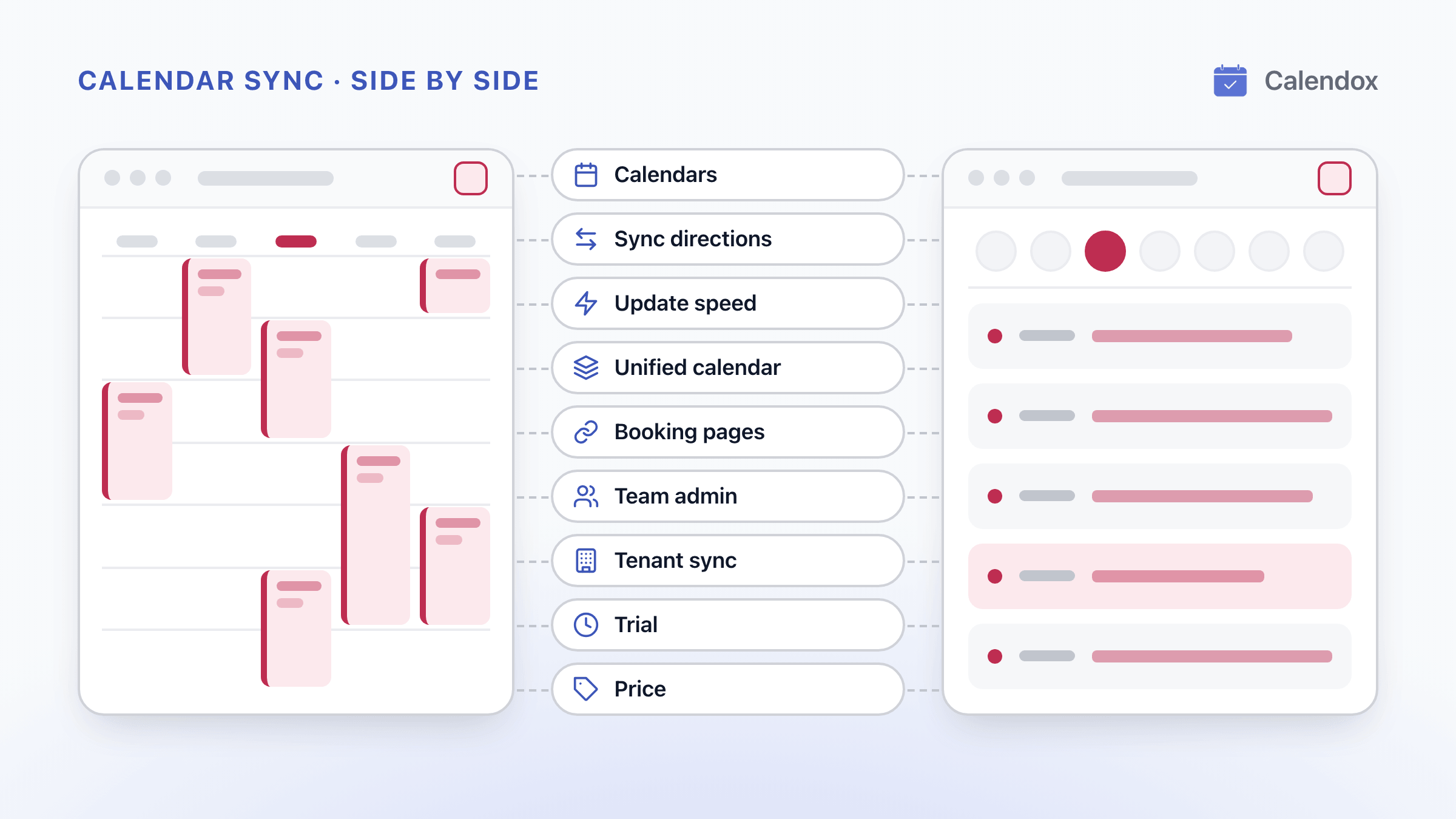
Calendox vs Reclaim.ai: Calendar Sync Compared
Calendox and Reclaim.ai compared on Google and Outlook calendar sync, multi-way sync, booking pages, unified calendars, tenant sync and price per user.
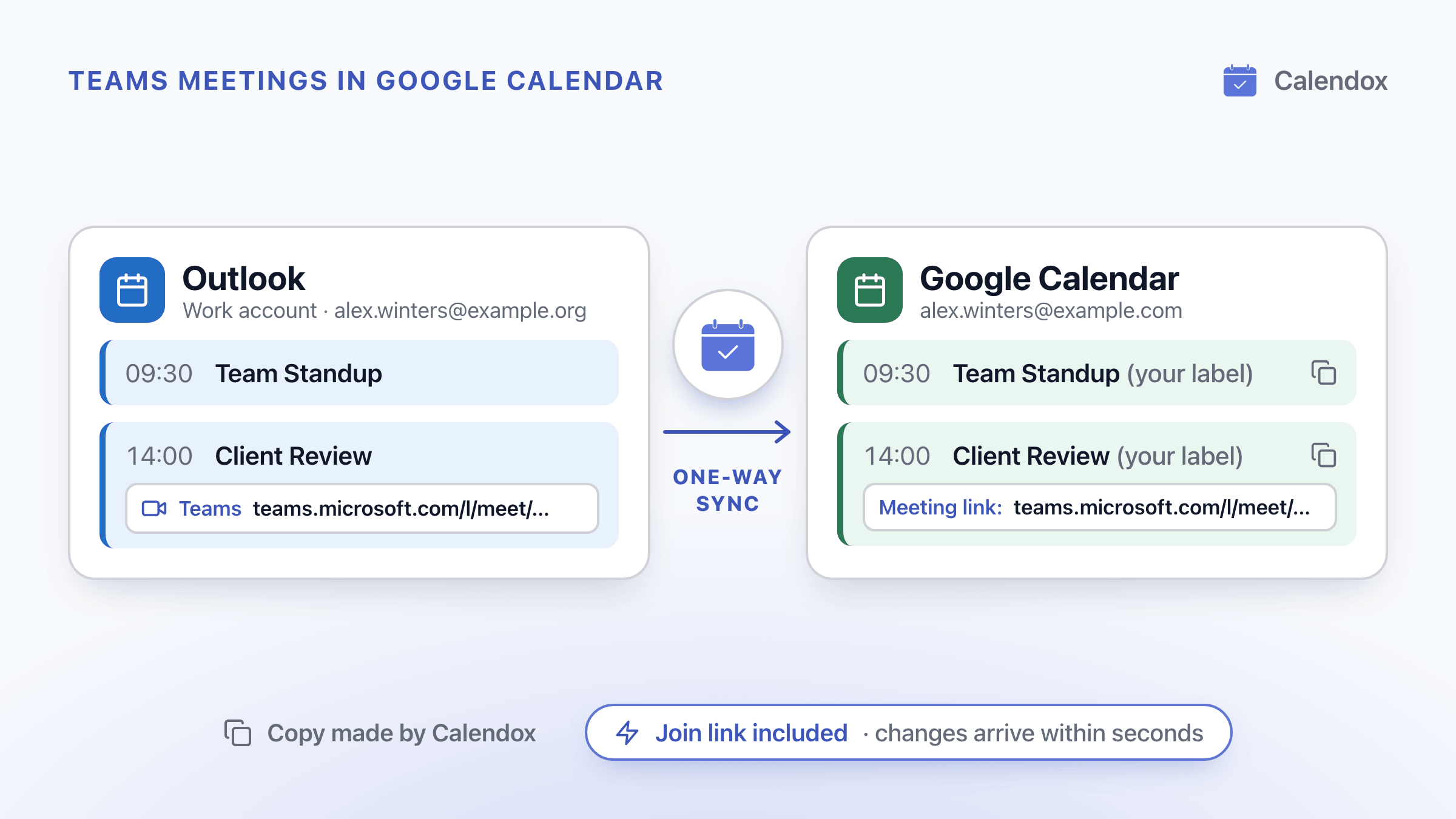
Sync Teams Meetings to Google Calendar
Microsoft's Google Workspace–Teams calendar sync is no longer supported. How to get Teams meetings and their join links into Google Calendar now.
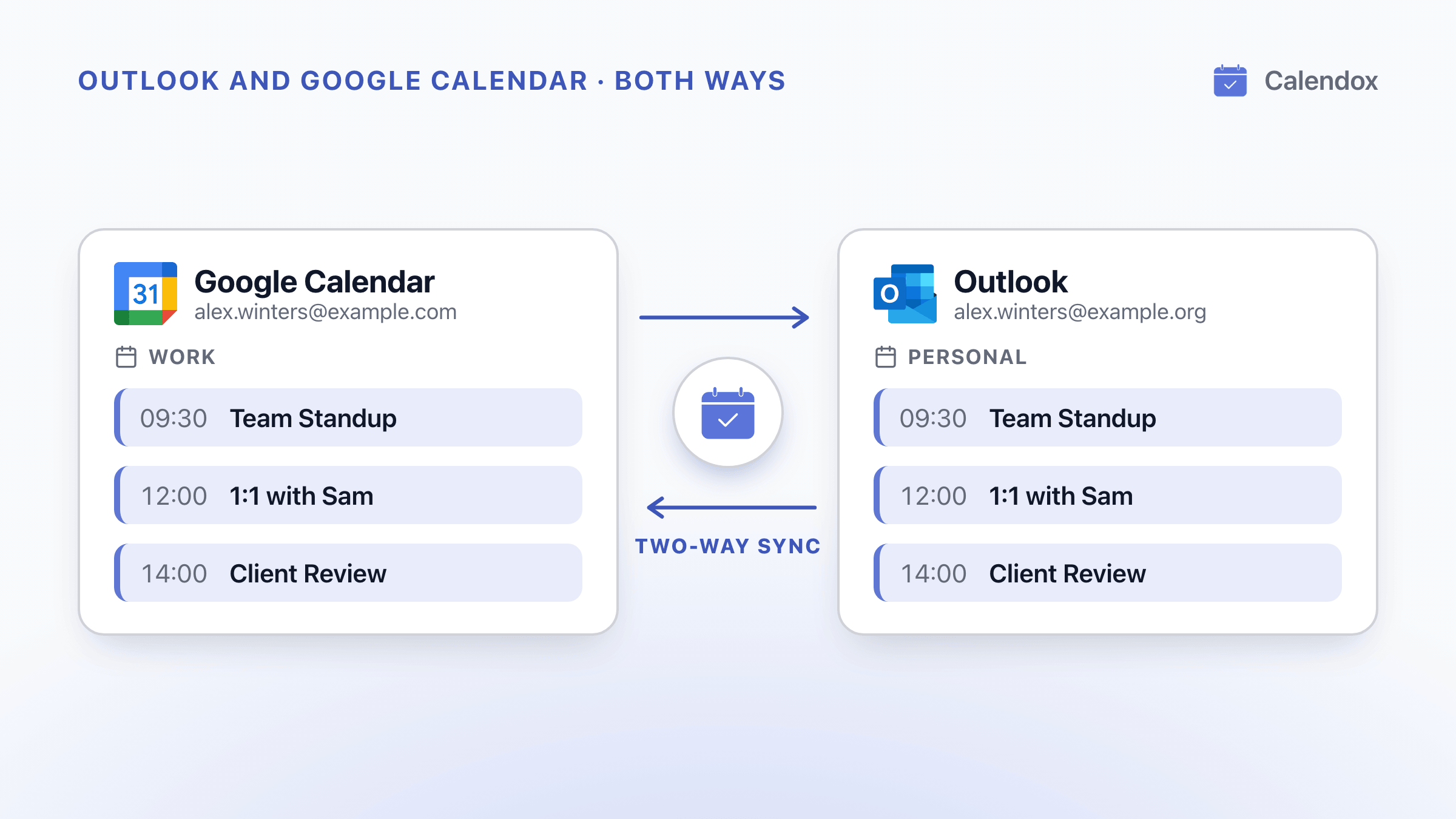
Sync Outlook and Google Calendar Both Ways
What Outlook and Google Calendar's built-in options do, where Microsoft and Google say each one stops, and how to keep both calendars in two-way sync.