
Connect Exchange Server Calendar
How to connect a calendar on your organisation's own Exchange Server to Calendox — sign-in with your mailbox password, importing calendars and fixes.
Connecting an Exchange Server calendar takes about a minute: click Exchange Server on Dashboard → Accounts, enter your mailbox address and Exchange password, then choose which calendars to import. The calendars become available in syncs, the Unified Calendar, and booking pages like any other calendar.
This page is for mailboxes on a server your organisation runs itself. If your mailbox is in Microsoft 365, use the Outlook Calendar card instead — see Connect Microsoft Calendar. Starting from the Exchange Server card by mistake does no harm: Calendox recognises a Microsoft 365 mailbox and offers the Microsoft 365 sign-in in its place.
Prerequisites
- A Calendox Personal or Business account with an active trial or subscription — connecting calendars requires one. See Plans and billing.
- A mailbox on Exchange Server 2016 or later that is reachable from the internet, the same way Outlook on the web is. Your IT administrator can confirm this — point them to Exchange Server for IT administrators.
- Your Exchange mailbox address and Exchange password. The mailbox address may differ from the email you use to sign in to Calendox.
Steps
1. Open the Accounts page
Sign in to Calendox and go to Dashboard → Accounts. A short note beneath the provider cards summarises what Calendox can access, what it keeps and how it's protected, and links to How Calendox Protects Your Data.
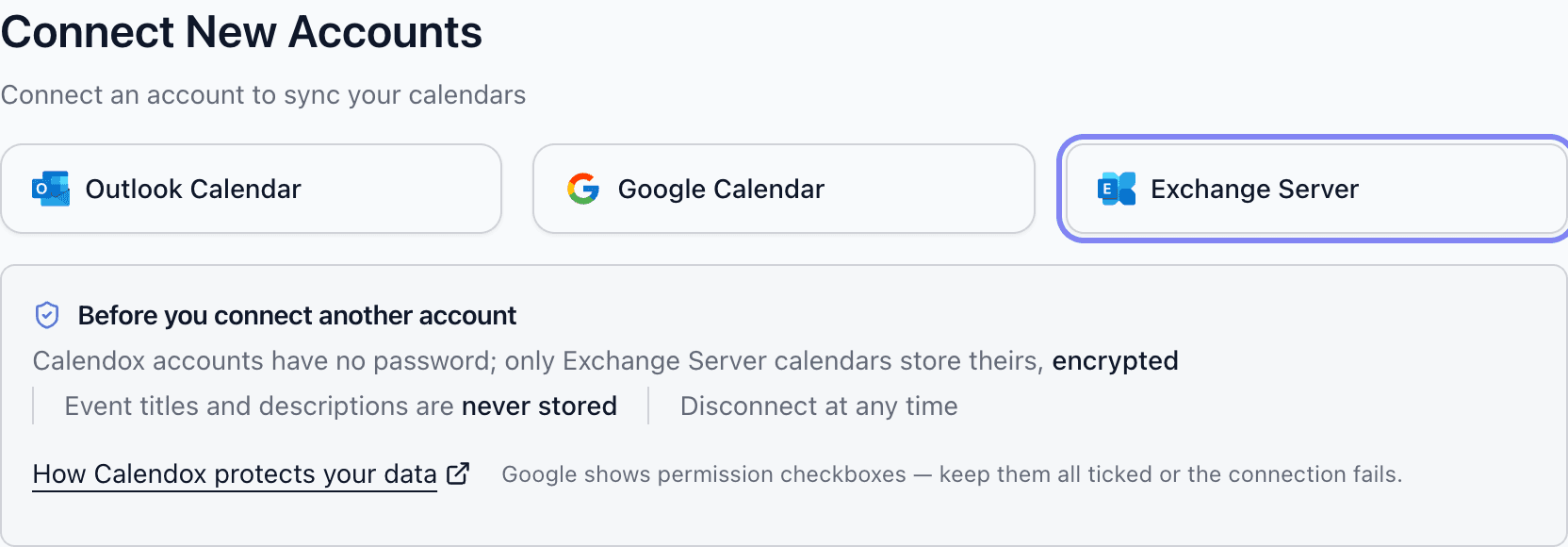
2. Click the "Exchange Server" card
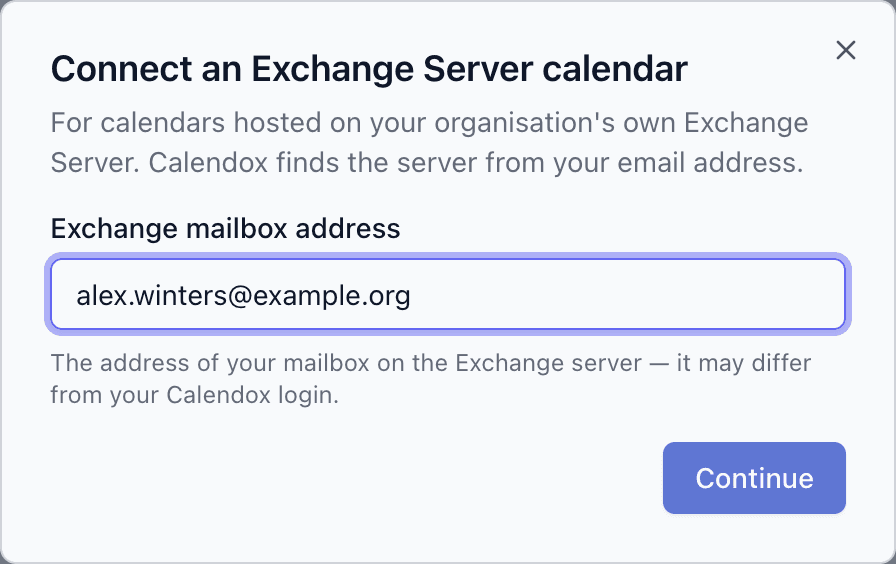
A dialog opens asking for your Exchange mailbox address. Enter it and click Continue — Calendox finds your server from the address.
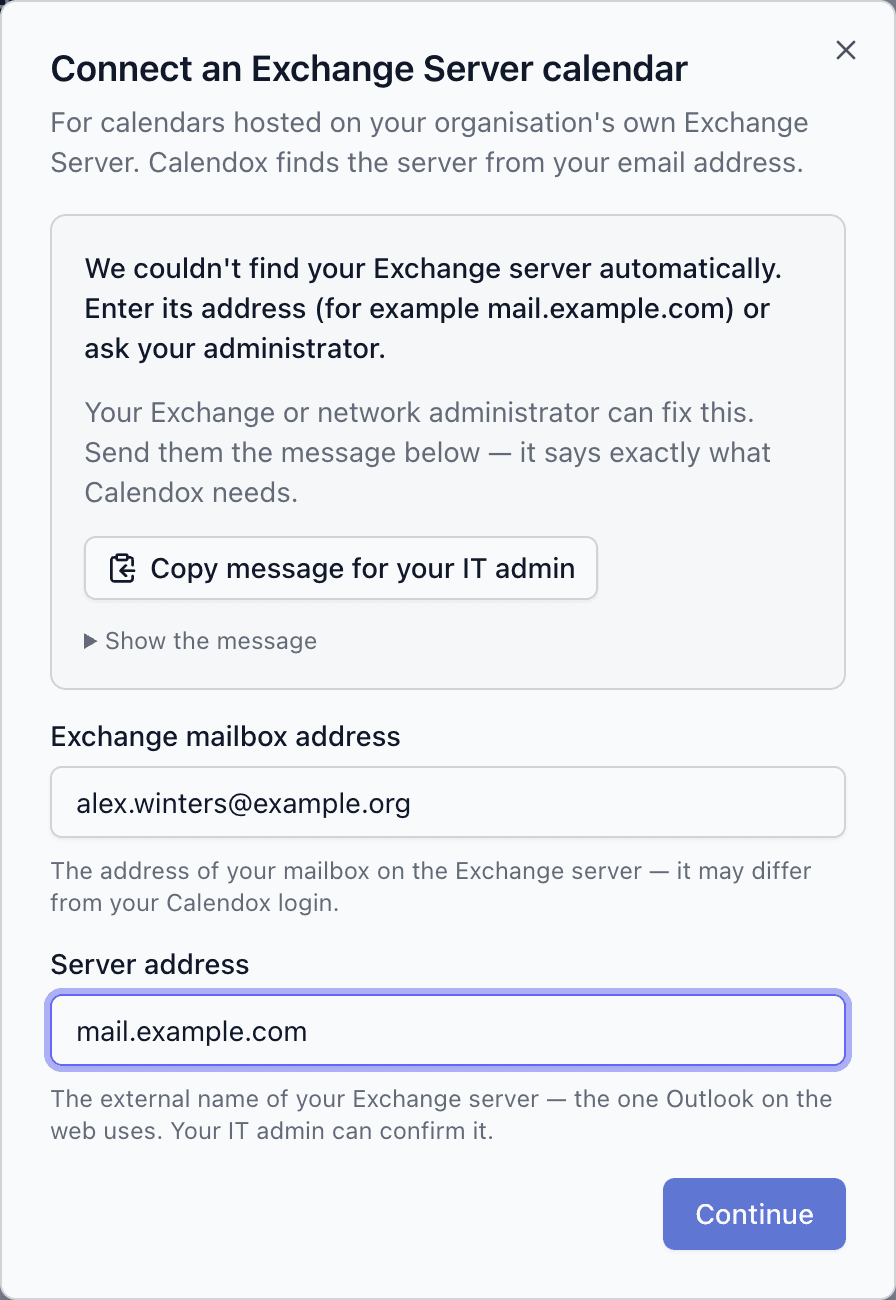
If the server can't be found automatically, a Server address field appears. Enter the external name of your Exchange server — the one Outlook on the web uses, such as mail.example.com — or ask your IT administrator for it, then click Continue again.
3. Enter your Exchange password
The dialog shows the server it found (Server found: mail.example.com) and asks for your username and Exchange password. Leave Username blank to sign in with your mailbox address, or enter DOMAIN\user if your server needs it. Then click Connect.
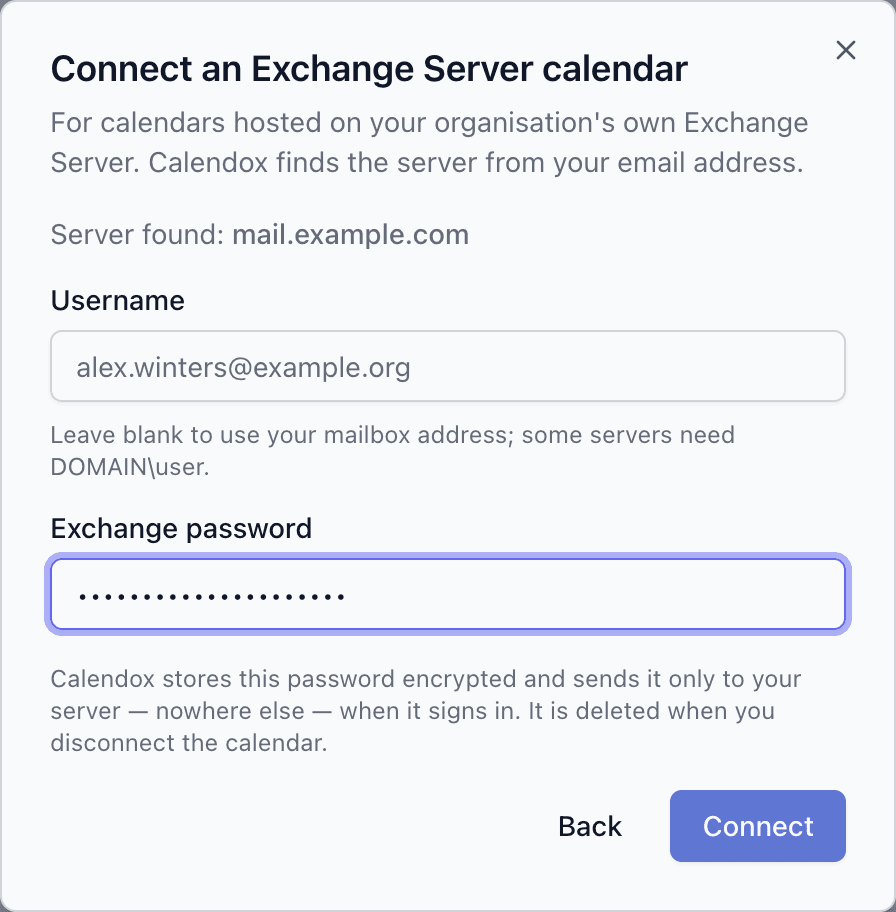
Calendox signs in to your Exchange Server with this password rather than a Google or Microsoft 365 sign-in, so it stores the password encrypted and sends it only to your own server — nowhere else. It is deleted when you disconnect the calendar or delete your Calendox account. See What does Calendox store, and how do I revoke access?.
4. Select calendars to import
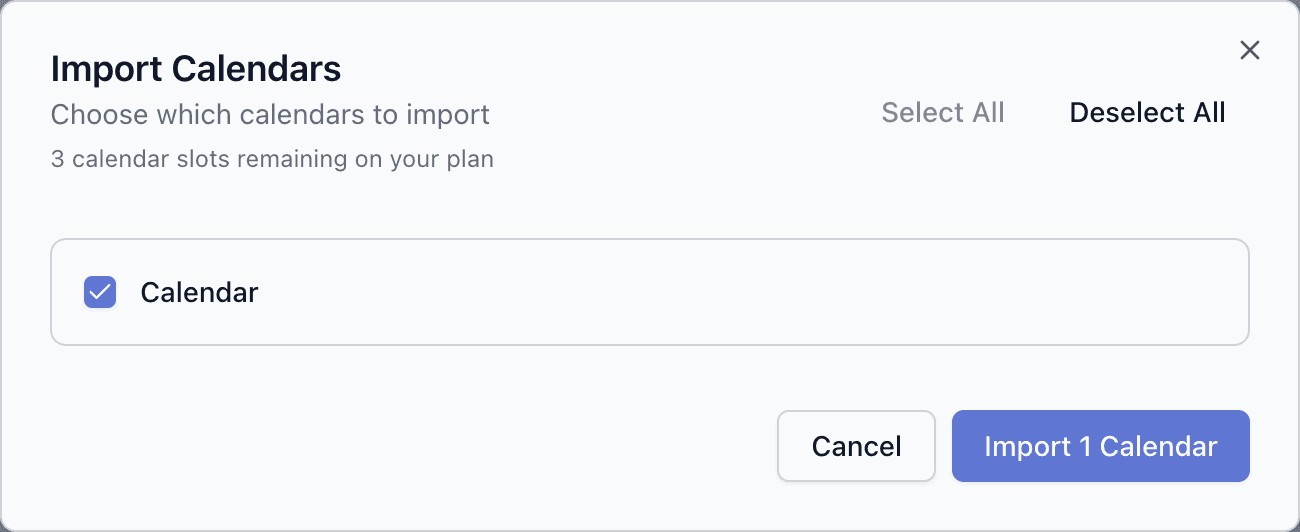
The import dialog opens automatically with the calendars in your Exchange mailbox. The dialog header shows how many calendar slots remain on your plan. Select the calendars you want to use and click Import — the button counts your selection, for example Import 1 Calendar.
5. Confirm
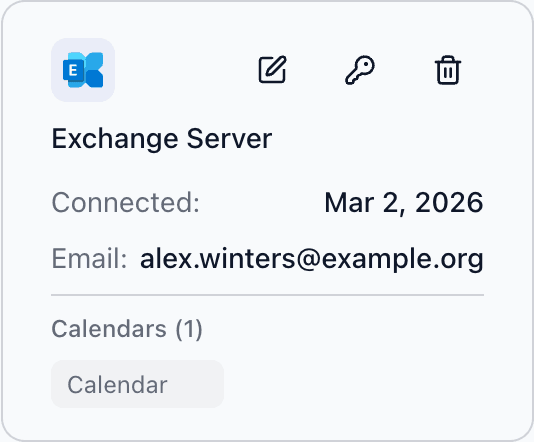
Your imported calendars appear under the Exchange account on the Accounts page, ready to use in syncs, the Unified Calendar, and booking pages.
Which calendars can I import?
Calendox lists the calendars in your own mailbox — the default calendar and any calendars you created beneath it. Calendars shared with you by colleagues, delegate access to someone else's mailbox, and shared or resource mailboxes are not listed; to use one of those, connect that mailbox with its own account.
Rows that can't be selected are labeled the same way as for Google and Microsoft calendars:
| Label | Meaning |
|---|---|
| Read-only | Your mailbox doesn't let you create, change or delete items in this calendar folder. Calendox can't sync events into it, so it can't be imported. |
| Already imported | This calendar is already imported into Calendox — under another of your connected accounts, or by a different Calendox account. A calendar can be imported only once across all of Calendox; remove it from the other account first. |
| In active sync | Shown when managing an account's calendars: this calendar is part of an active sync and can't be deselected. Remove it from the sync first. |
Each imported calendar counts as one calendar connection against your plan's limit. Connecting the Exchange account itself doesn't consume a slot — only the calendars you import do.
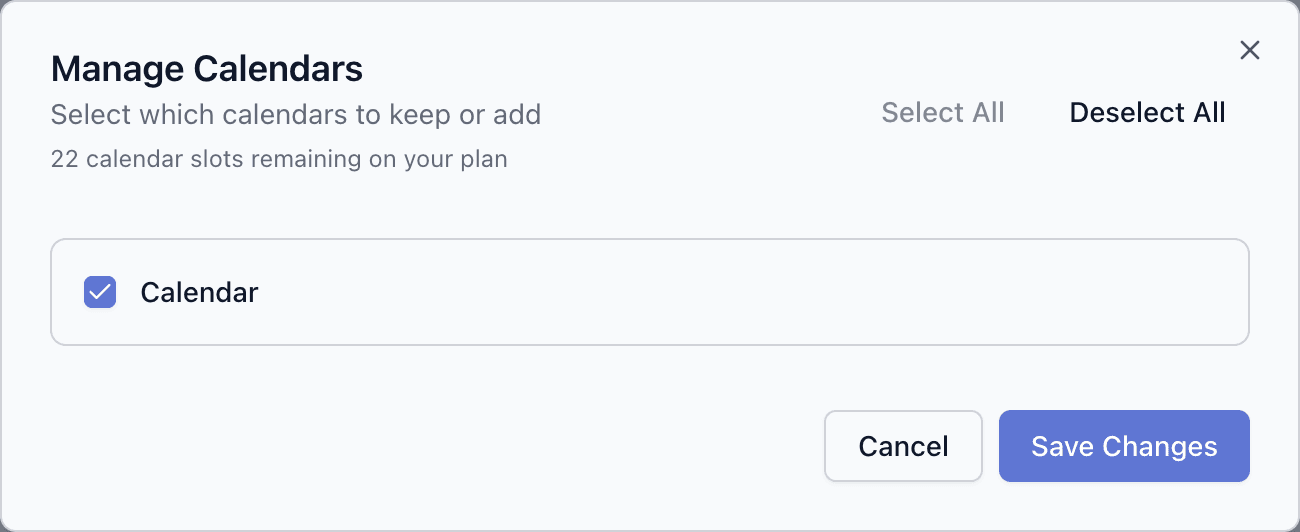
To add or remove calendars later, click the pencil icon on the account card: the Manage Calendars dialog lists the calendars in your mailbox and shows how many slots remain.
What works with an Exchange Server calendar?
| Feature | Exchange Server calendars |
|---|---|
| Unified Calendar | Events are shown alongside your other calendars, and you can create, edit and delete single events, individual occurrences and whole recurring series there; This and following events isn't available on an Exchange calendar. Exchange events have no Open in Outlook link. |
| Sync | One-way and multi-way syncs work in every direction between Exchange, Google and Microsoft calendars — including between two Exchange calendars on different accounts. |
| Booking pages | Exchange calendars count towards your availability and can be the destination calendar for bookings. Invitations are sent from your mailbox, exactly as if you had created the event in Outlook. |
| Meeting links | Zoom links work on Exchange events and bookings. Microsoft Teams links need a Microsoft 365 calendar and Google Meet links need a Google calendar, so neither is offered on an Exchange calendar. |
How quickly do changes sync?
Google and Microsoft 365 tell Calendox as soon as an event changes. Changes made on an Exchange Server reach Calendox within about 5 minutes — sooner when your server can reach Calendox, which your IT administrator can allow (see Exchange Server for IT administrators). Edits you make in Calendox are written to your Exchange calendar straight away, and from there to the other calendars in your syncs. See What is calendar sync? for how syncs behave in general.
What does Calendox store, and how do I revoke access?
- Your Exchange username and password, encrypted, used only to sign in to the server recorded when you connected. They are deleted when you remove the account from Calendox or delete your Calendox account, and are never sent anywhere else.
- Your calendar folders and the events in them are read and, for syncs, the Unified Calendar and bookings, written. Calendox does not read your mail, contacts or other mailboxes.
- Event titles, descriptions and locations are not stored. As for every other provider, Calendox keeps timing and a one-way content fingerprint, and reads the details live when they are displayed. See Data Security.
To revoke access, go to Dashboard → Accounts, find the Exchange account, and remove it. An account can't be removed while its calendars are in an active sync or a booking page books into one — delete the sync and move the booking page first. Removing the account deletes the stored username and password. Your IT administrator can also end access from the server side at any time.
What if my administrator blocks Calendox?
If your administrator turns off Calendox's access to your mailbox, syncs that use this calendar stop receiving and sending changes. For a calendar that is the source of an active sync, syncing resumes on its own if access comes back within about an hour; otherwise Calendox tells you once, by email and in-app: the account card shows Access limited — "Your administrator has limited which apps may use this calendar" — with Copy message for your IT admin, which tells your administrator what to check and change (see What if my sign-in is blocked?). Once they allow Calendox again, click the key icon (Update password) on the account card and enter your password: the connection resumes and your calendars, syncs and events are kept.
Any other calendar — one that only receives copies from syncs, or that a booking page uses — shows the same message once Calendox next uses it and a second check agrees: when a booking page checks or books into it, the Unified Calendar shows it or you create, change or delete an event in it there, you delete an event in Calendox that has a copy there, or a sync can't copy an event into it. That can be sooner than an hour, but never within an hour of connecting the calendar, updating its password or changing its syncs — creating a sync counts, so a new sync that fails to start shows only that it failed. Until a message appears, to check whether blocked access is the cause, click the key icon (Update password) and enter your password: if access is blocked, the dialog says so and offers Copy message for your IT admin.
While access is blocked, Calendox also can't delete the copies it made on your server. Once the account card shows Access limited, deleting the syncs or removing the account asks you to confirm that those copies stay where they are; before that, deleting may not complete until access is back.
What if my Exchange password changes?
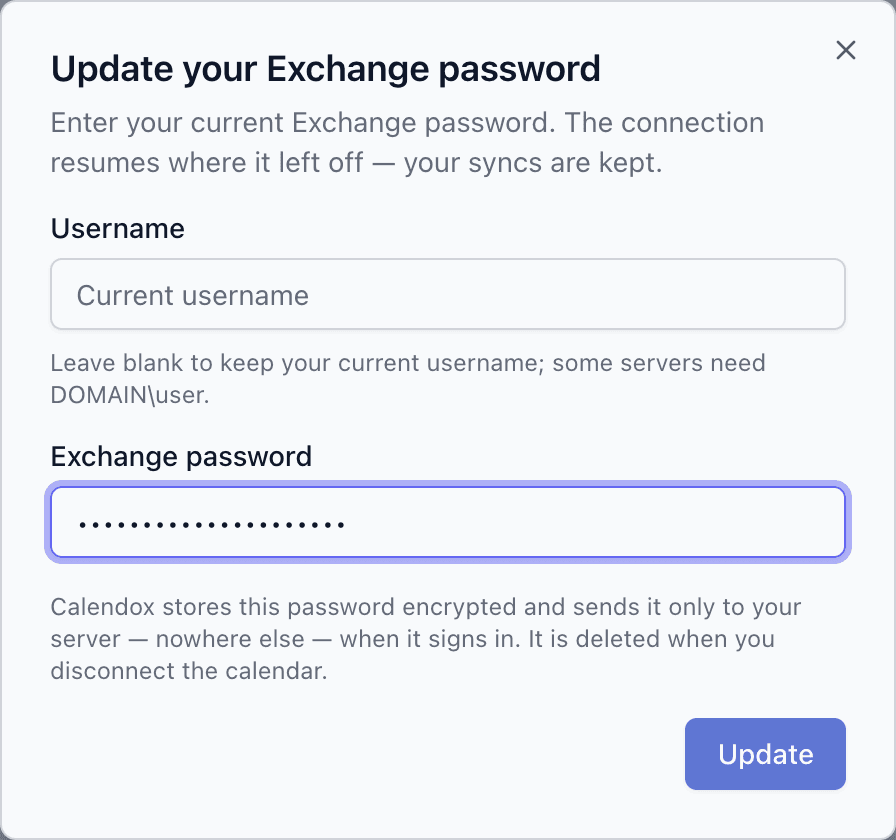
Calendox never changes or renews your password, so after a password change your server rejects the stored one, and syncs that use this account stop receiving and sending changes until the password is updated; the account card and an email tell you what to do. On Dashboard → Accounts the Exchange account shows Password update required with the message "Your Exchange server rejected the stored password — it was changed or has expired, or your account is locked or disabled." If your password expired, change it first. Then click the key icon (Update password), enter the new password in the Update your Exchange password dialog, and the connection resumes where it left off — your calendars, syncs and events are kept.
If the new password is refused too, stop: repeated attempts can lock your account. Send your IT administrator the message from Copy message for your IT admin on the account card — it lists what to check, such as an expired, locked or disabled account, and never contains your password.
What if my sign-in is blocked?
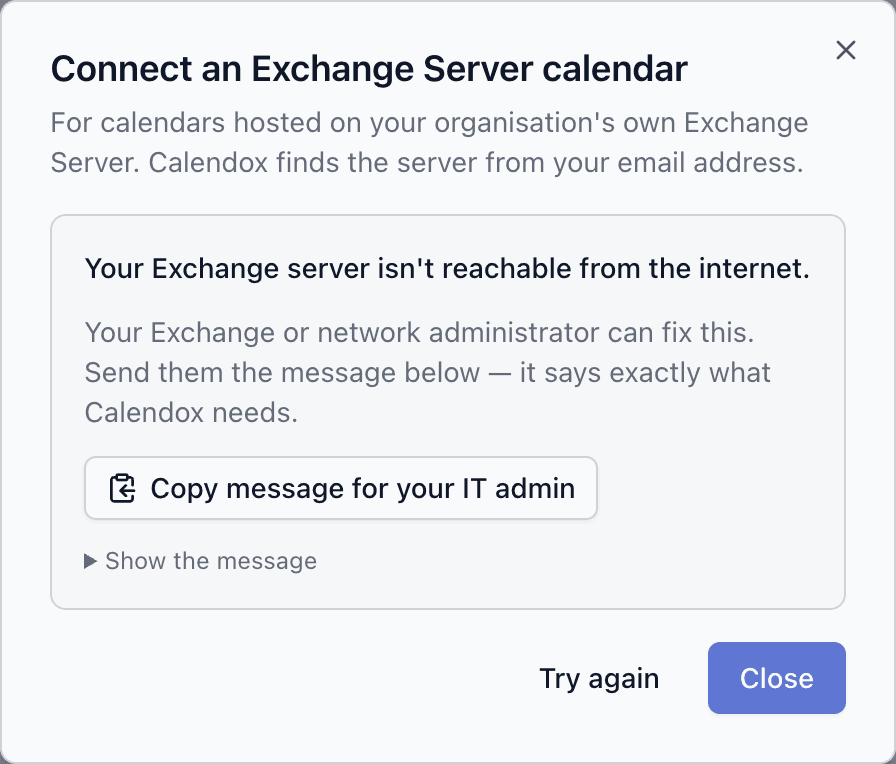
Many Exchange servers are set up so that only Outlook can reach them from outside the office. When Calendox can't find the server, can't reach it, or the server refuses the sign-in, the connect dialog shows a short card that says what happened in plain words — for example "Your server only allows sign-in methods that cloud apps can't use." — and whether this is something your IT administrator has to change.
When it is, the card offers Copy message for your IT admin. The copied message says exactly what Calendox needs — the problem in one line, the change required, the PowerShell commands if any, the code, your mailbox domain, the server tried and how it answered, and a link to the administrator page. It never contains your password. Show the message lets you read it before sending.
When Calendox flags a calendar that was already connected — for example Password update required or Access limited — and the fix is your administrator's, its card on Dashboard → Accounts offers the same Copy message for your IT admin and Show the message below its message, and the email Calendox sends you includes the message too, without the server name.
When your mailbox turns out to be in Microsoft 365, the card offers Connect with Microsoft 365 instead: click it and the normal Microsoft sign-in starts — no Exchange password is needed.
Try again returns to the step that failed — the address, or the password with the server already found — once your administrator has made a change.
What if my mailbox moves or becomes unavailable?
An Exchange connection stays with the server address it was set up on. If your organisation moves your mailbox to Microsoft 365 (or back), or to another organisation's Exchange server — or turns it off — Calendox can no longer open it there, and syncs that use this calendar stop receiving and sending changes. A move between servers or databases inside your organisation usually needs nothing from you, as long as the server address you connected with still reaches the mailbox; changes may pause while the move completes. Calendox doesn't follow a mailbox to its new location, and syncs are not moved automatically.
For a calendar that is the source of an active sync, Calendox tells you once, by email and in-app, when it hasn't been able to use the mailbox for 24 hours and a second check agrees — your server answers that the mailbox isn't there, the server can't be reached or keeps failing, or a move is still in progress. The account card then shows Mailbox unavailable — "Exchange can no longer open this mailbox" — with the steps below, naming the booking pages, syncs and meeting apps that use the account, a link to this section (Steps for a moved mailbox), and Copy message for your IT admin with what your administrator can check. The email lists the same steps, links this section (Read more in the user guide) and carries the same message for your administrator, without the server name. When your organisation's own settings for your address point to Microsoft 365, the card shows Mailbox appears to have moved — "This mailbox appears to have moved to Microsoft 365" — with the same steps instead; the email is the same either way. Calendox can't confirm a move, so the steps start with a check.
Any other calendar — one that only receives copies from syncs, or that a booking page uses — shows the same message only when your server answers that the mailbox isn't there as Calendox next uses the calendar, and a second check agrees: when a booking page checks or books into it, the Unified Calendar shows it or you create, change or delete an event in it there, you delete an event in Calendox that has a copy there, or a sync can't copy an event into it — never within 24 hours of connecting it, updating its password or changing its syncs. A server that can't be reached or keeps failing shows no message for such a calendar. To find out why it stopped working, click the key icon (Update password) on the account card and enter your password: if the server can't be reached, blocks Calendox or no longer has the mailbox, the dialog says so and offers Copy message for your IT admin. Any Exchange calendar can still show the password message if the server starts rejecting the stored password, which can also happen after a move — see What if my Exchange password changes?. If you know the mailbox moved and its calendars have stopped syncing, follow the steps even without a message.
- Check where the mailbox lives now — your IT administrator can tell you. If it did not move, ask them to check it. Once it works again, click the key icon (Update password) on the account card and enter your password — the connection resumes and your calendars, syncs and events are kept. Nothing below applies.
If the mailbox moved, connect it again where it lives now, in this order. Your own events are never deleted.
- Booking pages first. If a booking page books into this calendar, open the page and choose another Destination calendar under Calendars, or delete the page. If this is your only calendar, connect another one for now. An account can't be removed while a booking page books into it. A page set to Check specific calendars only doesn't block the removal, but stops checking this calendar once the account is removed — you choose its calendars again in step 5.
- Delete the syncs that use this calendar. If the account card already shows a message, or the old server answers that the mailbox is no longer there, the delete dialog says how many copies Calendox can no longer reach and asks you to confirm that they stay where they are. They may later appear next to the new copies — delete them in your calendar app. If the old server can't be reached at all (for example, it was shut down after the move) and the card shows no message yet, leave every sync that uses this calendar as it is for now. The card shows Mailbox unavailable about a day after the server stopped answering, but only while this calendar is the source of an active sync; then delete the syncs and confirm. Before that, deleting a sync that has copies in this calendar fails, leaves that sync Failed and starts that day over — and once no active sync reads from this calendar, after such a failure or after you delete a sync that only reads from it, the message doesn't come. Contact support in that case, or if this calendar isn't the source of an active sync.
- Remove the account on Dashboard → Accounts. While an active sync still uses it, the remove button stays disabled and its tooltip names those syncs. A Failed or Disabled sync doesn't keep it disabled — for example, one whose deletion in step 2 failed or still waits for your confirmation — so make sure step 2 deleted every sync on Dashboard → Sync. The same confirmation appears in the same cases; if the old server can't be reached at all, removing the account fails the same way. Removing it also disconnects any meeting app connected through it — if Zoom was, booking pages that use Zoom refuse bookings until you connect it again — and resets your default calendar if it was on this account. The removal dialog names the meeting apps it disconnects and, when the card shows Mailbox unavailable or Mailbox appears to have moved, repeats steps 4 and 5.
- Connect the mailbox where it lives now — the Outlook Calendar card for Microsoft 365 (see Connect Microsoft Calendar), or the Exchange Server card for your organisation's own server.
- Import its calendars and set them up again: re-create the syncs, choose each booking page's Destination calendar and the calendars it checks, reconnect any meeting app under Settings → App → Meeting Apps, and choose your default calendar again. Calendox doesn't restore them for you.
Where else does Calendox show that a calendar needs attention?
While an account card on Dashboard → Accounts shows a message — Password update required, Access limited, Mailbox unavailable or any other — the places that use the account's calendars point to it, each with an Open Accounts link:
- Syncs: every sync that uses one of its calendars shows "A calendar in this sync needs attention — changes to and from it don't sync until it's fixed." If Re-register fails on such a sync, the message points to Accounts instead of saying it will keep retrying.
- Booking pages: the page editor marks the calendar Needs attention under Calendars, and when the page books into it or checks it for conflicts, it says "A calendar this page uses needs attention, so the page can't offer times until it's fixed." If approving a request fails because Calendox couldn't check the page's calendars, the message points to Accounts too.
- Unified Calendar: a notice above the calendar says that a connected calendar needs attention, so its events may be missing until it's fixed.
These notices follow the account card: they appear only while it shows a message, and go away once you fix the account there.
Troubleshooting
- "We couldn't find your Exchange server automatically." Autodiscover isn't published for your domain. Enter your server's external name in the Server address field that appears (for example mail.example.com), or send the copied message to your IT administrator.
- "Your Exchange server isn't reachable from the internet." The server is reachable only inside your network, or its external name isn't published. Nothing was connected — your IT administrator has to publish it externally.
- "Your server's certificate isn't trusted." The server uses a self-signed or internal certificate. Your IT administrator has to install a publicly trusted one.
- "Your server only allows sign-in methods that cloud apps can't use." or "Your organisation requires Microsoft sign-in for this server." — or, on the account card, "Your server no longer accepts password sign-in for Calendox." Password sign-in is switched off or blocked by policy. Your IT administrator can enable it — see Exchange Server for IT administrators.
- "Exchange rejected the sign-in." Check the password; some servers need
DOMAIN\userinstead of the email address. If it keeps failing with the right password, send the message to your IT administrator. - "Your administrator has limited which apps may use your calendar." Access is disabled for your mailbox or restricted to approved apps. Send the message to your IT administrator.
- "Your administrator has limited which apps may use this calendar." (Access limited on the account card) Your server blocks Calendox. Send your IT administrator the message from Copy message for your IT admin; once they allow Calendox, click the key icon and enter your password — see What if my administrator blocks Calendox?.
- "This Exchange version isn't supported." Your server is older than Exchange Server 2016 and can't be connected.
- "Your server is busy — try again in a minute." The server is throttling requests. Wait a minute and click Try again.
- "That address and this sign-in belong to different mailboxes." Enter the address of the mailbox you sign in to, not another address that reaches you.
- "Exchange can't open a mailbox for that address with this sign-in." (when connecting) Enter your Exchange mailbox address — it may differ from your Calendox login — and sign in with that mailbox's account.
- "Your mailbox is in Microsoft 365 — connect it with Microsoft 365 instead; no Exchange password is needed." Click Connect with Microsoft 365 and complete the normal Microsoft sign-in.
- "This address is already connected through another Exchange server name." If only your password changed, close the dialog and use the key icon on that account's card — see What if my Exchange password changes?; your syncs are kept. If your mailbox moved to another server, follow the steps in the dialog: move any booking page off that calendar, delete the syncs that use it, remove the account, then connect the mailbox again.
- "This address is already connected to Calendox as a Google or Outlook account." The same address is connected to your Calendox account through the Google Calendar or Outlook Calendar card, and an address can be connected only once. To connect it here instead — for example, because your mailbox moved to this Exchange server — do what the dialog lists, on Dashboard → Accounts: move any booking page off that account, delete the syncs that use it and remove it; then connect the mailbox here. See What if my mailbox moves or becomes unavailable?.
- "This address is already connected to Calendox for Microsoft Teams or Google Meet meeting links." The same address is connected to your Calendox account as a meeting app under Settings → App → Meeting Apps, not as a calendar, so Dashboard → Accounts doesn't list it, and an address can be connected only once. To connect the mailbox here instead, turn that meeting app off there, then connect the mailbox here — that meeting app then can't be connected with this address.
- "Too many attempts — try again in a few minutes." Calendox limits how often a sign-in can be tried. Wait a few minutes and try again.
- "Your Exchange server rejected the stored password — it was changed or has expired, or your account is locked or disabled." Click the key icon on the Accounts page and enter the new password — see What if my Exchange password changes?.
- "Exchange can no longer open this mailbox." The mailbox moved or was turned off, or the server can't be reached — on the account card, or in the Update password dialog when the server no longer has the mailbox. See What if my mailbox moves or becomes unavailable?.
- "This mailbox appears to have moved to Microsoft 365." (Mailbox appears to have moved on the account card) Your organisation's own settings for your address now point to Microsoft 365. Check with your IT administrator first: if it moved, follow the steps and connect it from the Outlook Calendar card; if it didn't, click the key icon (Update password) once it works again.
- "A synced calendar no longer exists." (a notification) The calendar a sync reads from was deleted from your mailbox; the rest of the account still works, so the account card shows nothing. Delete that sync on the Syncs page and create it again with another calendar.
account_connected_elsewhere— each mailbox can be connected to only one Calendox account at a time. Use a different mailbox, or disconnect it from the other Calendox account first.trial_email_used— during the trial, you can't connect a mailbox whose address has already consumed a Calendox trial. Subscribe to a plan to connect it.license_denied— your plan doesn't allow another calendar connection right now, usually because you've reached its connection limit. Remove a calendar you no longer need or upgrade — see Plans and billing.- Microsoft Teams or Google Meet is not offered on an Exchange event. Teams links need a Microsoft 365 calendar and Meet links need a Google calendar. Use Zoom, or hold the event on a calendar from that provider.
Next steps
- Create your first sync — sync your Exchange calendar with Google, Microsoft 365 or another Exchange calendar
- Exchange Server for IT administrators — what your administrator checks and allows
- Create a booking page — use an Exchange calendar for availability and as the booking destination
- Zoom — the meeting app that works with Exchange events and bookings
Connect Microsoft Calendar
How to connect your Microsoft account to Calendox and import Outlook calendars — authorization, admin consent, supported calendars, and errors.
Create Your First Sync
Step-by-step guide to creating a one-way or multi-way calendar sync in Calendox — sync types, calendar selection, sync properties, troubleshooting.