
Sync Exchange Server with Google or Microsoft 365
By CalendoxPublished Updated 11 min read
In short
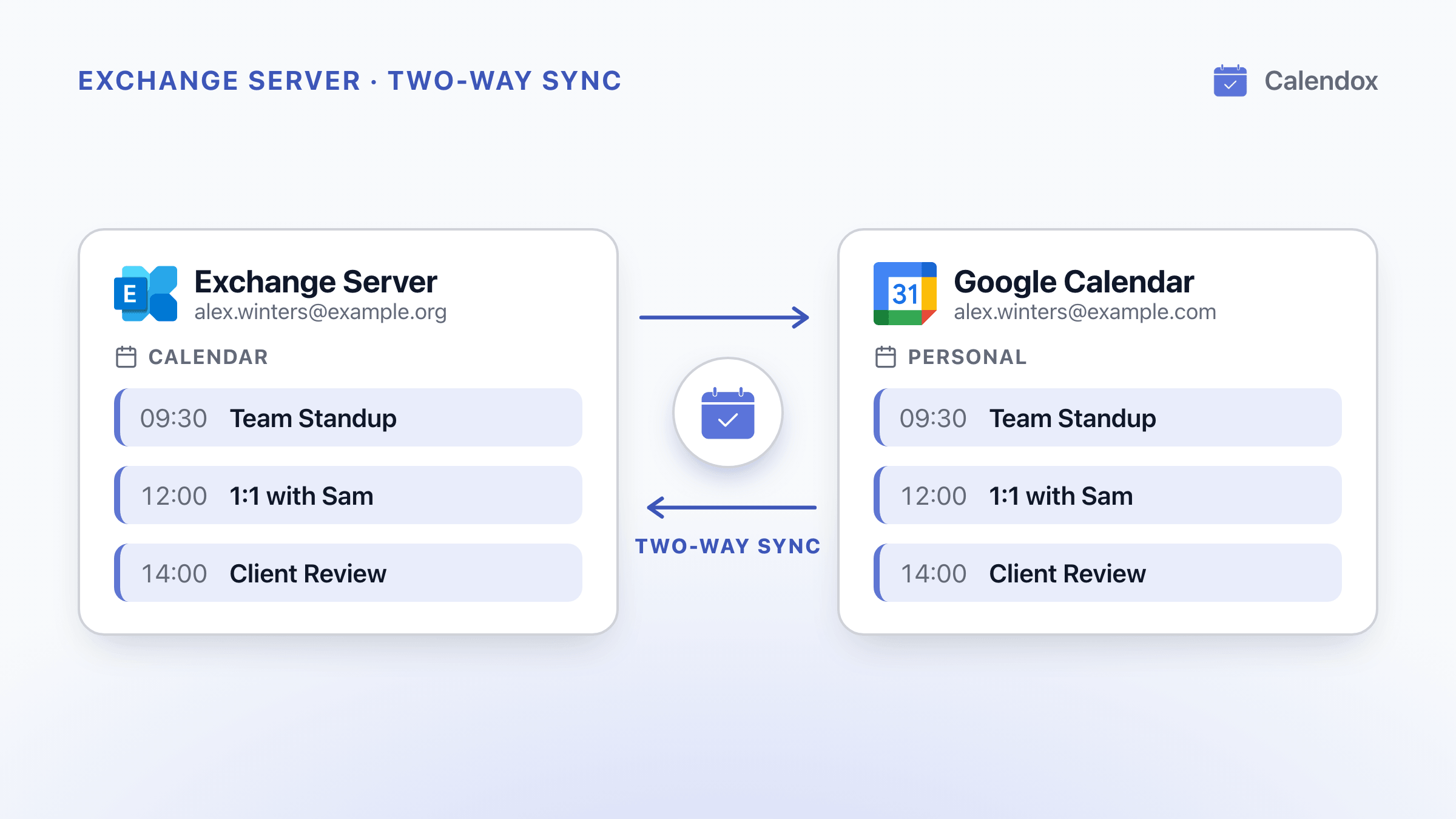
Exchange Server can publish a read-only link to your calendar, if your administrator allows it, and Outlook can export a one-time file. Neither keeps Google Calendar or a Microsoft 365 or Outlook.com calendar in step as meetings change. Calendox connects an Exchange Server 2016 or later mailbox with its address and password, and syncs its calendars both ways with Google and Microsoft calendars.
- Outlook on the web can publish an Exchange calendar as a link only where your administrator allows it, and Microsoft says HTML and ICS calendars are read-only.
- Microsoft says a subscribed calendar should update about every 3 hours in Outlook.com and about every 6 hours for work or school accounts, and that an update can take more than 24 hours.
- Microsoft's retirement of Exchange Web Services applies only to Microsoft 365 and Exchange Online. Microsoft says there are no changes to EWS in Exchange Server.
- Calendox syncs an Exchange Server 2016 or later calendar both ways with Google Calendar and Microsoft 365 or Outlook.com calendars. Changes made on Exchange reach Calendox within about 5 minutes.
Can an Exchange Server calendar sync with Google or Microsoft 365 on its own?
No, not both ways. An Exchange Server that your organization runs itself is separate from Google Calendar and from a Microsoft 365 or Outlook.com account, and the built-in options between them only go one way:
- publish your Exchange calendar as a read-only link that another calendar subscribes to, where your administrator allows publishing;
- export your calendar from Outlook as a file and import it as a one-time snapshot.
Neither keeps the other calendar in step as meetings are added, moved or cancelled. For a true two-way sync, the events have to be copied in both directions and kept up to date.
How do you show an Exchange Server calendar in Google Calendar?
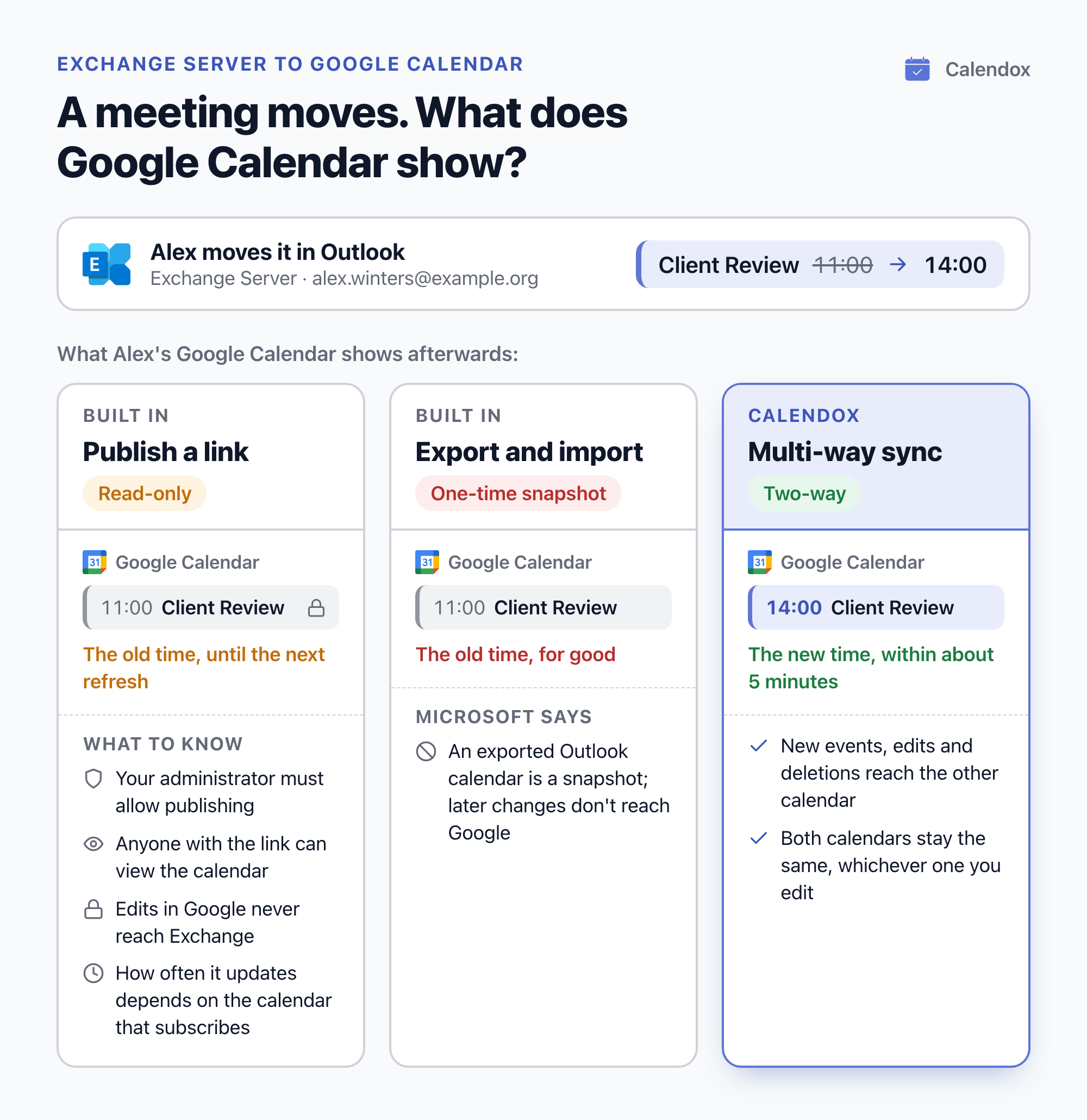
By publishing it from Outlook on the web and subscribing to the link in Google Calendar, if your organization allows publishing.
- Your administrator decides whether you can publish. Exchange Server controls sharing with people outside your organization through sharing policies. Microsoft's New-SharingPolicy reference describes its Anonymous setting as sharing "with external, non-federated organizations and individuals with internet access".
- Publish the calendar in Outlook on the web. Where publishing is allowed, it's in Outlook on the web's calendar settings; the exact menu varies between Exchange Server versions. Microsoft's Outlook on the web help, which is written for Microsoft 365, describes two links: an HTML link to view the calendar in a browser and an ICS link to subscribe to it.
- Subscribe in Google Calendar. On a computer, next to Other calendars, choose Add other calendars, then From URL, and paste the ICS link. Google's help page says you can only add a calendar with a link if it's public, and only in a web browser on a computer, not in the Google Calendar mobile app.
What you get is a view, not a sync:
- Microsoft's help says HTML and ICS calendars are read-only, so recipients can't edit your calendar. Nothing you change in Google Calendar reaches Exchange.
- Microsoft's Set-MailboxCalendarFolder reference says a published calendar is "available to anonymous users", so anyone who has the link can view it: treat it as public.
- Microsoft says how often an ICS calendar syncs depends on the recipient's email provider, and Google's help page doesn't give a refresh interval. A moved meeting can show its old time in Google Calendar until the next refresh.
Exporting is a dead end too. Microsoft's help on exporting an Outlook calendar to Google Calendar says saving it from Outlook (File → Save Calendar) exports a snapshot, and later changes in Outlook won't automatically be reflected in Google Calendar.
How do you show an Exchange Server calendar in Microsoft 365 or Outlook.com?
With the same published ICS link, subscribed in Outlook on the web for your Microsoft 365 work or school account, or in Outlook.com. The limits are the same, and Microsoft's import and subscribe help puts numbers on the delay. A subscribed calendar should update about every 3 hours in Outlook.com and about every 6 hours for work or school accounts, and an update can take more than 24 hours. The same page says importing an .ics file gives you a snapshot of the events at the time of import, which doesn't refresh.
Showing calendars side by side is a different thing. Outlook can show several calendars side by side or overlaid. Microsoft Learn says on-premises Exchange accounts aren't supported in the new Outlook for Windows.
If your mailbox has already moved to Microsoft 365, it's no longer on Exchange Server. Connect it as a Microsoft 365 account instead; Calendox recognizes such a mailbox and offers the Microsoft 365 sign-in in its place.
Does Microsoft's EWS retirement affect Exchange Server?
No. Exchange Web Services (EWS) is an interface apps use to reach Exchange mailboxes, and it's how Calendox connects to an Exchange Server. Microsoft is retiring EWS in Exchange Online: Microsoft Learn says it starts to be disabled in October 2026 and is fully disabled in April 2027. But the Exchange Team Blog says the retirement applies only to Microsoft 365 and Exchange Online, and that "there are no changes to EWS in Exchange Server". Microsoft's 2023 announcement said EWS "will continue to be fully supported for Exchange on-premise mailboxes".
What has changed for Exchange Server is support. Microsoft Learn says support for Exchange Server 2019 and 2016 ended on October 14, 2025, and that Microsoft strongly recommends migrating from those versions as soon as possible. Exchange Server Subscription Edition (SE) has been generally available since July 1, 2025. Calendox works with Exchange Server 2016 or later.
What does your IT administrator need to allow?
Calendox reaches your mailbox over the internet, the way Outlook on the web does, so a few server settings decide whether you can connect:
- your mailbox is on Exchange Server 2016 or later and reachable from the internet, the same way Outlook on the web is;
- the server accepts password sign-in (Basic or NTLM) for Exchange Web Services;
- EWS is allowed for your mailbox and, if your organization keeps an allow-list of apps, for Calendox.
You don't need to check any of this before you try. If something blocks the connection, the dialog says what happened in plain words. When your administrator has to change something, it offers Copy message for your IT admin: the problem, the change needed and any commands, never your password. Exchange Server for IT administrators has the details.
How do you set up two-way sync with Calendox?
Connect your Exchange mailbox and your Google or Microsoft 365 account, then create a multi-way sync. Connect Exchange Server Calendar has the full walkthrough.
- Start a trial. Create a Calendox Personal or Business account. The 14-day free trial needs no credit card. The trial is one per email address: during the trial, you can't connect an account whose email has already used a Calendox trial.
- Connect your other calendar. Connect your Google account or your Microsoft 365 or Outlook.com account through that provider's own sign-in, and import the calendar you want to sync.
- Connect Exchange Server. On Dashboard → Accounts, click the Exchange Server card, enter your Exchange mailbox address and click Continue. Calendox finds your server from the address; if it can't, a Server address field appears: enter the name Outlook on the web uses, which your IT administrator can confirm, and click Continue again. Leave Username blank to use your mailbox address, or enter
DOMAIN\userif your server needs it, then enter your Exchange password and click Connect. - Import your Exchange calendars. Calendox lists the calendars in your own mailbox: the default calendar and any you created under it. Each imported calendar counts as one calendar connection; connecting the account itself doesn't.
- Create the sync. On the Sync page, click Create Sync, choose Multi-way, and pick your Exchange calendar and your Google or Microsoft 365 calendar. Tick what each copy carries (title, description, participants, location, meeting link) and click Submit. Calendox first copies existing events from the start of the previous month up to one year ahead, and from then on keeps both calendars the same, whichever one you edit.
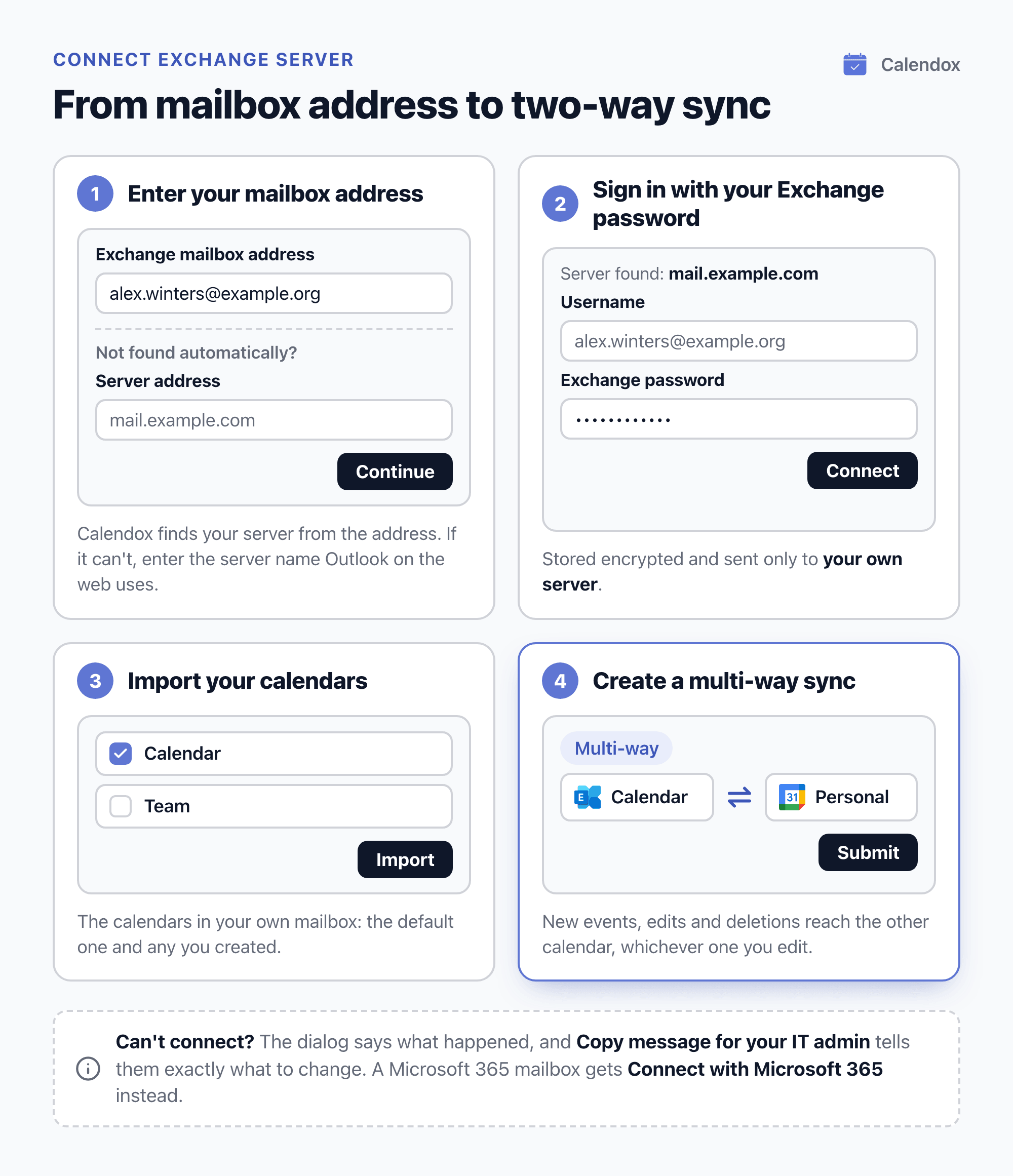
If your mailbox turns out to be in Microsoft 365, the dialog offers Connect with Microsoft 365 instead, and no Exchange password is needed.
How quickly do changes reach each calendar?
It depends on where the change is made:
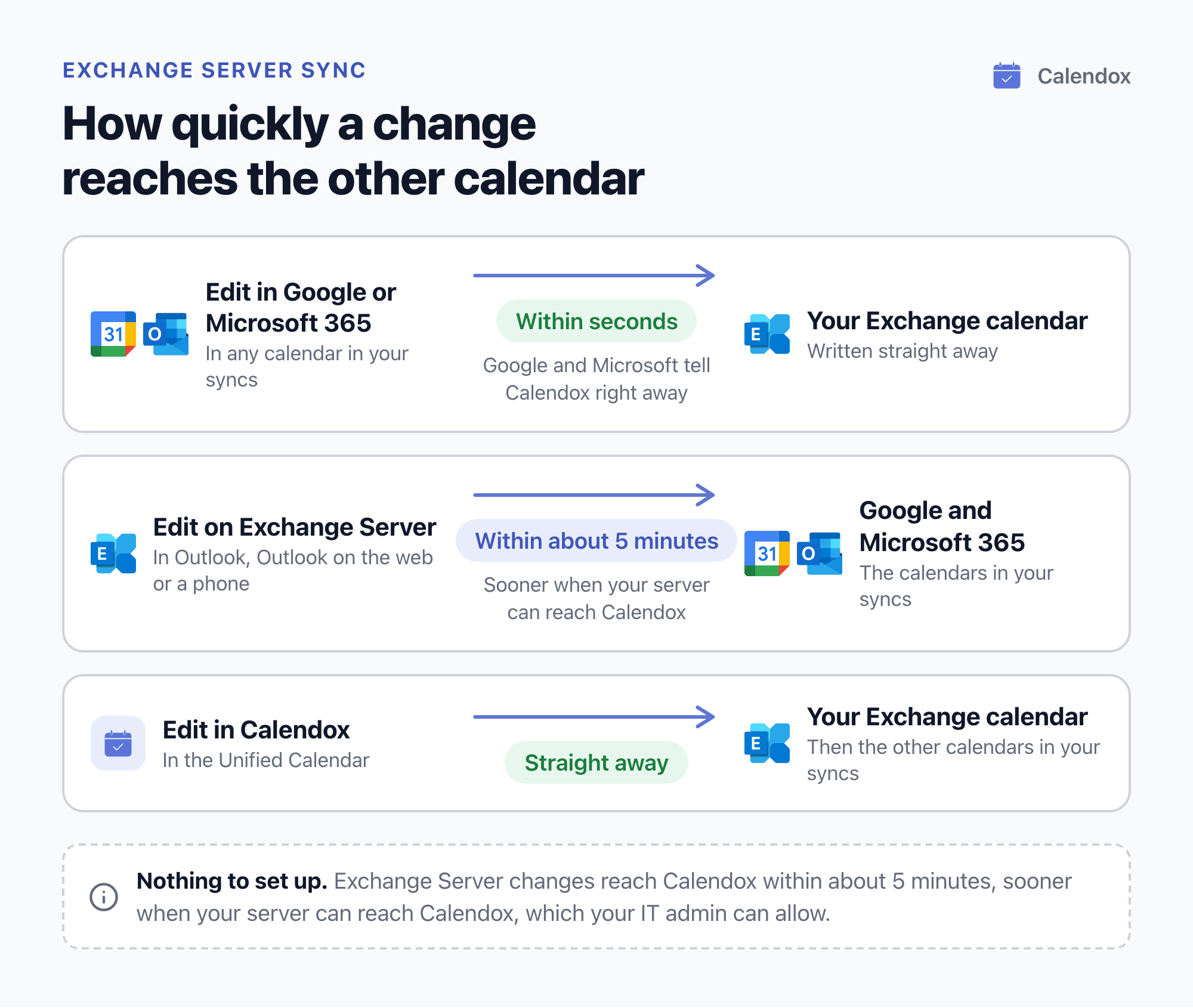
- In Google Calendar or Microsoft 365. Google and Microsoft tell Calendox as soon as an event changes, so those changes arrive within seconds and are written to your Exchange calendar straight away.
- On Exchange Server, in Outlook, Outlook on the web or a phone. Changes reach Calendox within about 5 minutes, sooner when your server can reach Calendox, which your IT administrator can allow. There's nothing to set up.
- In Calendox's Unified Calendar. Edits are written to your Exchange calendar straight away, and from there to the other calendars in your syncs.
What else can you do with an Exchange calendar in Calendox?
The same as with a Google or Microsoft 365 calendar, with a few Exchange-specific limits:
- Unified Calendar. Exchange events show alongside your other calendars. You can create, edit and delete events, single occurrences and whole recurring series. This and following events isn't available on an Exchange calendar, and Exchange events have no Open in Outlook link.
- Booking pages. Exchange calendars count towards your booking page availability and can be the calendar bookings go to. Invitations go out from your mailbox, exactly as if you had created the event in Outlook.
- Meeting links. Zoom links work on Exchange events and bookings. Microsoft Teams links need a Microsoft 365 calendar and Google Meet links a Google calendar.
- More syncs. One-way and multi-way syncs work in every direction between Exchange, Google and Microsoft calendars, including between two Exchange calendars on different accounts.
What does Calendox keep, and how do you disconnect?
Calendox signs in to Exchange Server with your Exchange password, not a Google or Microsoft 365 sign-in, so it stores the password encrypted and sends it only to your own server. It's deleted when you disconnect the calendar or delete your Calendox account. Beyond that:
- Calendox reads and writes only your calendar folders. It never reads your mail, contacts or other mailboxes.
- Event titles, descriptions and locations are never stored. Calendox keeps timing and a one-way content fingerprint, and reads the details live when they're shown. More in Data Security.
To disconnect, remove the Exchange account on Dashboard → Accounts. An account can't be removed while its calendars are in a sync or a booking page books into one, so delete the sync and move the booking page first. Your IT administrator can also end access from the server side at any time.
What else do people ask about syncing an Exchange Server calendar?
Which Exchange Server versions does Calendox support?
Exchange Server 2016 or later, including Exchange Server Subscription Edition (SE).
Can I sync a calendar someone shared with me?
No. Calendox lists the calendars in your own mailbox. Calendars shared with you by colleagues, delegate access to someone else's mailbox, and shared or resource mailboxes aren't listed. To use one of those, connect that mailbox with its own account.
What happens when my Exchange password changes?
Your server rejects the stored password, so syncs that use the account stop sending and receiving changes until you update it. The account card on Dashboard → Accounts shows a key icon, and an email tells you what to do. Enter the new password, and the connection resumes with your calendars, syncs and events kept.
What if my mailbox moves to Microsoft 365?
Calendox doesn't follow a mailbox that moves to Microsoft 365 or to another organization's server: that calendar's syncs stop. Move any booking page off it, delete its syncs, remove the account, connect the mailbox where it lives now, and create the syncs again. Your own events are never deleted. A move between servers inside your organization usually needs nothing, as long as the server name you connected with still reaches the mailbox. What if my mailbox moves or becomes unavailable? has the steps.
Can I add a Teams or Google Meet link to an Exchange event?
No. Teams links need a Microsoft 365 calendar and Google Meet links a Google calendar. Zoom links work on Exchange events and bookings.
Which Calendox plan does this need?
Basic is enough for one Exchange calendar synced with one Google or Microsoft 365 calendar: that's 2 calendar connections and 1 sync, and Basic includes 2 connected calendars and 2 active syncs. Current prices are on the pricing page.
What happens when the trial ends?
If the trial ends without a subscription, your syncs are paused and events already synced stay in your calendars. Syncs resume when you subscribe.
Sources
- Microsoft Learn: New-SharingPolicy
- Microsoft Support: Share your calendar in Outlook on the web
- Microsoft Learn: Set-MailboxCalendarFolder
- Google Calendar Help: Subscribe to someone else's calendar
- Microsoft Support: Export an Outlook calendar to Google Calendar
- Microsoft Support: Import or subscribe to a calendar in Outlook.com or Outlook on the web
- Microsoft Support: View multiple calendars at the same time in Outlook
- Microsoft Learn: Supported accounts in new Outlook for Windows
- Microsoft Learn: Deprecation of Exchange Web Services in Exchange Online
- Exchange Team Blog: Exchange Online EWS, Your Time is Almost Up
- Exchange Team Blog: Retirement of Exchange Web Services in Exchange Online
- Microsoft Learn: Exchange Server 2019 and 2016 End of Support Roadmap
- Exchange Team Blog: Exchange Server Subscription Edition (SE) is now available
Related reading
Calendox vs Calensync: Multi-Way Sync, Bookings and Price
Calendox and Calensync compared: calendars, one multi-way sync or a rule per direction, unified calendar, Zoom and Teams booking links, tenant sync and price.
Calendox vs CB Exchange Server Sync: Tenant Sync and Price
Calendox and CB Exchange Server Sync compared: what each syncs, price per user or calendar against price per pair, Microsoft 365 tenant pairing and trials.
Calendox vs Keeper.sh: Calendar Sync, Features and Price
Calendox and Keeper.sh compared: calendars supported, multi-way sync, what copies carry, unified calendar, booking pages, team admin, tenant sync and price.