
Stop Double-Booking Work and Personal Calendars
By CalendoxPublished Updated 9 min read
In short
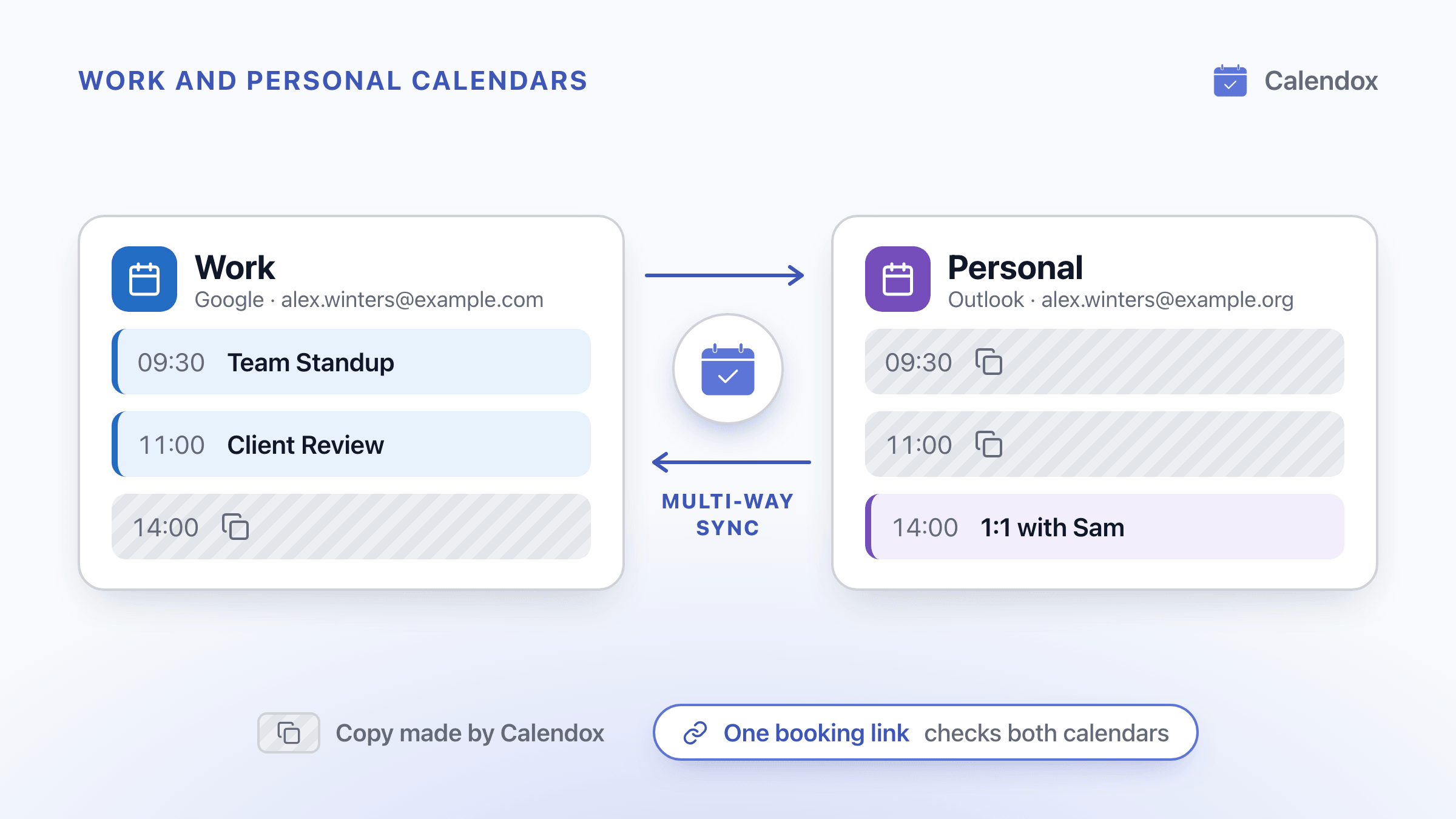
Work and personal calendars double-book you because each knows only its own events. Microsoft says a subscribed calendar link is read-only and can take more than 24 hours to update, and Outlook on the web counts only one personal account's primary calendar toward your work availability. A multi-way sync that can copy just the time, as private events, blocks it in every calendar, and one booking page can check both.
- Each calendar knows only its own events, so a time that's busy in one looks free in the other, to colleagues and to any booking page that checks only one of them.
- A subscribed calendar link is read-only. Microsoft says it can take more than 24 hours to update, and Google's help doesn't say how often it refreshes a calendar added from a URL.
- Microsoft says Outlook on the web can count one personal Outlook.com or Google account's primary calendar toward your work availability, and an admin can turn the option off. It works only from personal into work.
- A Calendox multi-way sync can copy only the time, as private events. After a first copy, new events, edits and deletions reach the other calendars within seconds.
- A Calendox booking page checks every imported calendar by default, across Google and Microsoft, and people booking you see only open slots.
Why does each calendar think you're free when the other is busy?
Because each calendar knows only its own events, so a time that's busy in one can still be booked in the other.
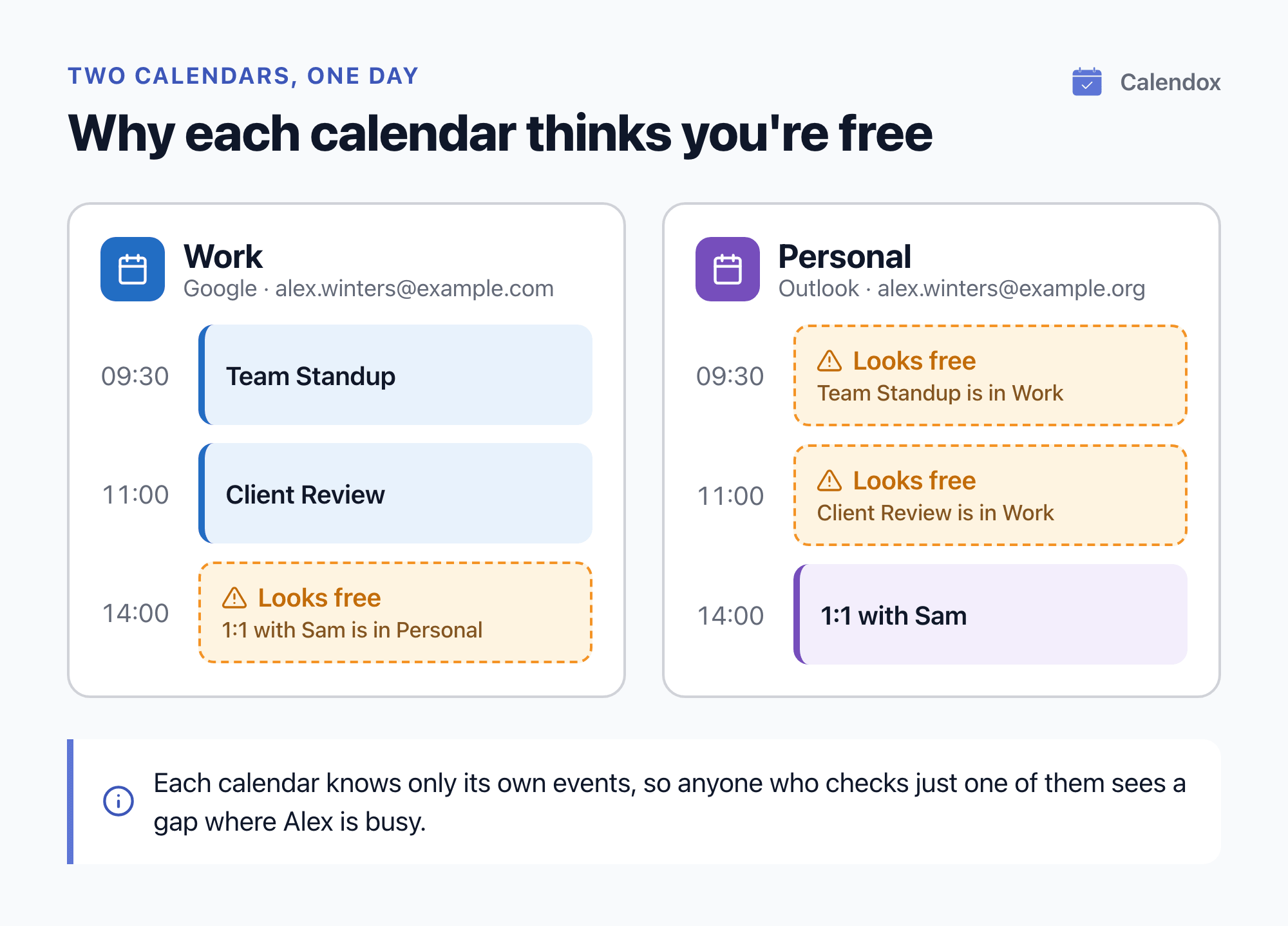
Take Alex Winters, whose Work calendar is in Google and whose Personal calendar is in Outlook:
- Team Standup at 09:30 and Client Review at 11:00 are in Work, so Personal shows both times as free.
- A 1:1 with Sam at 14:00 is in Personal, so Work shows 14:00 as free.
A colleague or a booking page that checks only one of them sees a gap where Alex is busy.
The fix: make each calendar block the other's time, privately, and share one booking link that checks both.
Where do the built-in workarounds stop?
Microsoft says a subscribed calendar link is read-only and can take more than 24 hours to update, and that Outlook on the web counts only one personal account's primary calendar toward your work availability. Google says its appointment schedules need an eligible Google Workspace or Google One plan to check secondary calendars.
Subscribing to a calendar link
- Read-only. Microsoft says published HTML and ICS calendars are read-only, and Google's secret iCal link also gives a read-only view.
- Slow to update. Microsoft says a subscribed calendar can take more than 24 hours to update, although Outlook.com should refresh about every 3 hours and Outlook on the web for work or school about every 6 hours.
- No interval in Google's help. Google's help doesn't say how often it refreshes a calendar added from a URL, and Google says only a public calendar can be added that way.
- Work accounts may not allow it. Microsoft says your organization's settings may make calendar sharing unavailable or limit it to people in your organization. Google says your admin may have changed your calendar's sharing settings, so the secret iCal link may be missing.
For more on both apps' options, see how to sync Outlook and Google Calendar both ways.
Adding your personal calendar in Outlook on the web
Microsoft says a work or school account can connect one Outlook.com or Google account in Outlook on the web, and its events then count toward your work availability unless you switch that off. It also says people checking your availability in the Scheduling Assistant see those events only as Tentative, Busy or Away, without the title or location.
Where it stops:
- Primary calendar only. Microsoft says events on the personal account's secondary calendars won't be shown.
- Added only to Outlook on the web. Microsoft says the feature adds only the personal calendar, and only there.
- Admins can block it. Microsoft's Exchange documentation shows an admin can stop users connecting a personal Outlook.com or Google calendar in Outlook on the web, so the option may be missing on your work account.
- One way. Your work meetings don't reach your personal calendar, so anything that checks only your personal calendar still sees you as free during them.
Adding a Gmail account to the Outlook apps
New Outlook for Windows and the Outlook mobile apps let you use a Gmail account alongside your Microsoft accounts. Microsoft says this syncs a copy of that account's email, calendar and contacts to the Microsoft Cloud. Microsoft's page doesn't say this counts toward your work availability. The feature it documents for that is the Outlook on the web option above.
Google Calendar appointment schedules
Google says appointment schedules can check your primary calendar and calendars you own, manage or subscribe to, but checking secondary calendars needs an eligible Google Workspace or Google One plan. If a schedule doesn't check your other calendars, Google says appointment times show up on your booking page even when you have a busy event.
How do you set up a sync that blocks the time in every calendar?
Connect every calendar to Calendox calendar sync once and put them all in one multi-way sync, which takes six steps:
- Start a trial. The 14-day trial needs no credit card.
- Connect each account. Connect each Google and Microsoft account you use, work and personal. You connect each one through Google's or Microsoft's own sign-in, and Calendox never sees your password.
- Personal Microsoft accounts and work or school Microsoft 365 accounts both work, and an account can differ from the one you sign in to Calendox with.
- See connect a Google calendar and connect a Microsoft calendar.
- Import the calendars. Only the calendars you import count toward your plan, not the accounts you connect.
- Create one multi-way sync. Put all the calendars in one multi-way sync, because a calendar can belong to only one sync, whatever that sync's status. Mixing Google and Outlook calendars is fine.
- Choose what each copy carries. Under Sync Properties, untick every field to copy only the time, and turn on Private Events and Disable Reminders (see the next section).
- Let the first copy finish. The sync shows Pending while it copies your existing events, and large calendars take longer (sync status). After that first copy, new events, edits and deletions reach the other calendars within seconds.
A meeting added in one calendar then blocks the time everywhere.
How do you keep personal details private from your employer?
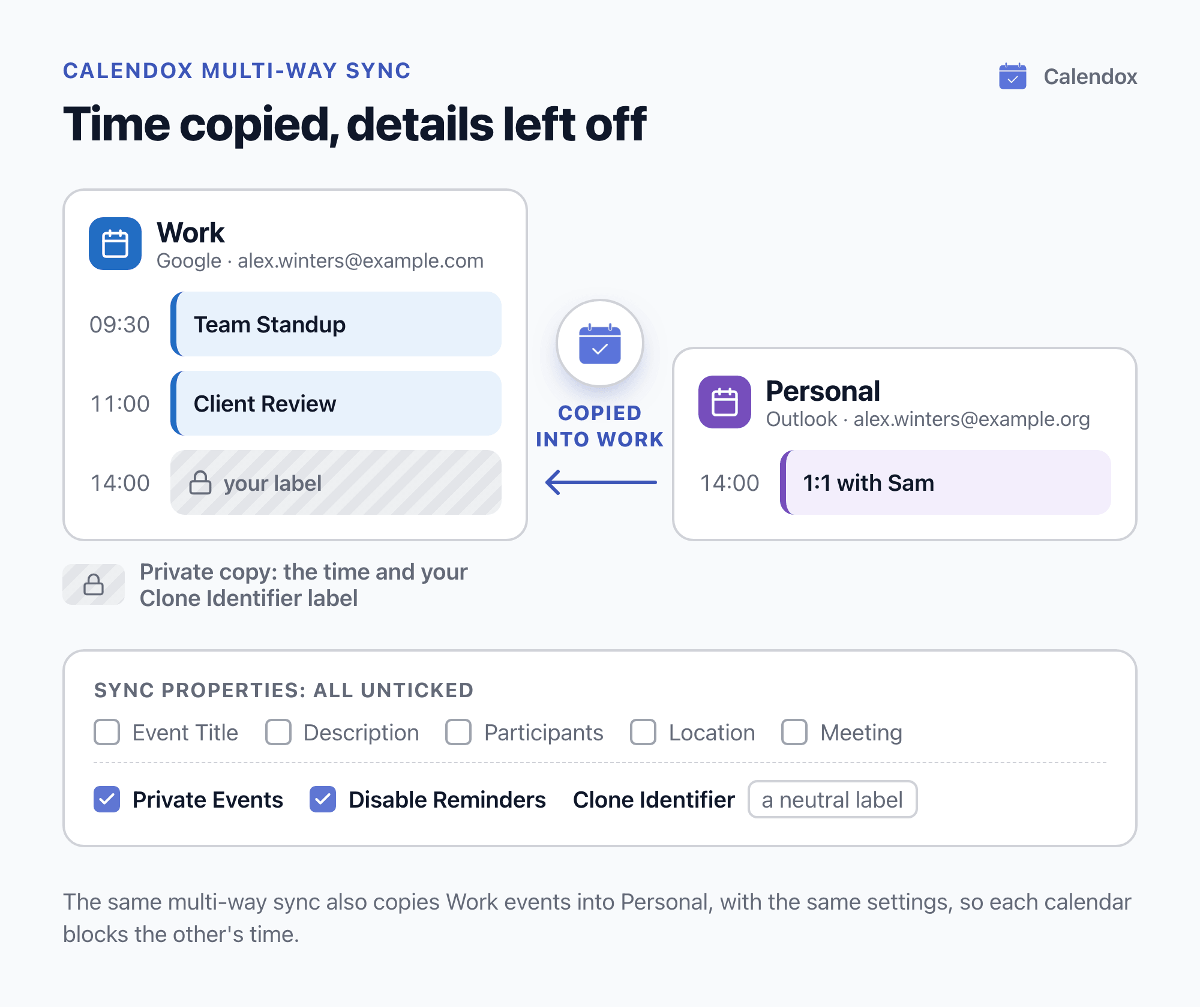
Copy only the time, and create the copies as private events. When you create the sync, you choose which fields each copy carries: event title, description, participants, location and meeting link. Unticked fields are left off the copies, so copying only the time blocks it without the details.
Three more settings help:
- Clone Identifier. Each copy carries the Clone Identifier label you choose, so pick a neutral one.
- Private Events. You can create the copies as private events, which hides their details from others who can see the target calendar.
- Disable Reminders. Creating copies without reminders means you're notified once, by the original.
In a multi-way sync, the same Sync Properties, Private Events and Disable Reminders settings apply to the copies made in every direction, so work details stay off your personal calendar too.
Private events have exceptions:
- Microsoft says most people you share an Outlook calendar with see only the time of items marked private, but delegates you allow to view private items can see the details.
- Google says a private event hides its details from everyone except you and people with "Make changes to events and see event details" access or higher. Everyone else sees a block labeled "Busy".
Calendox doesn't store event titles, descriptions or locations. They pass through to Google or Microsoft (how Calendox protects your data).
How do you share one booking link that checks every calendar?
Calendox booking pages check free/busy across your connected calendars from both Google and Microsoft, so you can share one booking link for both calendars.
A slot is offered only when it falls inside your weekly hours and no checked calendar is busy, after your buffers, minimum notice, booking window and daily or weekly caps (availability and scheduling):
- By default a booking page checks every calendar you've imported, whether or not it is part of a sync. You can limit it to specific calendars under Calendars → Conflict checking.
- Existing bookings on the page also block their slot.
- People booking you only ever see open slots, never event titles, attendees or any other calendar contents.
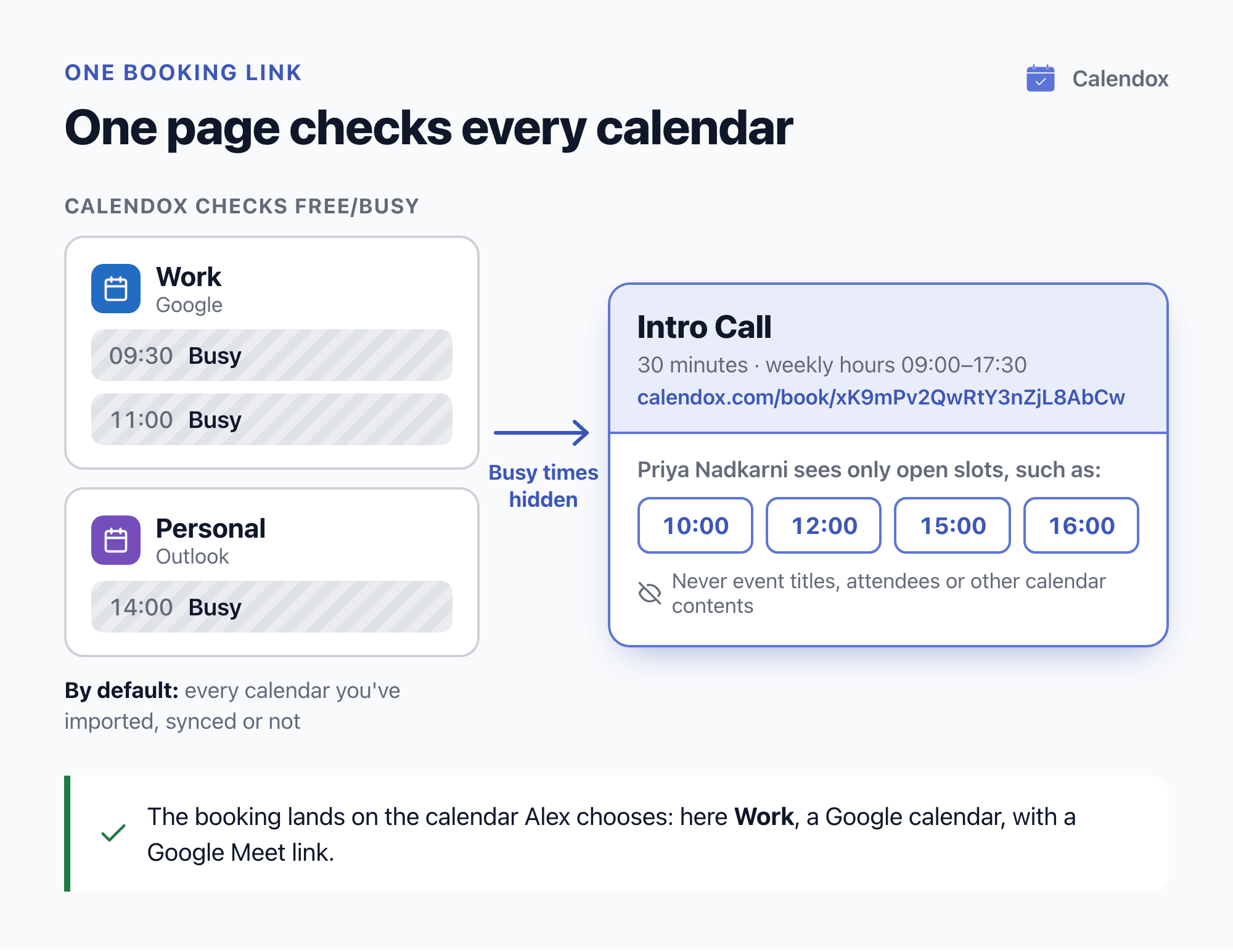
Confirmed bookings land on the calendar you choose, with a meeting link if you want one (meeting links):
- Google Meet on a Google calendar;
- Microsoft Teams on a Microsoft work or school calendar;
- Zoom on any calendar once Zoom is connected.
Which plan covers one job, or two?
One work and one personal calendar fit Basic; two jobs plus a personal calendar is three calendars, which needs Standard.
| Your calendars | Plan | What the plan includes |
|---|---|---|
| One job and a personal calendar | Basic | 2 connected calendars, 2 syncs, 2 booking pages |
| Two jobs and a personal calendar | Standard | 5 connected calendars, 5 syncs, unlimited booking pages |
Multi-way sync is included on every paid plan, Basic included, and during the trial. Every calendar you import counts toward your connected-calendar limit, including one you import only for conflict checking, and every sync uses one sync slot.
Current prices for each plan are on the pricing page, and plans and billing compares every limit.
What else do people ask about syncing work and personal calendars?
Will my employer see my personal appointments?
Your work calendar gets the time, not the details, if you copy only the time and create the copies as private events. Each copy still carries your Clone Identifier label. In Outlook, delegates allowed to view private items can see the details, and in Google so can people with "Make changes to events and see event details" access or higher (keeping personal details private).
Can I sync calendars from two different employers?
Yes, if both are Google or Microsoft calendars you can edit, and both organizations let you connect the app. View-only calendars are marked Read-only, and Microsoft group or shared calendars owned by another mailbox are marked Not supported. Neither can be synced. A calendar can be imported only once across all of Calendox (sync protections), and each Google or Microsoft account can be connected to only one Calendox account at a time (connect a Google calendar, connect a Microsoft calendar).
What if my work account needs an administrator's approval?
Ask your IT administrator to approve Calendox. Microsoft says users can approve apps themselves by default, but admins can restrict or turn off user consent. Google says users can use third-party apps by default, but Workspace admins can block third-party apps they haven't approved and limit which apps can access Calendar data.
Does the booking page check calendars I haven't synced?
Yes. By default it checks every calendar you've imported, synced or not. You can limit it under Calendars → Conflict checking.
Will I get two reminders for every meeting?
Not if you turn on Disable Reminders. You're then notified once, by the original.
Sources
- Microsoft Support: Import or subscribe to a calendar in Outlook.com or Outlook on the web
- Microsoft Support: Share your calendar in Outlook on the web
- Microsoft Support: Show personal events on your work or school calendar
- Microsoft Learn: Set-OwaMailboxPolicy
- Microsoft Support: Sync your account in Outlook to the Microsoft Cloud
- Microsoft Support: Make an appointment or meeting private
- Microsoft Learn: Configure how users consent to applications
- Google Calendar Help: Subscribe to someone else’s calendar
- Google Calendar Help: Sync your calendar with computer programs
- Google Calendar Help: Change event & task visibility on your calendar
- Google Calendar Help: Check your availability across calendars
- Google Workspace Admin Help: Control which apps access Google Workspace data
Related reading
Sync Outlook and Google Calendar Both Ways
What Outlook and Google Calendar's built-in options do, where Microsoft and Google say each one stops, and how to keep both calendars in two-way sync.
Calendar Sync Between Two Microsoft 365 Tenants
What two Microsoft 365 tenants can share, how the EWS shutdown starting October 1, 2026 affects it, and how to keep events synced across tenants.